
Using Sound Mode Effects (Hall Simulator/Reverb and Surround)
Each time the “SOUND MODE” button is touched, effects are switched on and off in turn.
Hall Simulator/Reverb
This effect adds reverberation to the sound.
Hall Simulator
This effect simulates the different acoustic characteristics of world-famous concert halls and buildings.
Reverb
This reproduces the reverberation of a given space, such as a room or a hall.
Surround
Surround sound (spread effect) is applied to the output sound from the Digital Piano speakers.
Turning on/off Hall Simulator/Reverb and Surround
-
Touch the “SOUND MODE” button.
-
Each time you touch the button, the indicators above the button will become lit or unlit as shown below.
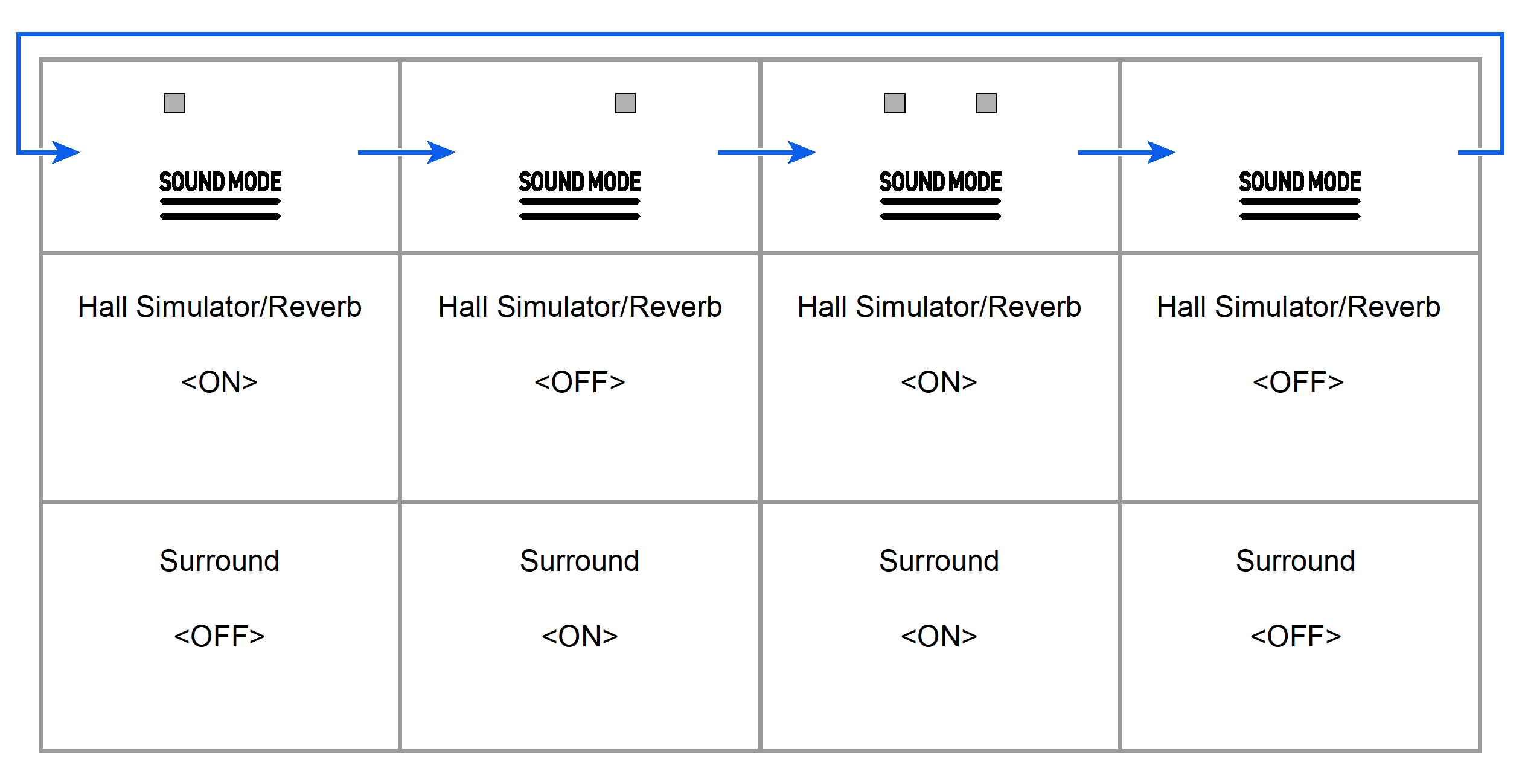
-
Selecting Hall Simulator/Reverb Presets
-
While holding down the “SOUND MODE” button, press any one of the A0 to C{2 keys.
Selecting a Setting Value Directly (operation type A)

-
Default value: Tone
|
Keyboard |
Setting Value |
Setting Details |
|
A0 |
Tone |
The type of hall simulator/reverb that best matches the current tone is automatically set. |
|
B}0 |
Salon |
The various types of hall simulator. For example, “N.Y. Club” simulates the acoustics of a Manhattan music club, while “Berlin Hall” is an arena-style classical concert hall in Berlin. |
|
B0 |
N.Y. Club |
|
|
C1 |
Scoring Stage |
|
|
C{1 |
Opera Hall |
|
|
D1 |
Viennese Hall |
|
|
E}1 |
L.A. Hall |
|
|
E1 |
Berlin Hall |
|
|
F1 |
British Stadium |
|
|
F{1 |
Room 1 |
Room-type reverb |
|
G1 |
Room 2 |
|
|
A}1 |
Room 3 |
|
|
A1 |
Large Room |
|
|
B}1 |
Hall 1 |
Small hall-type reverb |
|
B1 |
Hall 2 |
|
|
C2 |
Hall 3 |
|
|
C{2 |
Stadium |
Stadium-type reverb |
Adjusting Applied Hall Simulator/Reverb
-
While holding down the “SOUND MODE” button, press the corresponding key.
Using the +/– Keys to Raise or Lower the Setting Value by 1 (operation type B)

-
Setting value: 0 (no effect) to 42 (maximum depth)
A separator tone sounds when the set value becomes a multiple of 10.
|
Keyboard |
Setting |
|
D2 |
Reduces the depth of effect applied to built-in sound sources by 1 (–) |
|
E}2 |
Increases the depth of effect applied to built-in sound sources by 1 (+) |
|
D2+E}2 |
Resets the depth of effect to the default setting for built-in sound sources (default value: 21) |
|
E2 |
Decreases the depth of effect on the wireless audio input signal by 1 (–) |
|
F2 |
Increases the depth of effect on the wireless audio input signal by 1 (+) |
|
E2+F2 |
Resets the depth of effect to the default setting for the wireless audio input signal (default value: 0) |
Selecting Surround Presets
-
While holding down the “SOUND MODE” button, press one of the F{2 to A}2 keys.
Selecting a Setting Value Directly (operation type A)

-
Default value: Surround Type 2
|
Keyboard |
Setting Value |
Setting Details |
|
F{2 |
Surround Type 1 |
Light effect |
|
G2 |
Surround Type 2 |
Medium effect |
|
A}2 |
Surround Type 3 |
Heavy effect |