
Using the Feel Sync Function While Playing Demo Songs
You can enjoy playing the keyboard using the Feel Sync function while the demo songs built into the Digital Keyboard play back. Refer to “Demo Song List” for the song titles of the demo songs.
About the demo modes
There are two ways to play demo songs: Feel Sync demo mode and standard demo mode. The features of each are as follows.
Feel Sync demo mode
This is the demo mode with the recommended settings for experiencing the appeal of the Feel Sync function.
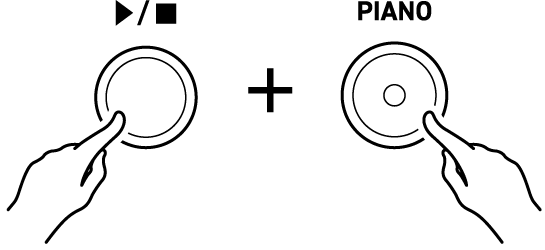
Press the a and PIANO buttons at the same time to enter Feel Sync demo mode. The demo songs 1–5 play back repeatedly.
In this mode:
-
The Feel Sync function is always on (the FEEL SYNC button blinks).
-
Tones used for the keyboard are automatically set according to the demo song.
-
You can play the keyboard and select songs, but operations that change the Digital Keyboard’s settings (such as changing tones and volume balance) are limited.
Standard demo mode
This demo mode lets you experience the Feel Sync function with any settings.
Pressing the a button alone will enter the standard demo mode and play one selected demo song.
In this mode:
-
The volume balance between the song and keyboard performance can be adjusted.
-
A precount can be played before playback begins.
-
You can select the range of keys for which the Feel Sync function is enabled.
-
Various settings can be changed, including the tone.
-
You can also turn the Feel Sync function on and off at any time by pressing the FEEL SYNC button.
Playing the keyboard to the rhythm of the song in Feel Sync demo mode
In Feel Sync demo mode, you do not need to set the tones and other settings yourself. With the recommended settings for the demo song, you can immediately try out the performance experience using the Feel Sync function.
-
Press the a and PIANO buttons at the same time.
-
This enters Feel Sync demo mode. Demo song number 1 will start playing.
-
The FEEL SYNC button LED and the LED for the song number currently playing will blink, and all other LEDs will be off.
-
-
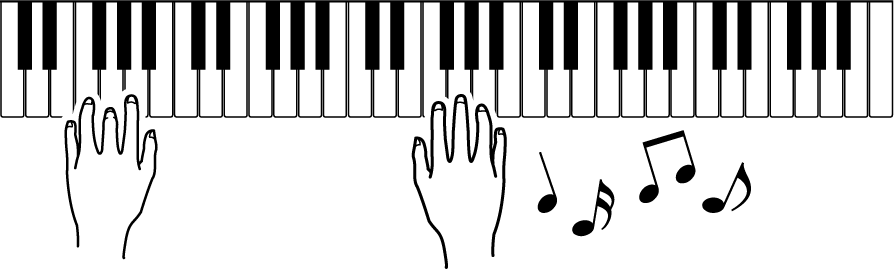
Play the keyboard.
-
Play freely along with the rhythm. Chords and single notes played on the keyboard are corrected by the Feel Sync function to match the chord progression of the song.
-
When the end of the song is reached, playback of the next demo song begins.
-
-
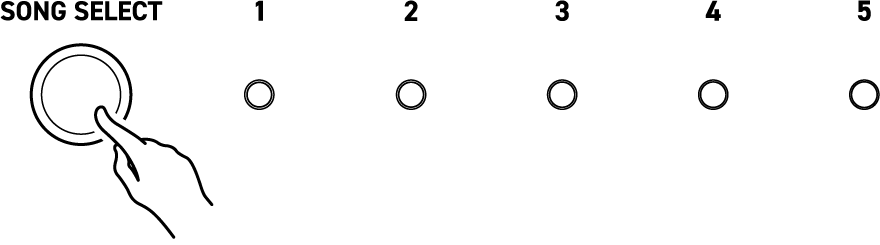
To switch between demo songs, press the SONG SELECT button to light the LED corresponding to the number of the song you want to play.
-
Refer to “Demo Song List” for the song titles of song numbers 1–5.
-
-
To end playback of the demo song, press the a button.
Playing the keyboard with the rhythm of the song in standard demo mode
When using the Feel Sync function in standard demo mode, you can change the settings of the Digital Keyboard, such as by selecting the tones you want to play.
-
Make sure the Feel Sync function is turned on.
-
If the FEEL SYNC button is off, press the button to turn it on.
-
-
Press the SONG SELECT button to light the LED corresponding to the number of the song you want to play.
-
Refer to “Demo Song List” for the song titles of song numbers 1–5.
-
-
If necessary, refer to the following to change the settings of the Digital Keyboard.
-
“Making a precount sound before the demo song playback starts”
-
“Selecting the range of keys for which the Feel Sync function is enabled”
-
“Adjusting the Volume Balance Between the Song and Keyboard Performance” (it is recommended to adjust the volume while playing the keyboard in step 5)
-
Press the a button to start playing the demo song.
-
Play the keyboard.
-
Play freely along with the rhythm. Chords and single notes played on the keyboard are corrected by the Feel Sync function to match the chord progression of the song.
-
You can switch between songs using the same operation as in step 2 or change settings using the operation in step 3, even while a song is playing.
-
When the end of the song is reached, playback stops. To stop playback while a song is playing, press the a button.
-
Changing the tempo of the demo song
The tempo value (beats per minute) of the demo song can be set between 20 and 255.
-
Press the SONG SELECT button to light the LED corresponding to the number of the song you want to play at a different tempo.
-
Press and hold the FUNCTION button, and press the E3 key.
-
Do not release the FUNCTION button until step 3.

-
-
Use the C4 to E5 keys to change the tempo value.
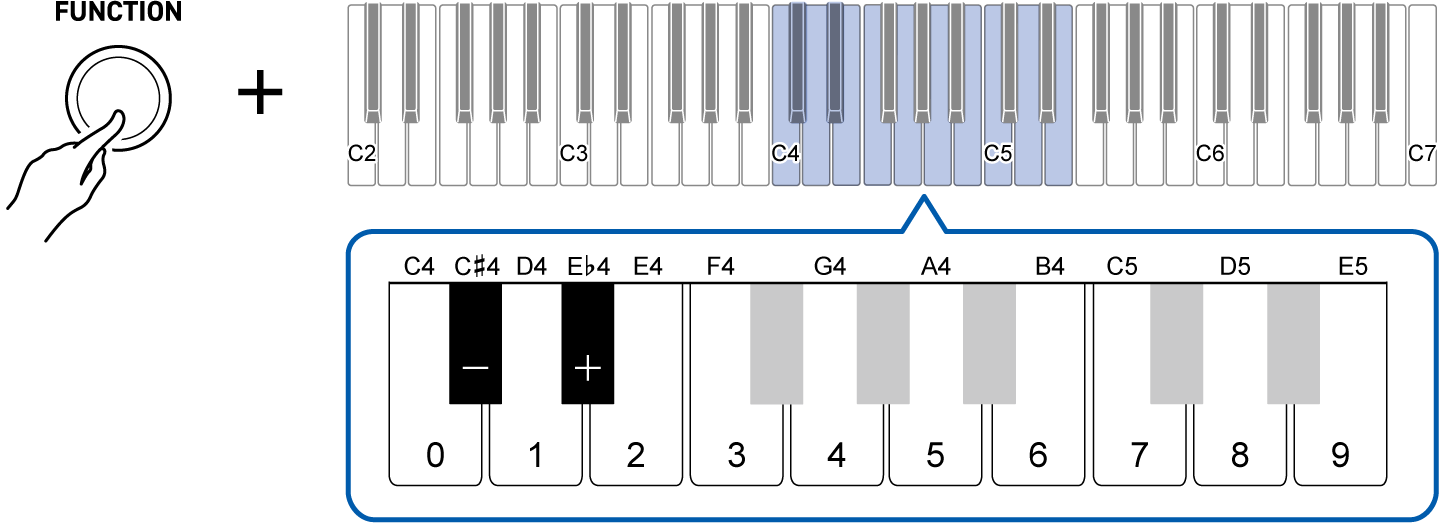
To do this:
Operate as follows:
Lower the tempo by 1
Press the C{4 (–) key.1
Increase the tempo by 1
Press the E}4 (+) key.1
Input the tempo directly
Use the C4 (0) to E5 (9) keys to enter a three-digit value.
For 20, press “0-2-0”. For 120, press “1-2-0”. The tempo changes when the third digit is entered.2
Restore the default value
Press the C{4 (–) key and the E}4 (+) key at the same time.
-
Press and hold to change the value continuously.
-
Even if you have only entered two digits or less, releasing the FUNCTION button will confirm the value already entered (e.g., if you press “7-2” and release the FUNCTION button, the tempo value will be 72).
-
-
To exit the settings, release the FUNCTION button.
-
To start the demo song at the changed tempo, press the a button.
Making a precount sound before the demo song playback starts
You can make an audible countdown play to indicate when the demo song playback starts, or you can make the LED blink without playing a countdown sound.
-
Press and hold the FUNCTION button, and press the C2 key.
-
Do not release the FUNCTION button until step 2.

-
Each time the C2 key is pressed, the setting changes in the order shown in the table below. A notification tone signals which setting you have switched to after you press a key.
Notification tone
Setting
Details
High note plays once
On
A precount tone will sound one measure before the demo song starts playing.
High note plays twice
Silent
The SONG SELECT LED of the currently selected song blinks from one measure before the demo song starts playing.
Low note plays once
Off (default setting)
There is no precount sound or LED blinking before the demo song plays back.
-
-
To exit the settings, release the FUNCTION button.