
Selecting a Tone
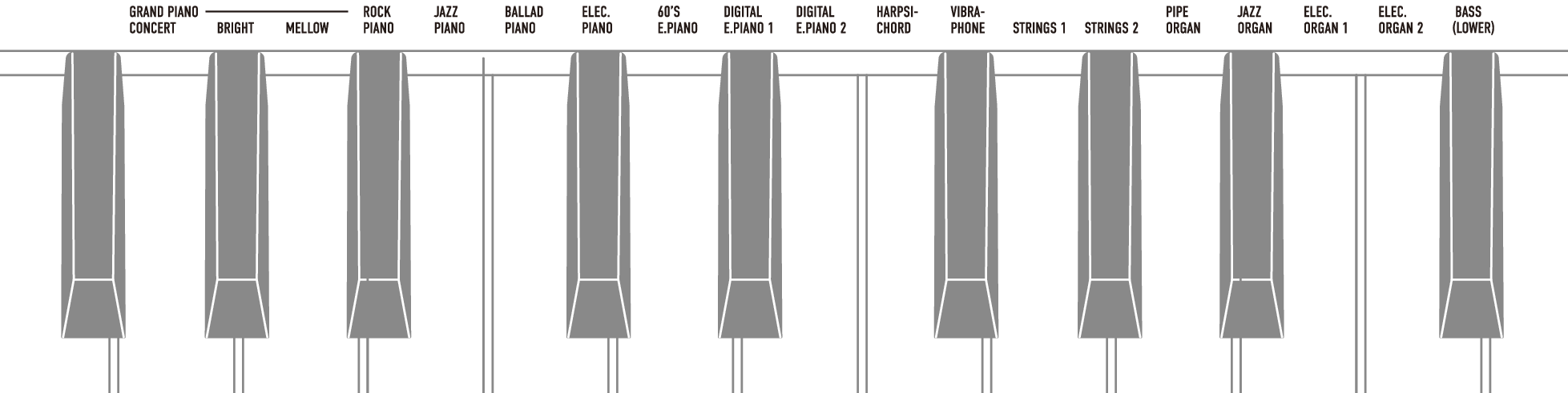
The Digital Piano has 18 built-in tones for all keys, including a grand piano tone scheme, and one bass tone scheme dedicated to the bass section.
-
The tone names are marked above the keys.
For more information, see “Using the Keyboard to Select a Tone”.
-
In addition to selecting a single tone to play across the keyboard, two tones can be played on top of each other (Layer), and the bass tone can be assigned to the bass section.
For details, see “Layering Two Tones (Layer)” and “Splitting Left and Right Keys (Split)”.
Grand Piano Tone Features
The list below shows grand piano tones. These tones are both powerful and strong, with a wide range of dynamic expression, with an elegant and glossy sound that is loved by many pianists.
|
Tone name |
Characteristic |
|
GRAND PIANO CONCERT |
A full concert grand piano tone with dynamic and natural tone changes. |
|
GRAND PIANO BRIGHT |
A bright and clear piano tone. |
|
GRAND PIANO MELLOW |
A warm and calm piano tone. |
Selecting a Single Tone
Using the Keyboard to Select a Tone
-
Hold down the “GRAND PIANO” button and press one of the G3 to C{5 keys.
Selecting a Setting Value Directly (operation type A)
-
See “Tone list” for the tones available for each key.

-
Selecting Tones in the Order of the Tone List
-
While holding down the “GRAND PIANO” button, press the B2 or C3 key.
Using the +/– Keys to Raise or Lower the Setting Value by 1 (operation type B)

Key
Setting
B2
Selects the previous tone (–)
C3
Selects the next tone (+)
Using the Touch Button to Select a Tone
-
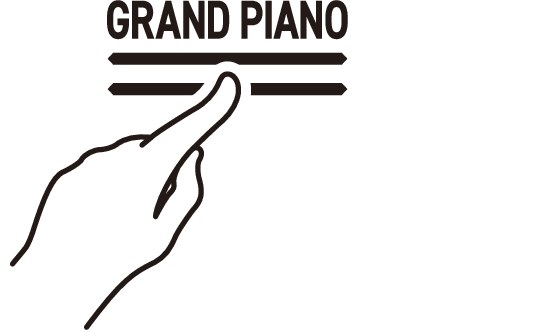
Touch the “GRAND PIANO” button.
-
The GRAND PIANO CONCERT tone is selected.
-
Layering Two Tones (Layer)
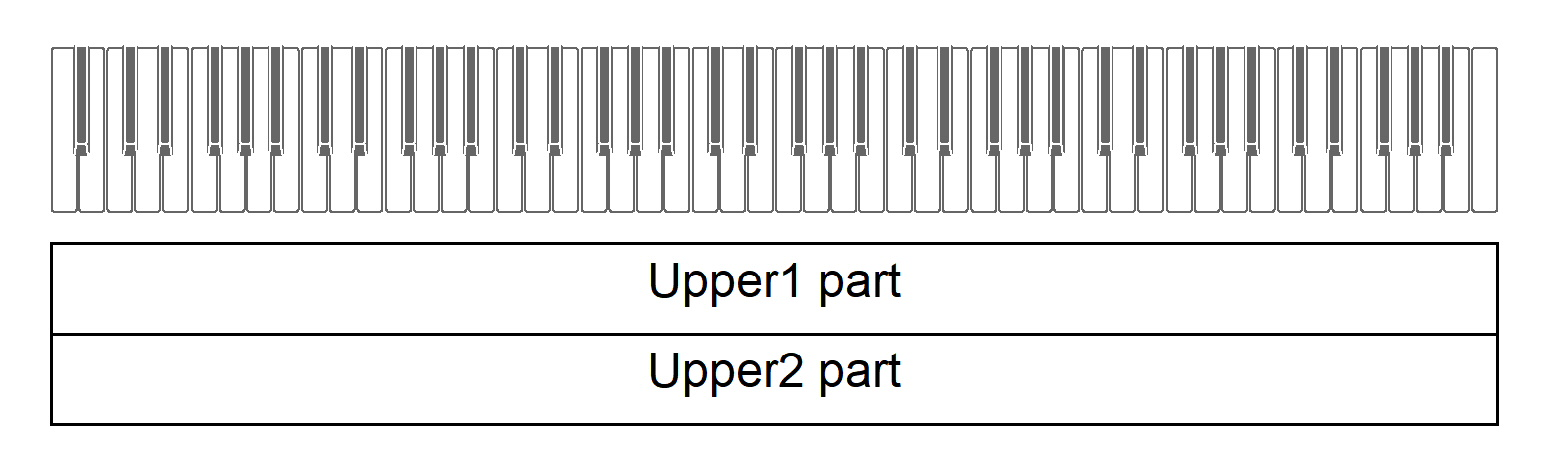
You can have two tones sounding simultaneously when playing the keyboard. Since the tones are layered over each other, this feature is called Layer. The first tone selected is called the Upper1 part tone and the second tone selected is called the Upper2 part tone. When [Layer] is set to <On>, Upper1 and Upper2 parts will both sound at the same time.
Turning Layer On/Off
-
While holding down the “GRAND PIANO” button, press the C7 key (Layer).
Switching On/Off or Changing Setting Values Using a Single Key (operation type D)

-
Default value: Off
|
Setting Value |
Setting Details |
|
Off |
Turns Layer off. |
|
On |
Turns Layer on. |
Selecting the Upper2 Part Tone
You can select the Upper2 part tone when [Layer] is set to <On>.
-
Turn [Layer] <On>.
-
While holding down the “GRAND PIANO” button, press one of the G3 to C5 keys to select the tone for the Upper2 part.
Selecting a Setting Value Directly (operation type A)

Changing the Upper1 Part Settings
You can adjust the Upper1 part volume and perform octave shift.
For details, see “Changing the Upper1 Part Settings” and “Shifting Upper1 Part by an Octave”.
Changing the Upper2 Part Settings
You can adjust the Upper2 part volume and perform octave shift.
For details, see “Changing the Upper2 Part Settings” and “Shifting Upper2 Part by an Octave”.
Splitting Left and Right Keys (Split)
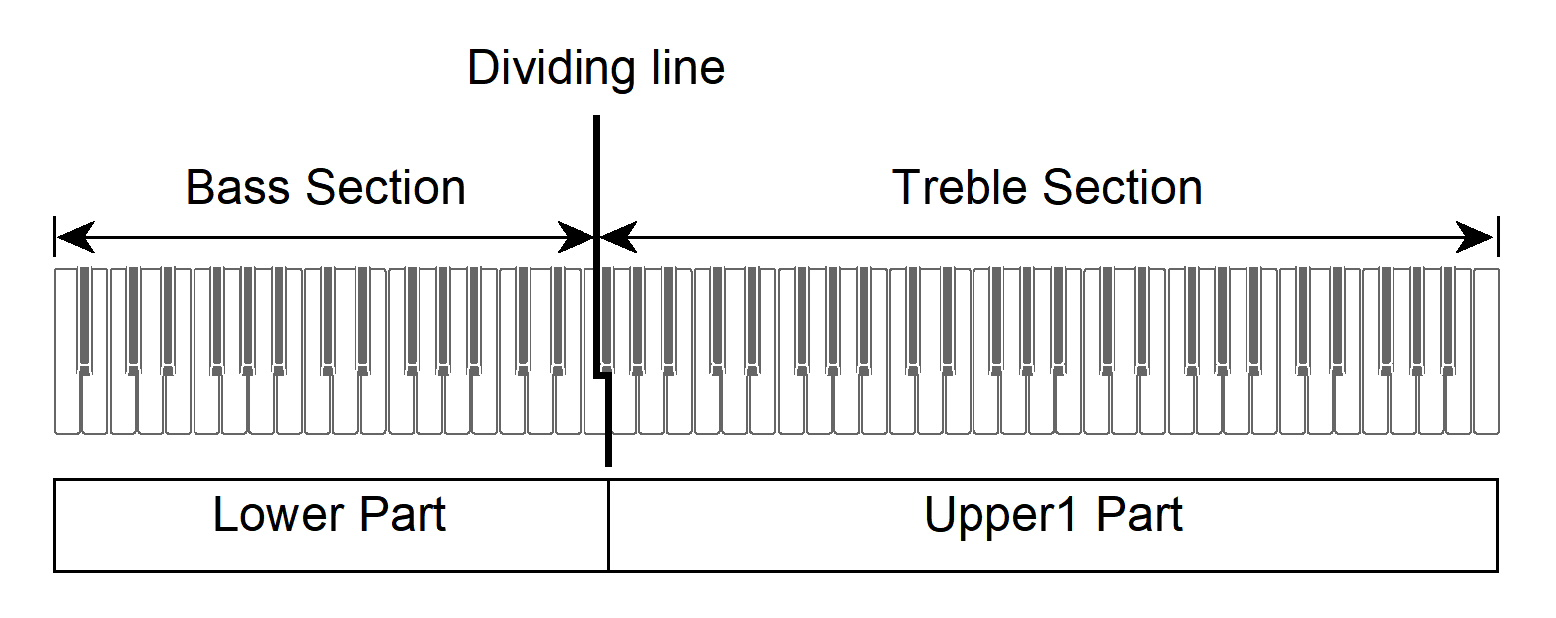
You can select a tone dedicated to the bass section <BASS (LOWER)> to play bass notes in the bass section of the keyboard. This usage is called Split, since the entire keyboard is split into left and right. The tone of the bass section is called Lower Tone Section, and the tone of the treble section is called Upper1 Tone Section.
Selecting a Tone Exclusively for the Bass Section
-
While holding down the “GRAND PIANO” button, press the C{5 key (BASS).
Selecting a Setting Value Directly (operation type A)

-
Only the bass section of the keyboard (left side) will have the BASS tone, while the treble section (right side) will remain the same as the previously selected tone.
-
Selecting a tone other than the BASS tone will cancel the split state.
-
Changing the Lower Part Settings
You can change the volume and other settings for the Lower Part.
For more information, see “Changing the Lower Part Settings”.
Changing the Upper1 Part Settings
You can adjust the volume and perform Upper1 octave shift.
For details, see “Changing the Upper1 Part Settings” and “Shifting Upper1 Part by an Octave”.