
Registering the Camera on the Gʼz EYE App
To use the camera with a Bluetooth wireless technology capable smartphone, perform the procedure below to register the camera on the Gʼz EYE app.
- After registering the camera on the Gʼz EYE app, turning on the camera will cause it to connect automatically with the smartphone using Bluetooth wireless technology.
-
1.
 Start up “Gʼz EYE” app.
 -
- If this is the first time you are starting up the app, a “LICENSE AGREEMENT” and “Privacy Policy” will appear. Tap “Agree”. This will display a screen that explains app functions. You can scroll through the information by swiping display from left to right.
-
2.
Tap “Start”. -
- If the Gʼz EYE top screen appears when you start up the app, tap the following items in sequence: “Setting”
 “App Settings” tab “Camera Registration”.
- If the Gʼz EYE top screen appears when you start up the app, tap the following items in sequence: “Setting”
-
3.
 Make sure that the camera is turned off.
 -
If the camera is on, hold down the [POWER] button for about two seconds to turn it off.
-
4.
Hold down the [POWER] button for at least six seconds. -
The [STATUS] lamp will light amber and the name of the camera to be registered on the Gʼz EYE app will appear on the smartphone display.
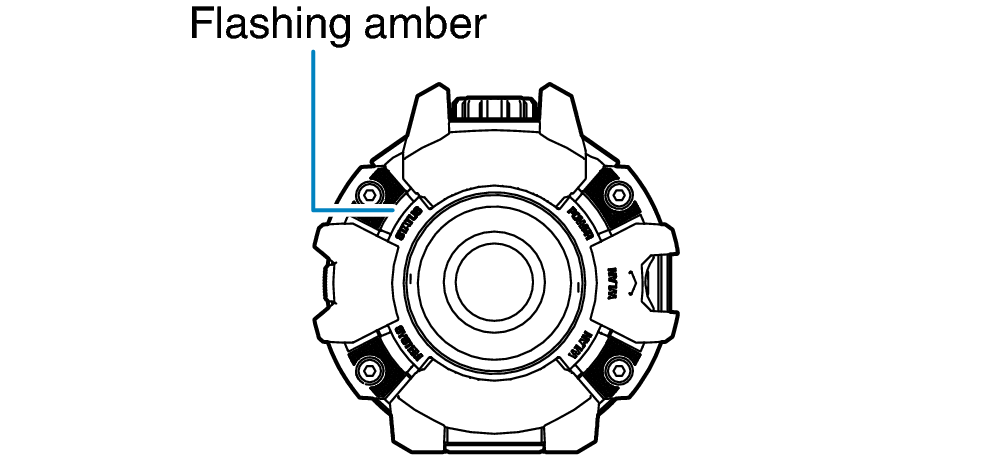
-
5.
Tap the name of the camera to be registered. -
This establishes a Bluetooth wireless technology connection between the camera and smartphone.
-
6.
Tap “OK”. -
This completes the registration procedure.
-
7.
Tap “OK”. -
This causes the Gʼz EYE app top screen to appear, with “Bluetooth” displayed in red.
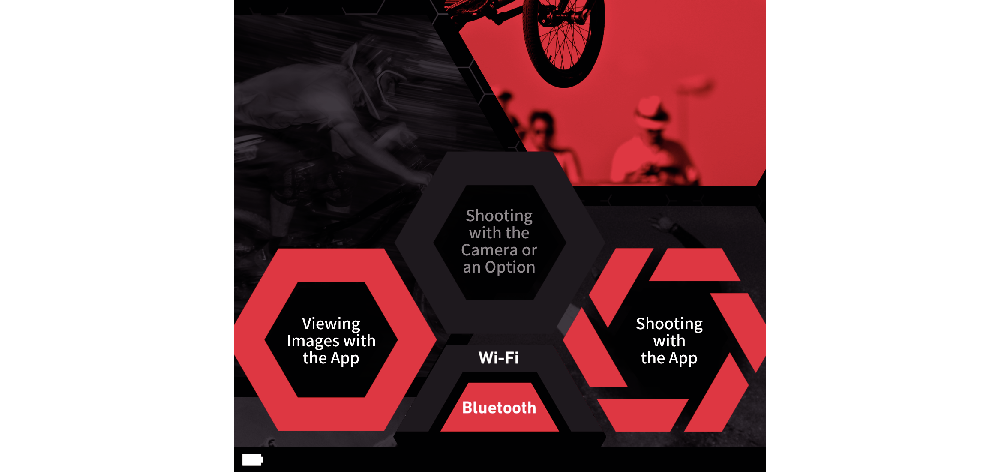
- Next, establish a wireless LAN connection between the camera and smartphone.
 Top of page