
Establishing a Wireless LAN Connection
Use the procedure below to establish a wireless connection between the camera and a smartphone.
If this is the first wireless LAN connection with the camera or if there is no Bluetooth wireless technology connection with the camera
-
1.
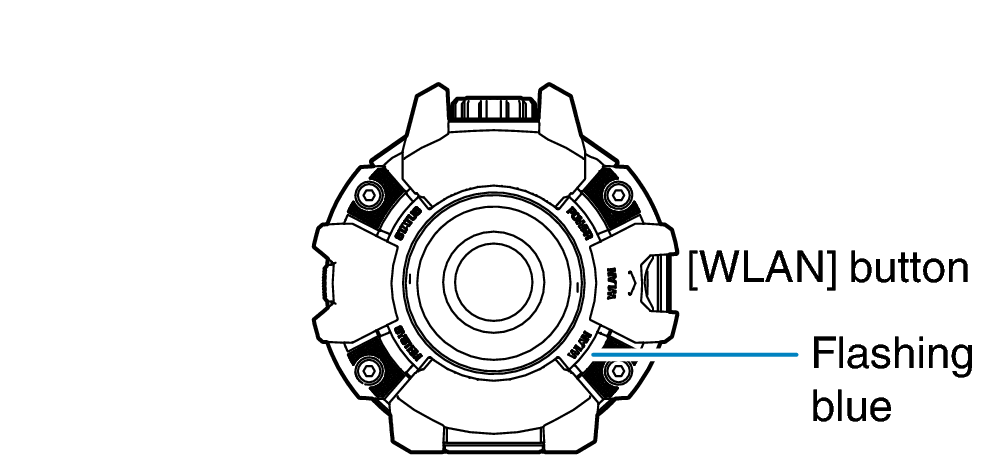
 Press the [WLAN] button.
 -
This turns on the camera and starts up its wireless LAN.
-
2.
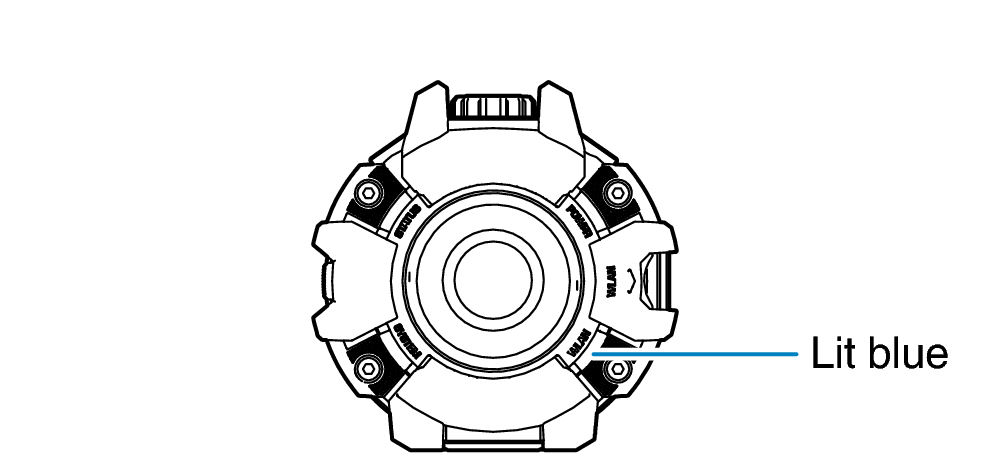
 On the smartphone’s Wi-Fi settings screen, select the camera’s SSID and input the password.
 -
This establishes a wireless LAN connection between the camera and smartphone.
Camera SSID and Password
The SSID is provided on a sheet ([Important] About the camera’s SSID) packed with the camera.
You can find the initial default password in the camera’s user’s guide.
If you have already established a wireless LAN connection while connected with the camera using Bluetooth wireless technology
-
1.
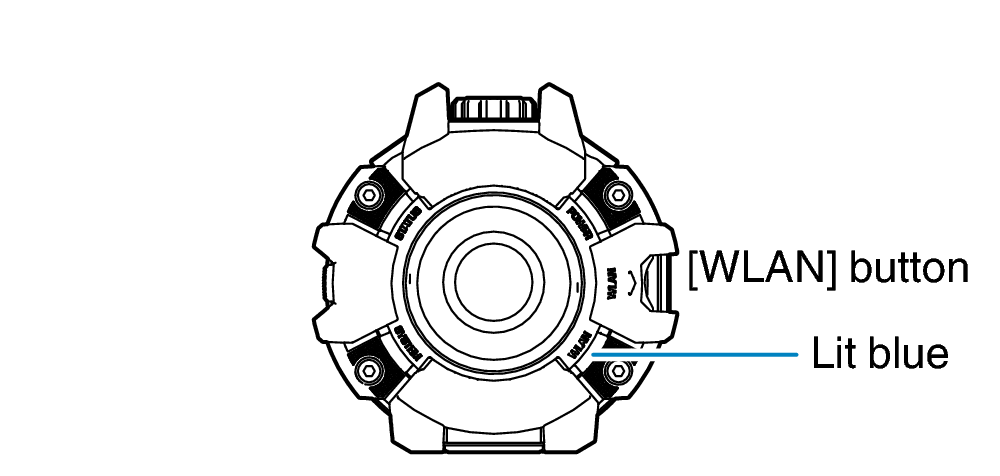
Press the [WLAN] button. -
This turns on the camera.
-
2.
Start up “Gʼz EYE” app. -
3.
At the bottom of the top screen, tap “Wi-Fi”. -
This starts up the camera’s wireless LAN. After a short while, a wireless LAN connection will be established between the camera and smartphone.
 Top of page