Viewing Altitude Records
You can use the Altitude Record Recall Mode to view manually recorded and auto recorded data.
Viewing Saved Data
-
Enter the Altitude Record Recall Mode.
-
Use (A) and (C) to display the data you want to view.
This displays a record of data recorded in the Altimeter Mode.
Holding down (A) or (C) scrolls at high speed.
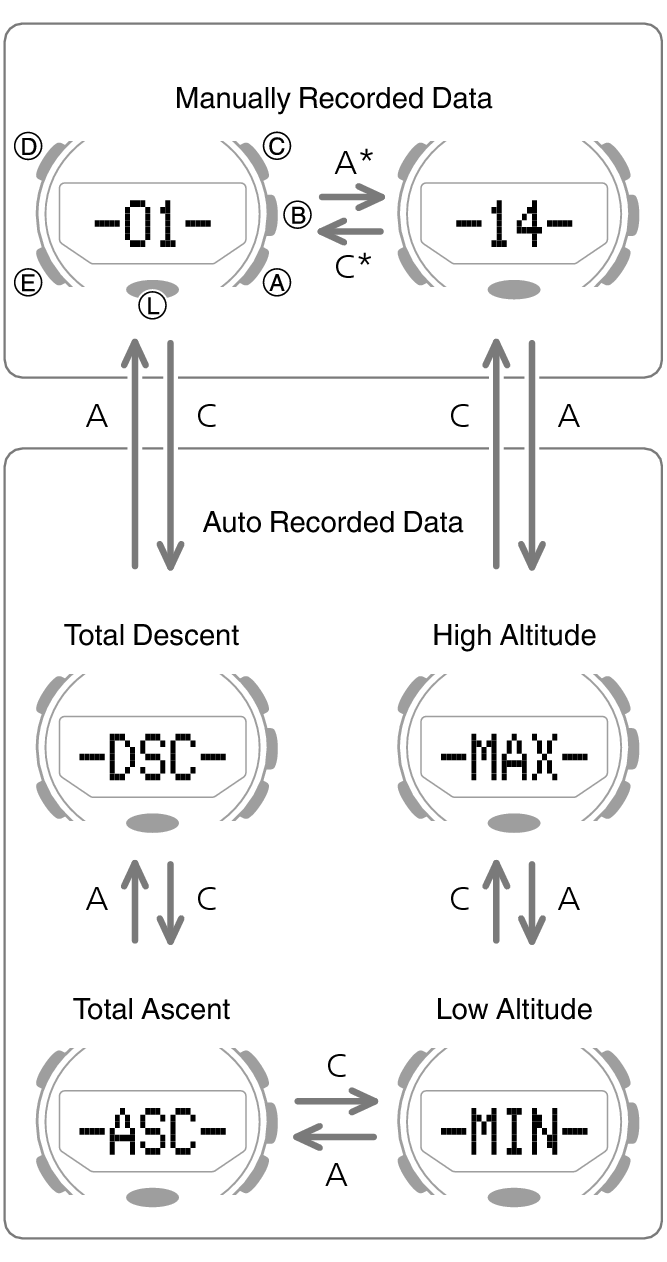
Each press of a button scrolls to the top screen of the next manually recorded data record. There can be up to 14 records in memory, numbered from 1 ([-01-]) to 14 ([-14-]).
Note
If there is no data left in memory due to a data delete operation, error, or some other reason, [- - - -] or [0] will appear on the display.
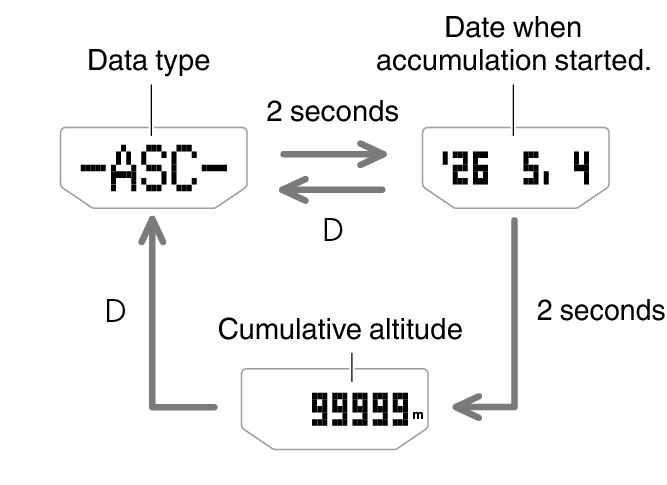
If the cumulative ascent (ASC) or cumulative descent (DSC) value exceeds 99,999 m (327,995 feet), it will revert to 0 and continue from there.
Pressing (D) returns to the top screen (record number, DSC, ASC, MAX, or MIN) of the data that you are viewing.
Manually Recorded Data
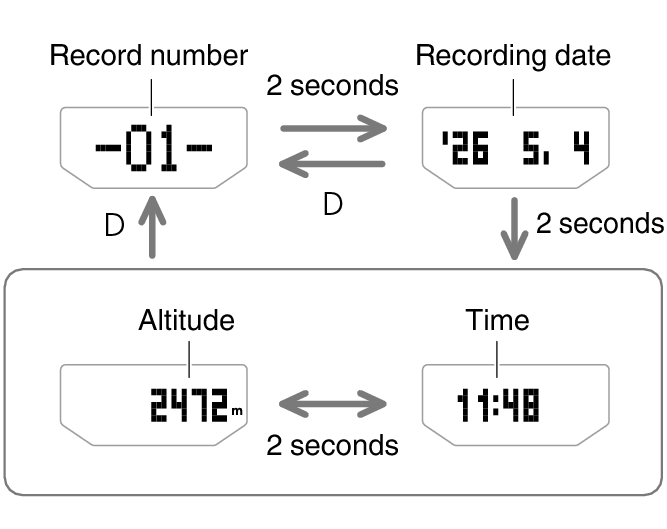
After displaying the top screen of a manually recorded data record (01 through 14), you can navigate between the record’s data as shown below.
Example: Manually recorded Record 01
Auto Recorded Data
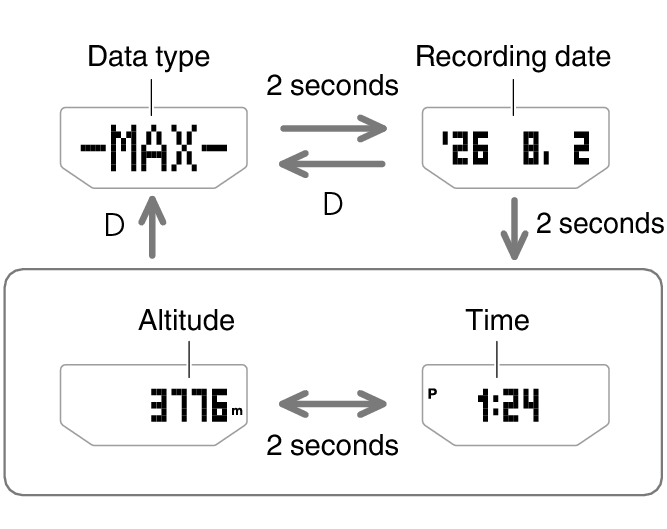
After displaying an auto recorded data record, you can navigate between the record’s data screens as shown below.
High altitude and low altitude
Example: High altitude
Cumulative ascent and cumulative descent
Example: Cumulative ascent
Deleting Data
Deleting a Particular Record
-
Enter the Altitude Record Recall Mode.
-
Use the (A) and (C) buttons to scroll through the top screens of the records and display the one you want to delete.
-
Hold down the (D) button for approximately two seconds. Release the button as soon as [CLEAR] stops flashing.
This deletes the record you selected.
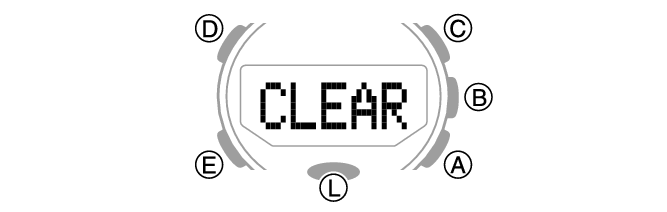
Note that holding down (D) for more than five seconds will delete all data.
Deleting All Records
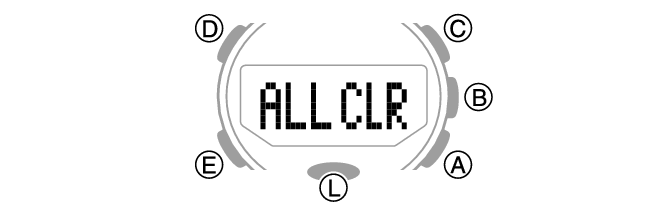
Hold down (D) for at least five seconds until [ALL CLR] stops flashing. This indicates that all data was deleted.