Linking with a Phone
While there is a Bluetooth connection between the watch and phone (Mobile Link), the watch’s current time setting is corrected automatically. You can also change the watch’s other settings.
Also, you can use the CASIO “CASIO WATCHES” app to view training records.
Note
For best results with this watch, use of the latest versions of the smartphone app and watch software is recommended.
This function is available only while the CASIO WATCHES phone app is running on the phone.
This section describes watch and phone operations. : Watch operation
 : Phone operation
Getting Ready
To use your watch in combination with a phone, you first need to pair them. Perform the steps below to pair the watch with a phone.
 Install the app on your phone
 Turn on location services
 Configure Bluetooth settings
 Pair the watch with your phone
Install the required app on your phone.
To use the watch with a phone, first tap one of the links below and install the “CASIO WATCHES” app on the phone.
Important!
To pair the watch, you must first install the “CASIO WATCHES” app and log in with a CASIO ID. If you already have a CASIO ID, use it to log in. If you do not have a CASIO ID, follow the on-screen instructions to register a new one and then use it to log in.
Turn on location services
Turn on your phone’s location services.
Note
For details about setting procedures, see your phone documentation.
Configure Bluetooth settings
Enable the phone’s Bluetooth.
Note
For details about setting procedures, see your phone documentation.
Pair the watch with your phone
-
Move the phone to be paired with close to (within one meter of) the watch.
-
Tap the “CASIO WATCHES” icon.
-
Tap the
 of the “My Watch” tab.
 -
Perform the operation shown on the phone screen to register the watch to the CASIO WATCHES phone app.
-
Enter the Timekeeping Mode.
-
Hold down (A) for at least two seconds.
-
Use (A) and (C) to move the pointer to [PAIRING].
-
Press (B).
-
Use (A) and (C) to move the pointer to [CONNECT].
-
Press (B).
-
When the watch you want to pair with appears, follow the instructions on the display to pair with it.
This displays the Timekeeping Mode setting screen.
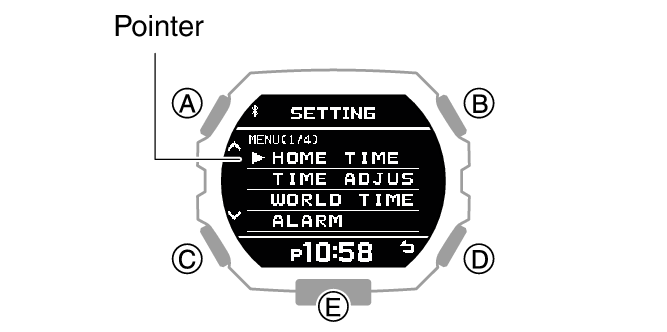
If a pairing prompt message appears, perform the operation shown on the phone screen.
At this time, the time settings of your phone and watch are synced with each other.
If pairing fails, the watch returns to the state in step 7 of this procedure. Perform the pairing procedure again from the beginning.
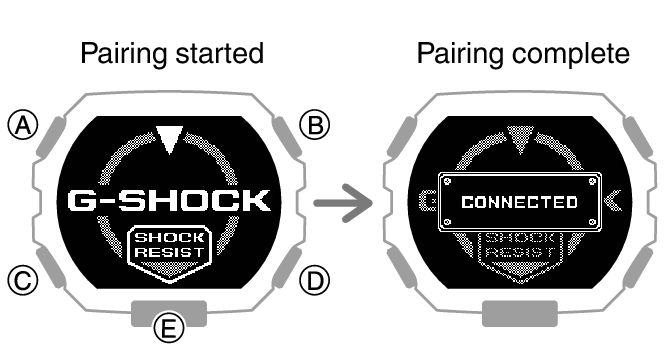
This completes the pairing operation.
Once paired, the smartphone and watch automatically connect to synchronize the watch’s time setting with that of the smartphone.
After pairing is complete, use the CASIO WATCHES phone app to register the watch’s initial settings and profile settings.
Profile settings can also be configured on the watch.
Note
The first time you start up the CASIO WATCHES phone app, a message will appear on your phone asking if you want to enable location information acquisition. Configure settings to allow background use of location information.
For information about what to do when pairing is unsuccessful, see the information below.
If your watch is already paired with another phone, you won’t be able to select [PAIRING] on the screen in step 5. Unpair your watch from the other phone before pairing it with your phone.
Auto Time Correction
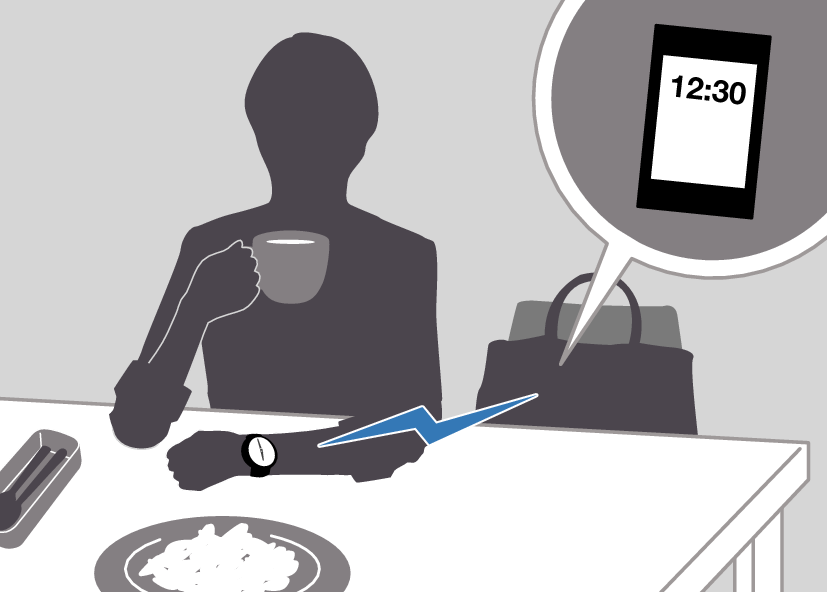
Your watch can connect with your phone to adjust the watch’s time setting.
If you leave your watch in the Timekeeping Mode, it will perform the adjustment operation automatically as you go about your daily life, without any operation required by you.
Important!
The watch may not be able to perform auto time correction under the conditions described below.
While the watch is too far away from its paired phone
While communication is not possible due to radio interference, etc.
While the phone is updating its system
While the CASIO WATCHES phone app is not running on the phone
Note
If there is a World Time City specified with the CASIO WATCHES phone app, its time will also be corrected automatically.
Auto time correction is performed at the times described below.
After your phone’s time zone or summer time setting is changed
After 24 hours or more have passed since the last time adjustment using Bluetooth connection
After 24 hours or more have passed since the last home city change or time adjustment using watch operation
The watch remains connected with your phone even after time adjustment is complete.
If time adjustment fails for some reason, [CONNECT FAILED] will appear.
Watch operation can be performed even while it is connected with your phone.
Connection with your phone is not possible while the watch’s Airplane Mode is enabled. To connect with your phone, disable the Airplane Mode.
Viewing Training Records
You can use CASIO WATCHES to view the training data below, which is measured by the watch.
Training log data and lap data
Training analysis results
Check the connection
Make sure that the  symbol is shown on the watch display when you perform the procedure below.
If is not displayed, refer to the information at the link below.
-
Tap the “CASIO WATCHES” icon.
-
Tap the “My Page” tab.
-
Scroll the screen and then tap the history of the activity whose data you want to view.
Viewing Life Log Related Data
The CASIO WATCHES phone app can be used to view the information below, which is measured by the watch.
Daily, weekly, or monthly number of steps and calories burned
Check the connection
Make sure that the symbol is shown on the watch display when you perform the procedure below.
If is not displayed, refer to the information at the link below.
-
Tap the “CASIO WATCHES” icon.
-
Tap the “My Page” tab.
-
Tap the “LIFE LOG” widget.
Open the LIFE LOG page and check the details.
Note
You can also use the CASIO WATCHES phone app to specify a daily step target.
Setting Target Values
You can use CASIO WATCHES to specify daily or monthly target values.
Important!
Target values cannot be specified using watch operations. Use the CASIO WATCHES phone app to configure settings.
You can specify target values for the items below.
Daily step count
Check the connection
Make sure that the symbol is shown on the watch display when you perform the procedure below.
If is not displayed, refer to the information at the link below.
-
Tap the “CASIO WATCHES” icon.
-
In the upper right corner of the screen, tap
 .
. -
Tap “User Profile”.
-
Select the setting you want to change and then perform the operation shown on the screen.
Specifying the Alert Interval (Target Alert)
You can use CASIO WATCHES to specify alert intervals to keep you informed of your calories burned and elapsed time while training. Then, the watch will perform a sound and/or vibration alert operation whenever an alert interval value is reached while you are training.
Important!
Note that you cannot specify the alert interval using watch operations. Use CASIO WATCHES to configure settings.
Check the connection
Make sure that the symbol is shown on the watch display when you perform the procedure below.
If is not displayed, refer to the information at the link below.
-
Tap the “CASIO WATCHES” icon.
-
Tap the “My Watch” tab.
-
Select “GDG-B100” and tap it.
-
Select the setting you want to change and then perform the operation shown on the screen.
Specifying the Distance for Auto Lap Timing
Before using Auto Lap Timing, you need to use the CASIO WATCHES phone app to specify the Auto Lap Timing distance.
Important!
Note that you cannot specify the Auto Lap Timing distance using watch operations. Use CASIO WATCHES to configure settings.
Check the connection
Make sure that the symbol is shown on the watch display when you perform the procedure below.
If is not displayed, refer to the information at the link below.
-
Tap the “CASIO WATCHES” icon.
-
Tap the “My Watch” tab.
-
Select “GDG-B100” and tap it.
-
Select the setting you want to change and then perform the operation shown on the screen.
Setting Up Programmable Timers
You can use CASIO WATCHES to configure programmable timer settings and create a group of multiple timers.
For information about programmable timers, refer to the information at the link below.
Check the connection
Make sure that the symbol is shown on the watch display when you perform the procedure below.
If is not displayed, refer to the information at the link below.
-
Tap the “CASIO WATCHES” icon.
-
Tap the “My Watch” tab.
-
Select “GDG-B100” and tap it.
-
Select “Timer” and then perform the operation shown on the screen.
Configuring World Time Settings
Specifying a World Time City with the CASIO WATCHES phone app causes the watch’s World Time City to change accordingly. Settings can be configured to perform auto summer time switching for the World Time City.
Check the connection
Make sure that the symbol is shown on the watch display when you perform the procedure below.
If is not displayed, refer to the information at the link below.

Note
The CASIO WATCHES phone app World Time lets you select from among approximately 300 cities as the World Time City.
You can use the CASIO WATCHES phone app to configure settings for user cities that are not included in the watch’s built-in World Time Cities. You must use the CASIO WATCHES phone app to select a user city as your World Time City.
To select a World Time City
-
Tap the “CASIO WATCHES” icon.
-
Tap the “My Watch” tab.
-
Select “GDG-B100” and tap it.
-
Select the setting you want to change and then perform the operation shown on the screen.
Configuring the Summer Time Setting
-
Tap the “CASIO WATCHES” icon.
-
Tap the “My Watch” tab.
-
Select “GDG-B100” and tap it.
-
Select the setting you want to change and then perform the operation shown on the screen.
“Auto”
The watch switches between standard time and summer time automatically.
“OFF”
The watch always indicates standard time.
“ON”
The watch always indicates summer time.
Note
While the summer time setting is “Auto”, the watch switches between standard time and summer time automatically. You do not need to switch between standard time and summer time manually. Even if you are in an area that does not observe summer time, you can leave the watch’s summer time setting as “Auto”.
For information about summer time periods, refer to the “Summer Time Table”.
Setting the Alarm
Check the connection
Make sure that the symbol is shown on the watch display when you perform the procedure below.
If is not displayed, refer to the information at the link below.
-
Tap the “CASIO WATCHES” icon.
-
Tap the “My Watch” tab.
-
Select “GDG-B100” and tap it.
-
Select the setting you want to change and then perform the operation shown on the screen.
Phone Finder
You can use phone finder to trigger a tone on a paired phone to make the phone easier to locate. The phone finder tone sounds even if your phone is in vibrate mode.
Important!
Phone finder will not sound the tone unless the CASIO WATCHES phone app is running on the phone.
Do not use this function in areas where phone call tones are restricted.
The tone sounds at a high volume. Do not use this function when listening to phone output over earphones.
-
Enter the Timekeeping Mode.
-
Hold down (A) for at least two seconds.
-
Use (A) and (C) to move the pointer to [PHONE FINDER].
-
Press (B).
-
Use (A) and (C) to move the pointer to [EXECUTE].
-
Press (B).
-
Press any button to stop the tone.
This displays the Timekeeping Mode setting screen.
This will establish a connection between the watch and phone, and sound the phone’s ringtone.
It takes a few seconds before the phone tone sounds.
You can press any watch button to stop the phone tone only during the first 30 seconds after it starts to sound.
Note
Connection with your phone is not possible while the watch’s Airplane Mode is enabled. To connect with your phone, disable the Airplane Mode.
Configuring Watch Settings
After establishing a connection between the watch and a phone, you can use the CASIO WATCHES phone app to configure watch settings and to view information acquired by the watch.
Check the connection
Make sure that the symbol is shown on the watch display when you perform the procedure below.
If is not displayed, refer to the information at the link below.
-
Tap the “CASIO WATCHES” icon.
-
Tap the “My Watch” tab.
-
Select “GDG-B100” and tap it.
-
Select the setting you want to change and then perform the operation shown on the screen.
Connection
Connecting with a Phone
Your watch automatically connects with its paired phone.
The symbol is displayed at the top of the watch screen while the watch is connected with a phone. flashes when there is no connection between the watch and a phone.
If the watch is not paired with the phone you want to connect with, refer to the information below and pair them.
Important!
If you have problems establishing a connection, it could mean that CASIO WATCHES phone app is not running on your phone. On your phone’s home screen, tap the “CASIO WATCHES” icon. Perform the operation shown on the screen to pair with the watch.
Unpairing the Watch from a Phone
Unpairing the watch from a phone requires both the CASIO WATCHES phone app and watch operations.
Note
If there is any pairing information remaining on your phone, delete that information as well.
The watch cannot be unpaired from a phone while the watch’s Airplane Mode is enabled. To unpair from your phone, disable the watch’s Airplane Mode.
Deleting Pairing Information from the CASIO WATCHES phone app
-
Tap the “CASIO WATCHES” icon.
-
Tap the “My Watch” tab.
-
Tap the watch you want to unpair.
-
Tap the “
 ”.
”. -
Perform the operation shown on the phone screen to unpair.
Note
Deleting pairing information from the CASIO WATCHES phone app does not delete data previously transferred from your watch to the app.
Deleting Pairing Information from the Watch
-
Enter the Timekeeping Mode.
-
Hold down (A) for at least two seconds.
-
Use (A) and (C) to move the pointer to [PAIRING].
-
Press (B).
-
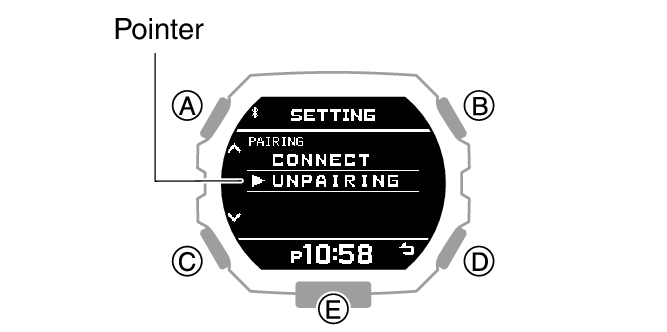
Use (A) and (C) to move the pointer to [UNPAIRING].
-
Press (B).
-
Use (A) and (C) to select whether or not you want to delete the pairing information.
-
Press (B).
-
Press (D) to exit the setting screen.
This displays the Timekeeping Mode setting screen.
|
[YES] |
Deletes pairing information. |
|
[NO] |
Does not delete pairing information. |
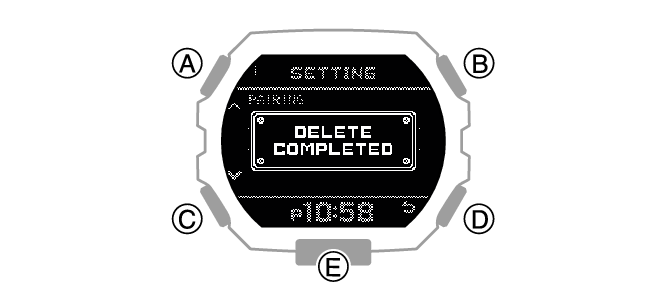
After pairing information deletion is complete, [DELETE COMPLETED] will appear for a few seconds, and then the Timekeeping Mode setting screen will re-appear.
Deleting the phone’s pairing information
For details about setting procedures, see your phone documentation.
“Settings”  “Bluetooth” Cancel the watch’s device registration.
If you purchase another phone
You need to perform the pairing operation whenever you want to establish a Bluetooth connection with a phone for the first time.