Viewing Training Log Records
Your watch stores data (log records) acquired during run timing. There is enough memory to store up to 100 log records.
You can tell how much storage space is available by checking the  indicator.
During run timing
|
Indicator: |
Meaning: |
|
 |
Displayed |
Storage space available |
|
|
Flashing |
Storage space low |
 |
Flashing |
Storage memory full |
Not during run timing
|
Indicator: |
Meaning: |
|
|
None |
Storage space available |
|
 |
Displayed |
Storage space low |
 |
Displayed |
Storage memory full |
Training Log Data Accuracy
Your watch calculates step counts, calories burned, and other information based on data picked up by its built-in sensors. No guarantees are made concerning the statistics and values calculated by this watch, so they should be used as general reference information only.
Viewable Training Log Items
The items below are shown on the Training Log screen.
|
[DISTANCE] |
Running distance |
|
[TIME] |
Travel time |
|
[PACE] |
Pace |
|
[CALORIES] |
Calories burned |
|
[CADENCE] |
Cadence |
Viewing Recorded Log Data Records
-
Enter the Training Log Mode.
-
Press (B).
-
Use (A) and (C) to move the pointer to the log data record you want to view.
-
Press (B).
-
Use (A) and (C) to move the pointer to the item whose details you want to view.
-
Press (B).
-
Hold down (C) for at least one second to return to the Timekeeping Mode.
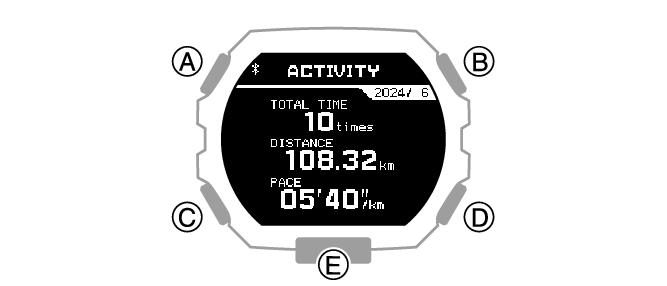
This displays the training log list.
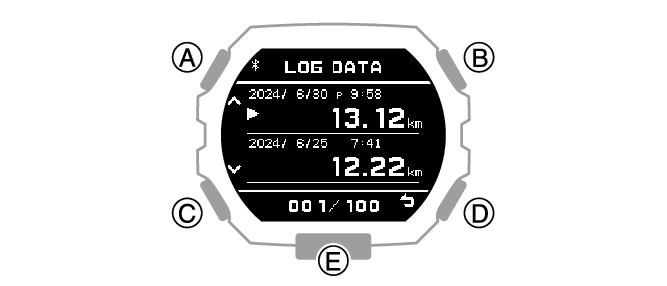
This displays the selected log data items.
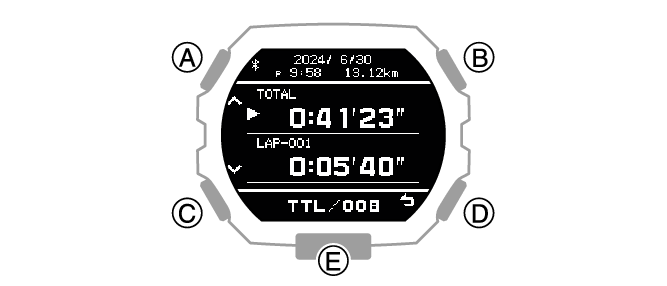
This displays details about the selected item.
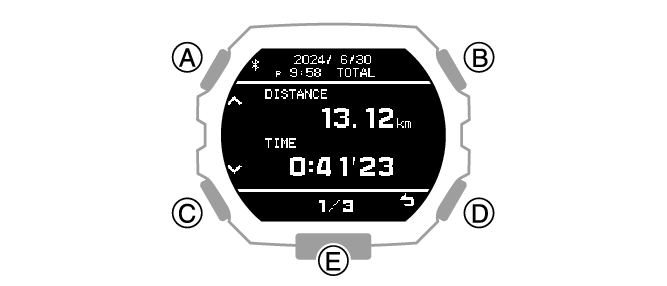
You can use (A) and (C) to scroll screen contents.
Note
Pressing (D) during the above procedure will go back one screen.
The watch automatically returns from the Training Log Mode to the Timekeeping Mode if you do not perform any Training Log Mode operation for about two or three minutes.
Deleting Log Data
Deleting a Particular Log Data Record
-
Enter the Training Log Mode.
-
Press (B).
-
Use (A) and (C) to move the pointer to the data you want to delete.
-
Hold down (A) for at least two seconds.
-
Use (A) and (C) to move the pointer to [ONE].
-
Press (B).
-
Use (A) and (C) to move the pointer to [EXECUTE].
-
Press (B).
This displays the training log list.
This displays a delete menu.
To cancel log data deletion, move the pointer to [CANCEL].
After the data delete operation is complete, [DELETE COMPLETED] will appear for a few seconds, and then the Training Log Mode screen will re-appear.
Deleting All Log Data Records
-
Enter the Training Log Mode.
-
Press (B).
-
Hold down (A) for at least two seconds.
-
Use (A) and (C) to move the pointer to [ALL].
-
Press (B).
-
Use (A) and (C) to move the pointer to [EXECUTE].
-
Press (B).
-
Use (A) and (C) to move the pointer to [YES].
-
Press (B).
This displays the training log list.
This displays a delete menu.
To cancel log data deletion, move the pointer to [CANCEL].
This displays a confirmation screen.
After the data delete operation is complete, [DELETE COMPLETED] will appear for a few seconds, and then the Training Log Mode screen will re-appear.