Using the Application to Configure Settings
This section explains the main watch settings that can be changed only with the “CASIO WATCHES” phone app.
To use the settings in this section, you need to install the “CASIO WATCHES” phone app on your phone.
Specifying a Watch Face
There are three watch face patterns that you can use for the current time screen. You can select the pattern that suits your current lifestyle.
You can customize the display items for Face 2.
Important!
You cannot use watch operations to customize the Face 2 display items. Use the CASIO WATCHES phone app to configure settings.
You can use watch operations to select a watch face.
Face 1

Face 2
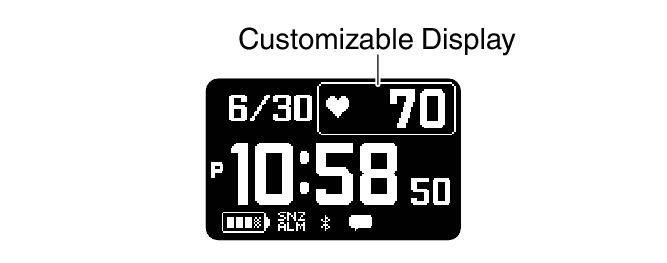
You can select from among the display items below when customizing the Face 2 display.
Text-Plus-Value Items
|
[STEPS] |
Today’s step count |
|
[STATUS] |
Cardio Load Status (Cardio Load Status) |
|
[DISTANCE] |
Monthly running distance RUN WALK |
|
[HR] |
Heart rate |
|
[MAX MIN] |
Maximum/Minimum heart rate |
|
[SLEEP] |
Sleep score + level display Sleep time Sleep evaluation |
|
[CALORIES] |
Calories burned |
|
[ACTIVE] |
Current day’s physical exercise time |
|
Sunrise and sunset times |
|
|
Moon age |
|
Face 3
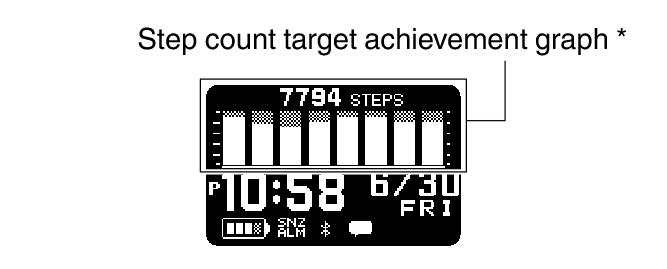
This graph shows the step count target achievement rate for the past eight days, including today.
Configuring Settings
Use the CASIO WATCHES phone app to specify which current time screen you want to display. In the case of the customizable display, you can specify the items you want to include on the display.
Important!
You cannot use watch operations to customize the Face 2 display items. Use the CASIO WATCHES phone app to configure settings.
Check the connection
Make sure the  symbol is shown on the watch display when you perform the procedure below. If is not displayed, refer to the information at the link below.
-
 Tap the “CASIO WATCHES” icon.
 -
Tap the “My Watch” tab.
-
Select “DW-H5600” and tap it.
-
Select the setting you want to change and then perform the operation shown on the screen.
Customizing the Watch Mode and Activity Mode Functions
You can use the CASIO WATCHES phone app to specify the sequence that functions appear in the Watch Mode and Activity Mode. You can also add or delete functions as desired.
Important!
You cannot perform function customization operations on the watch. Use the CASIO WATCHES phone app to configure settings.
For information about functions that can be rearranged and deleted, see the information below.
Check the connection
Make sure the symbol is shown on the watch display when you perform the procedure below. If is not displayed, refer to the information at the link below.
-
Tap the “CASIO WATCHES” icon.
-
Tap the “My Watch” tab.
-
Select “DW-H5600” and tap it.
-
Select the setting you want to change and then perform the operation shown on the screen.
Note
Adding or deleting functions may change settings.
Even if you remove the almanac (sunrise, sunset times, Moon age) function, you can still display the sunrise and sunset times on the current time screen.
Configuring Activity Measurement Display Settings
There are various types of activity measurement screens, and up to 7 screens can be registered for each activity.
From among the registered screens, you can specify which one should be displayed while each activity measurement is in progress.
Important!
You can specify activity measurement screens using the CASIO WATCHES phone app. You cannot use watch operations to configure activity measurement screen settings.
Screen 1 is fixed as “Measurement Screen 1”. Select screens 2 to 7 from among screens that are other than “Measurement Screen 1”.
Measurement Screen 1
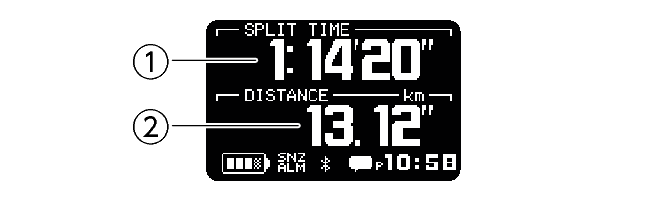
From among the following, select the screens to be displayed for screens 2 through 7.
Measurement Screen 2
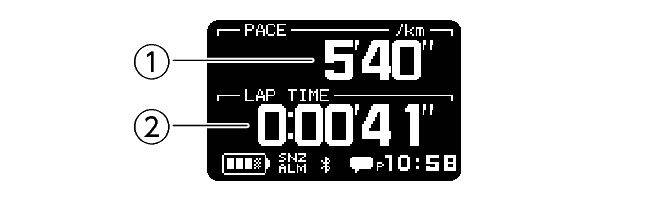
Measurement Screen 3
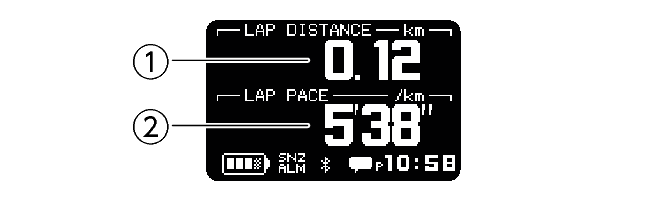
You can customize the items that appear in the  upper and
  lower sections of the measurement screen 1 to 3. You can also use the CASIO WATCHES phone app to customize items with your phone.
Heart Rate Measurement Screen
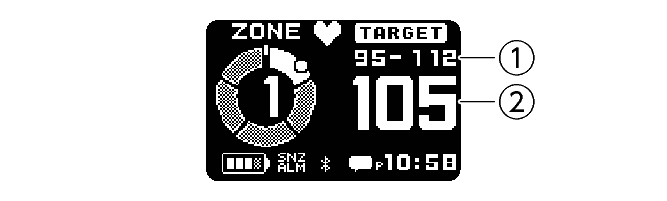
-
Target HR zone value
-
Current heart rate
Current time screen
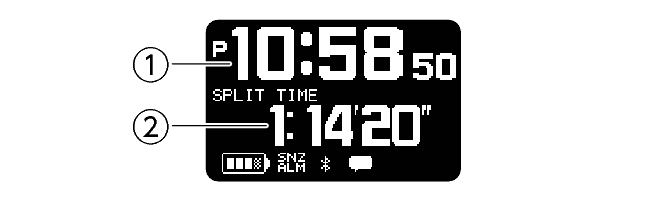
-
Current time
-
Movement time from measurement start
Almanac screen
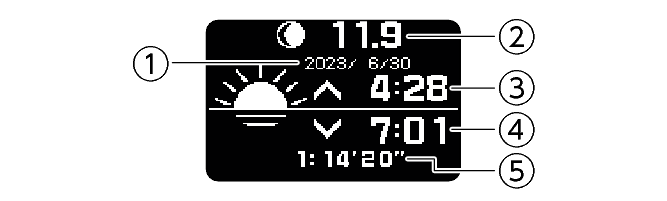
-
Date of measurement
-
Measurement day Moon age
-
Measurement day sunrise time
-
Measurement day sunset time
-
Movement time from measurement start
Interval timer screen
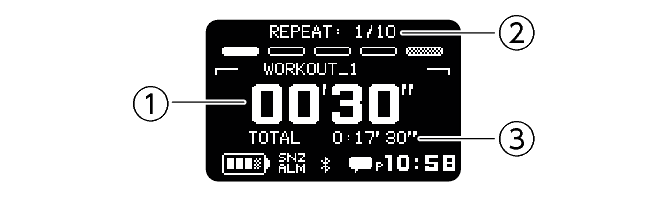
-
Interval timer value
-
Number of repeats
-
Total measurement time
Note
In the case of INTERVAL TIMER, Screen 1 shows the interval timer screen.
Configuring Settings
Check the connection
Make sure the symbol is shown on the watch display when you perform the procedure below. If is not displayed, refer to the information at the link below.
-
Tap the “CASIO WATCHES” icon.
-
Tap the “My Watch” tab.
-
Select “DW-H5600” and tap it.
-
Select the setting you want to change and then perform the operation shown on the screen.
Using Your Phone’s GPS
When performing a RUNNING/WALKING measurement, your phone’s GPS can be used to correct the distance calculated by the watch’s built-in acceleration sensor. This improves the accuracy of distance calculations.
You can use the CASIO WATCHES phone app to enable or disable use of your phone’s GPS.
Check the connection
Make sure the symbol is shown on the watch display when you perform the procedure below. If is not displayed, refer to the information at the link below.
-
Tap the “CASIO WATCHES” icon.
-
Tap the “My Watch” tab.
-
Select “DW-H5600” and tap it.
-
Select the setting you want to change and then perform the operation shown on the screen.
Enabling the Wrist Sensor
You can use the CASIO WATCHES phone app to enable or disable the wrist sensor so the watch can detect whether or not it is attached to your wrist.
The wrist sensor is enabled under initial factory default settings.
Important!
You cannot change the wrist sensor setting using watch operations. Use the CASIO WATCHES phone app to configure settings.
Check the connection
Make sure the symbol is shown on the watch display when you perform the procedure below. If is not displayed, refer to the information at the link below.
-
Tap the “CASIO WATCHES” icon.
-
Tap the “My Watch” tab.
-
Select “DW-H5600” and tap it.
-
Tap “Watch Settings”.
-
Tap “Find Worn Watch”.
-
Enable “On”.
Specifying Your Desired Bedtime and Wake-Up Time
You can use the CASIO WATCHES phone app to specify your bedtime and wake-up time.
Important!
You cannot use watch operations to configure bedtime and wake-up time settings. Use the CASIO WATCHES phone app to configure settings.
Check the connection
Make sure the symbol is shown on the watch display when you perform the procedure below. If is not displayed, refer to the information at the link below.
-
Tap the “CASIO WATCHES” icon.
-
Tap the “My Watch” tab.
-
Select “DW-H5600” and tap it.
-
Tap “LIFE LOG”.
-
Tap “Sleep”.
-
Configure “Sleeping Time” and “Waking Time” settings.
Specifying a Daily Step Count Target
You can use CASIO WATCHES to specify daily step count target values.
Important!
A target value cannot be specified using watch operations. Use the CASIO WATCHES phone app to configure settings.
Check the connection
Make sure the symbol is shown on the watch display when you perform the procedure below. If is not displayed, refer to the information at the link below.
-
Tap the “CASIO WATCHES” icon.
-
In the upper right corner of the screen, tap
 .
. -
Tap “User Profile”.
-
Select the setting you want to change and then perform the operation shown on the screen.
Note
In addition to target values, you can also configure settings to alert you when a target is reached.
Configuring Watch Settings
After establishing a connection between the watch and the CASIO WATCHES phone app, you can use the phone app to configure various watch function settings and to view information acquired by the watch.
Check the connection
Make sure the symbol is shown on the watch display when you perform the procedure below. If is not displayed, refer to the information at the link below.
-
Tap the “CASIO WATCHES” icon.
-
Tap the “My Watch” tab.
-
Select “DW-H5600” and tap it.
-
Select the setting you want to change and then perform the operation shown on the screen.