Activity Measurement Settings
This section explains how to configure settings related to activity measurement.
The setting menu that is displayed depends on the activity.
Activity-specific Setting Menu
|
Activity |
Setting Menu |
|---|---|
|
GYM WORKOUT |
TRAINING ALERT |
|
INTERVAL TIMER |
TRAINING ALERT |
|
RUNNING |
AUTO LAP |
|
WALKING |
Enabling Auto Lap Timing
While auto lap timing is enabled, a lap is recorded each time you run the lap distance you specified.
Perform the required operations with the CASIO WATCHES phone app or on the watch to configure auto lap measurement settings.
You can set a lap measurement distance up to 10.0 km, in increments of 0.1 km.
To configure auto lap settings with the CASIO WATCHES phone app
Before using Auto Lap Timing, you need to use the CASIO WATCHES phone app to specify the Auto Lap Timing distance.
Check the connection
Make sure the  symbol is shown on the watch display when you perform the procedure below. If is not displayed, refer to the information at the link below.
-
 Tap the “CASIO WATCHES” icon.
 -
Tap the “My Watch” tab.
-
Select “DW-H5600” and tap it.
-
Select the setting you want to change and then perform the operation shown on the screen.
To configure auto lap settings with the watch
-
Display the current time screen.
-
Press (A).
-
Use (C) to select an activity.
-
Press (A).
-
Hold down (C) for at least two seconds.
-
Use (C) to move the pointer to [AUTO LAP].
-
Press (A).
-
Use (C) to select [ON].
-
Press (A).
-
Use (C) to specify the integer part of the distance value.
-
Press (A).
-
Use (C) to specify the decimal part of the distance value.
-
Press (A) to complete the setting operation.
-
Press (D) to exit the setting screen.
This enters the Activity Mode.
Example:
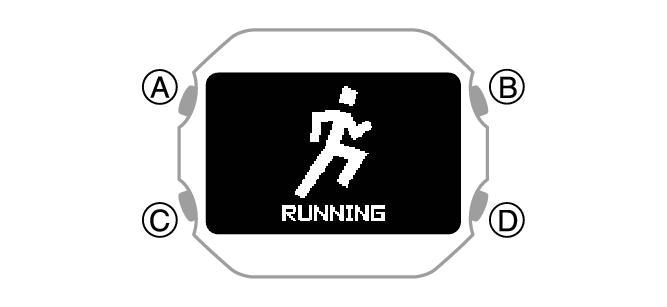
This displays the measurement operation ready screen.
This displays the activity measurement setting screen.
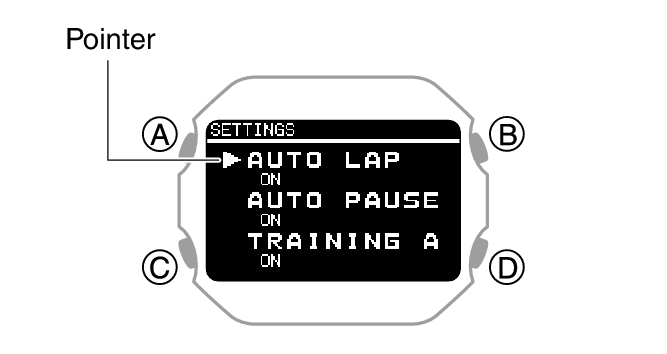
To disable auto lap measurement, select [OFF].
The currently selected setting will be indicated by a check mark ( ) to the left.
This causes a cursor to appear, which you can use to set the auto lap measurement distance.
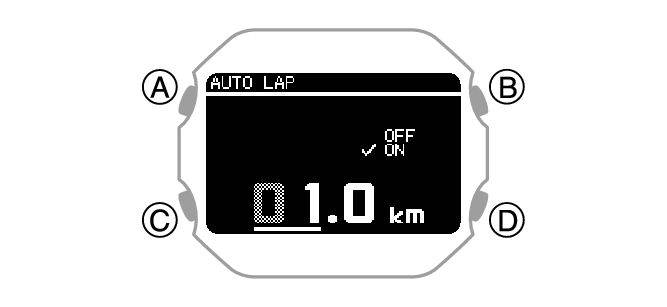
This moves the cursor to the decimal part of the distance value.
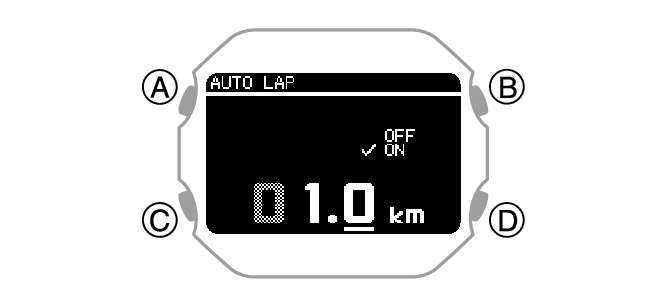
After the setting operation is complete, a check mark appears for a few seconds, and then the activity measurement setting screen re-appears.
Note
While the setting is being configured, the watch will exit the setting operation automatically after about two or three minutes of non-operation.
Enabling Auto Pause
While Auto Pause is enabled, timing will pause whenever you stop running.
Note
When a measurement operation is restarted from auto pause, the watch display will be delayed from the actual start, but the time and distance being measured are not affected.
If auto pause does not work after it is enabled or if measurement does not resume, pause and resume measurement manually.
-
Display the current time screen.
-
Press (A).
-
Use (C) to select an activity.
-
Press (A).
-
Hold down (C) for at least two seconds.
-
Use (C) to move the pointer to [AUTO PAUSE].
-
Press (A).
-
Use (C) to move the pointer to [ON] (enabled) or [OFF] (disabled).
-
Press (A) to complete the setting operation.
-
Press (D) to exit the setting screen.
This enters the Activity Mode.
Example:
This displays the measurement operation ready screen.
This displays the activity measurement setting screen.
After the setting operation is complete, a check mark appears for a few seconds, and then the activity measurement setting screen re-appears.
Note
While the setting is being configured, the watch will exit the setting operation automatically after about two or three minutes of non-operation.
You can also use the CASIO WATCHES phone app to enable or disable Auto Pause.
Configuring Training Alert Settings
You can use the CASIO WATCHES phone app to specify target alert intervals to inform you of your calories burned, elapsed time, and distance traveled during training. Every time an alert target value is reached during activity measurement, a sound or vibration operation is performed, and an alert screen appears to notify you.
You can use a single watch operation to toggle all the alerts you configured with the CASIO WATCHES phone app between on and off.
To specify training alert target values with the CASIO WATCHES phone app
Important!
Note that you cannot specify alert target values using watch operations. Use the CASIO WATCHES phone app to configure settings.
Check the connection
Make sure the symbol is shown on the watch display when you perform the procedure below. If is not displayed, refer to the information at the link below.
-
Tap the “CASIO WATCHES” icon.
-
Tap the “My Watch” tab.
-
Select “DW-H5600” and tap it.
-
Select the setting you want to change and then perform the operation shown on the screen.
To enable training alert with the watch
-
Display the current time screen.
-
Press (A).
-
Use (C) to select an activity.
-
Press (A).
-
Hold down (C) for at least two seconds.
-
Use (C) to move the pointer to [TRAINING ALERT].
-
Press (A).
-
Use (C) to move the pointer to [ON].
-
Press (A) to complete the setting operation.
-
Press (D) to exit the setting screen.
This enters the Activity Mode.
Example:
This displays the measurement operation ready screen.
This displays the activity measurement setting screen.
If you want to disable training alerts, move the pointer to [OFF].
After the setting operation is complete, a check mark appears for a few seconds, and then the activity measurement setting screen re-appears.
Important!
Use the CASIO WATCHES phone app to specify an alert target value for each item. You cannot use watch operations to configure alert target value settings.
Note
While the setting is being configured, the watch will exit the setting operation automatically after about two or three minutes of non-operation.
Training Alert Screen Indicators
A training alert screen appears on the watch when a specified target value is reached during activity measurement.
|
Indicator: |
Meaning: |
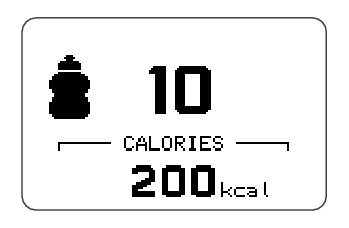 |
Calories burned target value reached. |
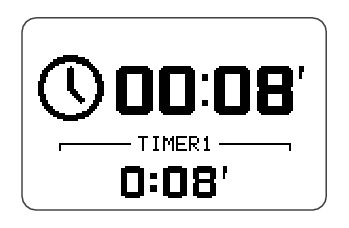 |
Elapsed time target value reached. |
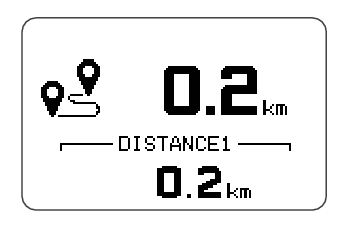 |
Travel distance target value reached. |
Note
Alerts that can be configured depend on the activity.
Alert Screen Switching
A training alert screen appears when a specified target value is reached during activity measurement.
Example:
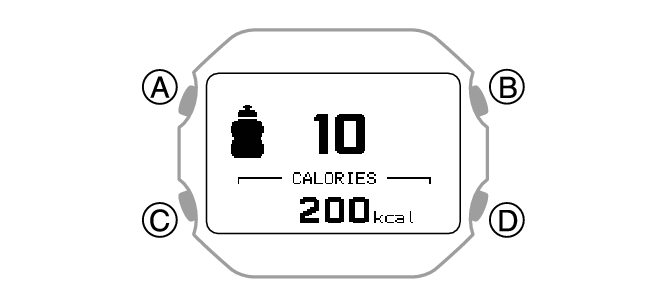
The watch returns to the running measurement screen if you press (A) or if you do not perform any operation for about nine seconds.
Configuring Interval Timer Settings
To configure interval timer settings with the CASIO WATCHES phone app
You can use the CASIO WATCHES phone app to configure an interval timer that combines multiple types of timers.
For information about interval timers, see the information below.
Check the connection
Make sure the symbol is shown on the watch display when you perform the procedure below. If is not displayed, refer to the information at the link below.
-
Tap the “CASIO WATCHES” icon.
-
Tap the “My Watch” tab.
-
Select “DW-H5600” and tap it.
-
Select the setting you want to change and then perform the operation shown on the screen.
To configure interval timer settings with the watch
If a timer countdown operation is in progress, reset the timer to its current start time before performing this operation.
-
Display the current time screen.
-
Press (A).
-
Use (C) to select [INTERVAL TIMER].
-
Press (A).
-
Hold down (C) for at least two seconds.
-
Use (C) to move the pointer to [INTERVAL TIMER].
-
Press (A).
-
Use (C) to move the pointer to [REPEAT].
-
Press (A).
-
Use (C) to specify the number of timer repeats (Auto Repeat).
-
Press (A).
-
Use (C) to specify the sequence of the timers.
-
Press (A).
-
Use (C) to change the timer minutes setting.
-
Press (A).
-
Use (C) to change the timer seconds setting.
-
Press (A) to complete the setting operation.
-
Repeat steps 11 through 16 as many times as necessary to configure the settings of other timers.
This enters the Activity Mode.
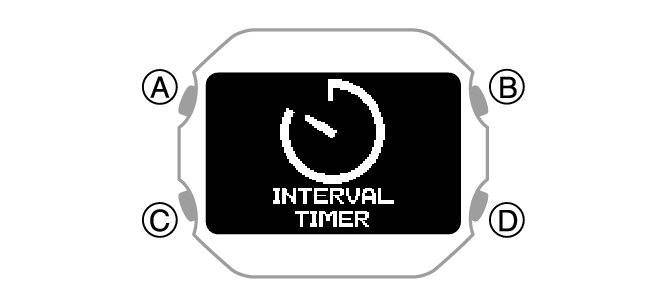
This displays the interval training setting screen.
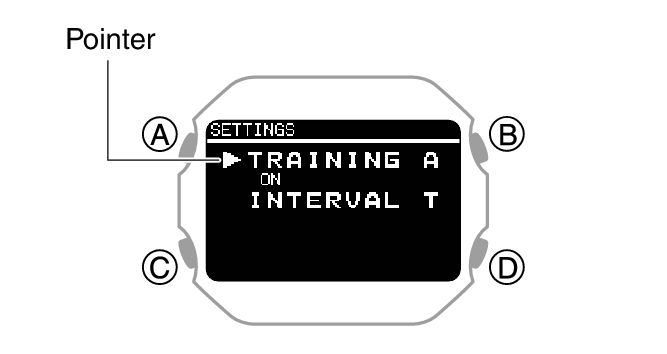
This displays the interval timer setting screen.
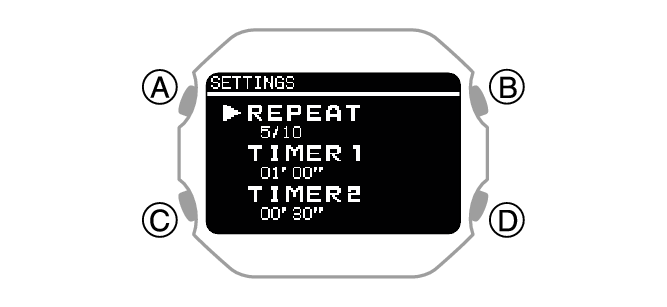
This displays the number of timer repeats (1 to 10) setting screen.
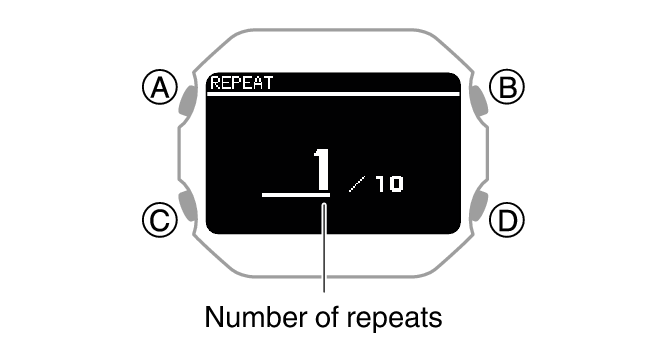
After the setting operation is complete, a check mark appears for a few seconds, and then the interval timer setting screen re-appears.
To setup the first timer, setup [TIMER1].
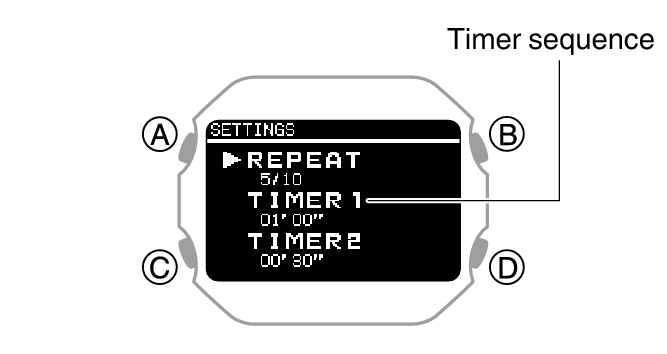
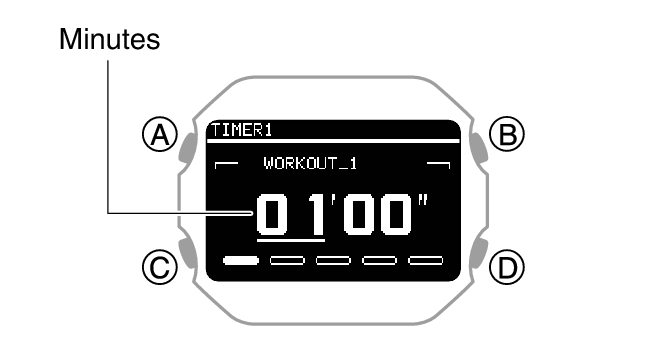
This causes the cursor to appear at the minutes setting of the first timer.
This causes the cursor to move to the seconds setting of the first timer.
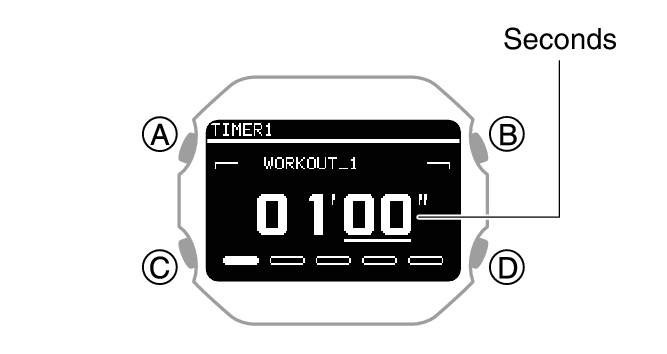
After the setting operation is complete, a check mark appears for a few seconds, and then the interval timer setting screen re-appears.
Note
Pressing (D) during the above procedure goes back one screen.
You can use the CASIO WATCHES phone app to change timer names. A timer name can include a combination of up to 14 alphabetic letters (A to Z), numbers (0 to 9), and symbols (/+-_?&).