Performing Activity Measurement
The watch uses an accelerometer to measure and record the distance, step count, elapsed time, pace, and other data while running, walking, or engaging in other activities.
You can review recorded data on the watch or with CASIO WATCHES phone app.
Before using activity measurements, it is recommended that you configure the settings required for measurement.

Activity Overview
Your watch has four Activity Mode functions (activities).
You can use CASIO WATCHES phone app to add, remove, or rearrange Activity Mode functions.
 |
RUNNING (Running) |
 |
WALKING (Walking) |
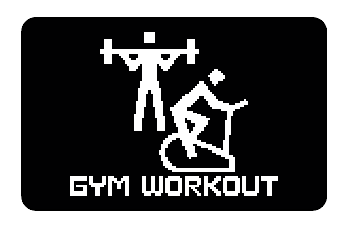 |
GYM WORKOUT (Strength Training, etc.) |
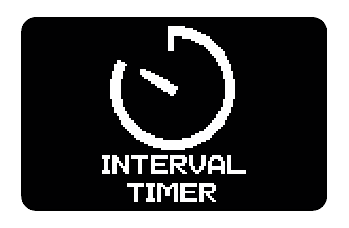 |
INTERVAL TIMER (Interval Timer) |
Performing Activity Measurement
Use the procedures in this section to select an activity and measure it.
To select an activity
-
Display the current time screen.
-
Press (A).
-
Use (C) to select an activity.
This enters the Activity Mode.
Example:
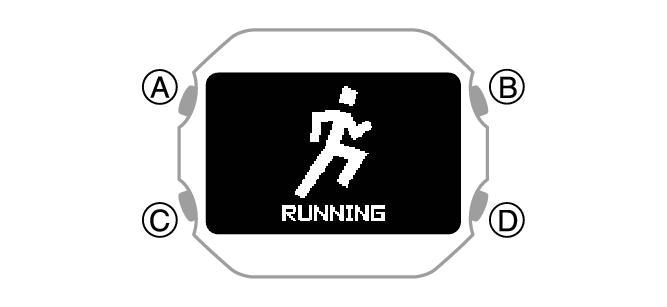
For information about activity items, see the information below.
To start measurement
-
Press (A).
This starts activity measurement.
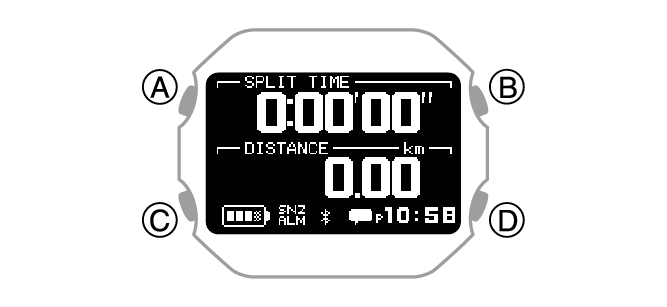
This displays a screen of the measurement being performed for the activity you specified with CASIO WATCHES phone app.
During activity measurement, use (C) to scroll between measurement screens.
To pause an ongoing activity measurement
Press (A). To resume a paused activity measurement, press (A) again.
To end activity measurement
-
While an activity measurement operation is in progress, press (A).
-
Use (C) to select [SAVE].
-
Press (A).
This pauses activity measurement and opens the paused menu screen.
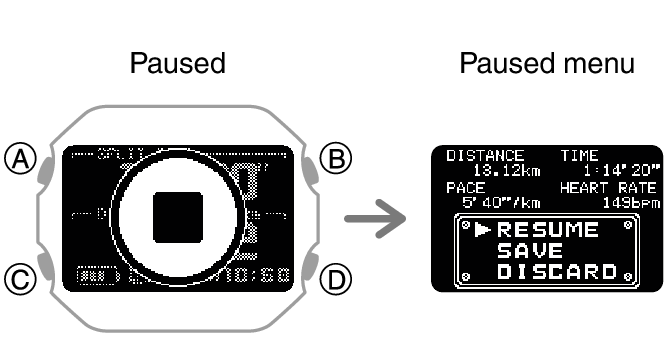
While the paused menu screen is displayed, press (D) to display a measurement screen. While a measurement screen is displayed, use (C) to scroll between screens.
To return to the paused menu screen, press (D).
|
[RESUME] |
Resumes timing. |
|
[SAVE] |
Saves the data and ends the measurement. |
|
[DISCARD] |
Ends the measurement without saving the data. |
This displays the activity measurement result.
You can use (C) to scroll between summary screens.
The display returns to the current time after a preset amount of time or when (D) is pressed.
If a measurement operation is terminated without saving the data, the display returns to the selected activity screen.
To measure lap times
-
This starts activity measurement.
-
Press (D).
-
Press (A) to pause activity measurement.
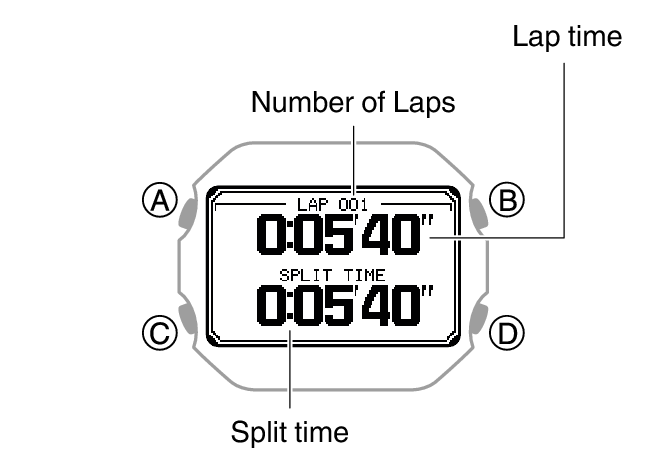
Each press of (D) displays the elapsed time of the current section (lap time) to appear.
Using the Timer for Interval Training
Overview
Multiple timers can be used for the timing of consecutive segments of an activity (interval timers). You can use an interval timer to control how much time you spend doing push-ups, squats, or other exercises that make up a fitness workout.
For example, you could configure an interval timer as shown below and have intervals  through
  automatically repeat ten times.
Timer Settings
[TIMER1]: 30 seconds
[TIMER2]: 20 seconds
[TIMER3]: 30 seconds
[TIMER4]: 25 seconds
Sets: 10
Interval Training Workout
-
Push-ups: 30 seconds
-
Rest: 20 seconds
-
Squats: 30 seconds
-
Rest: 25 seconds
Note
The interval timer can repeat up to five timers up to ten times (auto repeat timer).
For information about configuring interval timer settings, see the information below.
Timing with Interval Timers
-
Display the current time screen.
-
Press (A).
-
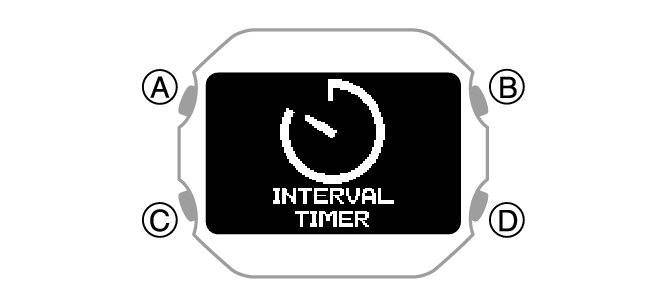
Use (C) to select [INTERVAL TIMER].
-
Press (A).
-
Press (A) to start the timer countdown.
-
Press any button to stop the sound and/or vibration operation.
This enters the Activity Mode.
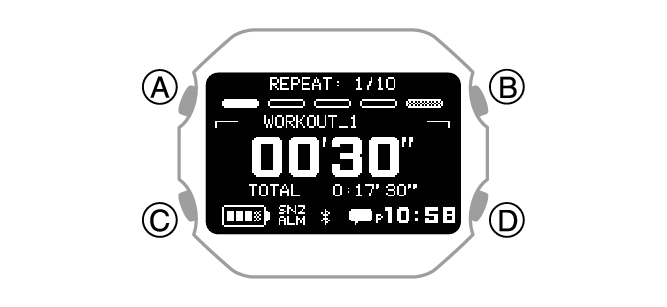
This displays the measurement operation ready screen.
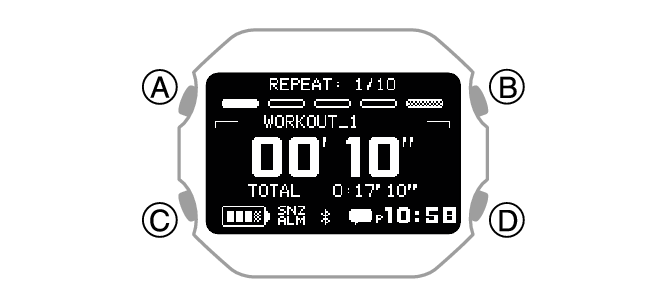
A 10-second sound or vibration alert notifies you when the interval timer operation is complete.
This displays the summary (measurement result) screen.
After the interval timer end notification, the watch automatically stores the measurement data and displays the summary (measurement result) screen.
Note
Interval timers count down the final five seconds with sound/vibration.
Holding down (D) for at least one second while a timer operation is in progress stops the current timer and starts measurement with the next timer.
Pausing and Resetting the Timer
-
While a timer operation is in progress, press (A).
-
Use (C) to select what to do with the interval training data measured by the timer.
-
Press (A).
This pauses the time operation. After a few seconds, the pause menu screen appears.
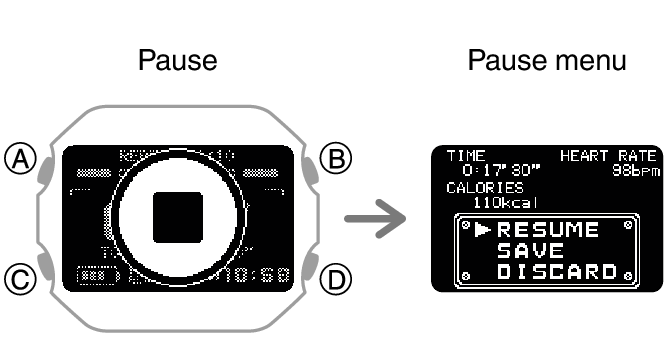
|
[RESUME] |
Resumes the timer operation. |
|
[SAVE] |
Saves the data and ends the timer operation. |
|
[DISCARD] |
Resets the timer. |
If you selected [SAVE], your interval training results appear on the display.
You can use (C) to scroll between summary screens.
Press (D) to return to the current time screen.
Starting Heart-rate Training
With heart-rate training, you measure your heart rate and then use the resulting value as a benchmark for training. You can monitor your heart rate levels and keep your exercise intensity in line with your training goals, which contributes to more efficient training, improved cardiopulmonary function, and better health.
Heart Rate Zone (HR zones)
Powered by Polar
To specify a target heart rate zone
Specify a target heart rate zone that matches your training objectives.
The range from 50% to 100% of your maximum heart rate is divided into five heart rate zones. You can easily control the intensity of your training by keeping your heart rate within a particular zone. Each heart rate zone has a main effect, and understanding these effects can enhance the effectiveness of your training.
Zone 1 (50 to 60% of maximum heart rate): Very light training
Zone 1 training improves overall health and helps you recover from more strenuous training.
You can continue training in this zone for long periods.
Zone 2 (60 to 70% of maximum heart rate): Light training
Zone 2 training increases general stamina. It uses fat as an energy source, improving the body’s ability to burn fat.
You can continue training comfortably in this zone for long periods.
Zone 3 (70 to 80% of maximum heart rate): Moderate training
Zone 3 training improves aerobic fitness. It causes lactic acid to begin to accumulate in the bloodstream, but the body can reuse the lactic acid for energy, so it does not affect performance.
Since Zone 3 training requires deeper breathing, you will feel the need for a moderate amount of effort.
Zone 4 (80 to 90% of maximum heart rate): Hard training
Zone 4 training improves speed endurance and enhances the ability of the body to use protein (sugar) for energy. In addition, Zone 4 training allows you to tolerate high levels of lactic acid in the blood.
Zone 4 training results in muscle fatigue and rough breathing.
Zone 5 (90 to 100% of maximum heart rate): Very hard training
Zone 5 training improves maximum performance. Large amounts of lactic acid are accumulated, so long-term training is not possible.
Zone 5 training results in labored breathing and muscle fatigue.
-
Configure CASIO WATCHES phone app settings so the heart rate measurement screen is displayed as an activity measurement screen.
-
Display the current time screen.
-
Press (A).
-
Use (C) to select an activity.
-
Press (A).
-
Use (C) to select the heart rate measurement screen.
-
Hold down (C) for at least two seconds.
-
Use (C) to move the pointer to [HR TARGET ZONE].
-
Press (A).
-
Use (C) to move the pointer to the heart rate zone you want to specify as your target.
-
Press (A) to complete the setting operation.
-
Press (D) to exit the setting screen.
This enters the Activity Mode.
Example:
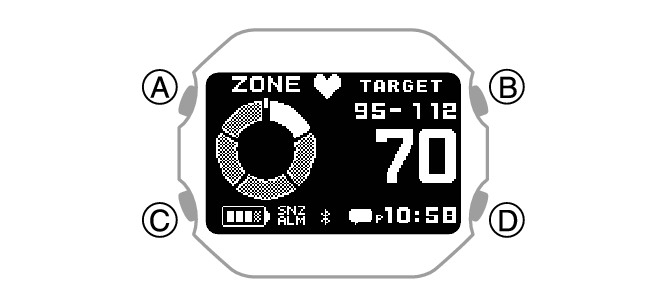
This displays the HEART RATE (heart rate measurement) setting screen.
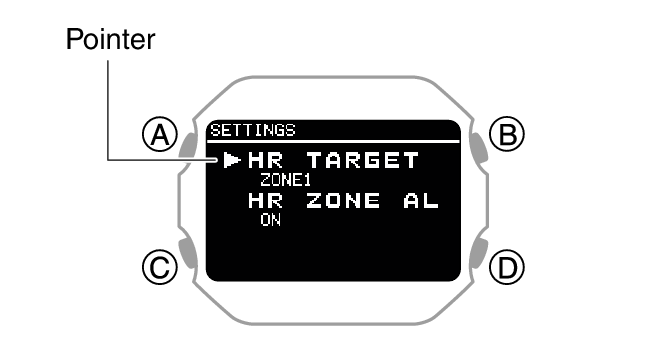
After the setting operation is complete, a check mark appears for a few seconds, and then the HEART RATE (heart rate measurement) function setting screen re-appears.
To set up the heart rate zone alert
If you engage in heart-rate training while the heart rate zone alert is enabled, the watch will perform a sound and/or vibration operation to let you know when your current heart rate is outside your target zone. If you do not re-enter the target zone after the alert, an out-of-zone notification operation will be performed at one-minute intervals.
Heart rate zone alert performs notification only while the heart rate measurement screen is displayed.
-
Configure CASIO WATCHES phone app settings so the heart rate measurement screen is displayed as an activity measurement screen.
-
Display the current time screen.
-
Press (A).
-
Use (C) to select an activity.
-
Press (A).
-
Use (C) to select the heart rate measurement screen.
-
Hold down (C) for at least two seconds.
-
Use (C) to move the pointer to [HR ZONE ALERT].
-
Press (A).
-
Use (C) to move the pointer to [ON] (enabled) or [OFF] (disabled).
-
Press (A) to complete the setting operation.
-
Press (D) to exit the setting screen.
This enters the Activity Mode.
Example:
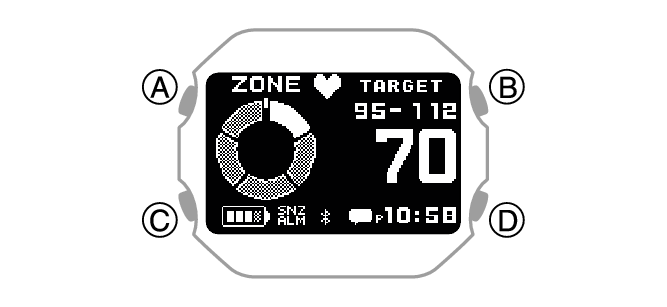
This displays the HEART RATE (heart rate measurement) setting screen.
After the setting operation is complete, a check mark appears for a few seconds, and then the HEART RATE (heart rate measurement) function setting screen re-appears.
Activity Measurement Precautions
After using an activity function, use the charging cable to charge the watch.
Activity measurement is not possible while the battery indicator shows  or lower. Charging before performing an activity measurement is recommended.
If [MEMORY FULL] appears on the display while an activity measurement operation is in progress, the measurement operation stops.
Measurement also stops automatically whenever a single activity measurement operation exceeds 80 hours.

You may not be able to save measurement results if the remaining activity log capacity is low. If this happens, delete log data you no longer need to make room for more data.

For information about the summary (Measurement Result) screen that appears after an activity measurement operation is complete, see the information below.