Viewing Activity Log Records
After an activity measurement operation is completed, a summary (measurement results) is displayed and saved in watch memory as log data.
There is enough memory to store up to 100 log records.
Measurement Data Accuracy
The sensors of your watch calculate your step count, calories burned, heart rate, running index (when phone GPS is used), and other data. No guarantees are made concerning the accuracy of the statistics and values calculated by this watch, so they should be used as general reference information only.
Viewable Activity Log Items
The summaries (measurement results) in the table below can be viewed after an activity measurement is complete or by accessing the activity log.
The summary screens that are displayed depend on the activity.
|
Activity |
Summary (Measurement Result) Screen |
|
RUNNING |
Measurement Result Details |
|
WALKING |
Measurement Result Details |
|
GYM WORKOUT |
Measurement Result Details |
|
INTERVAL TIMER |
Summary Screen Details
Measurement Result Details Summary
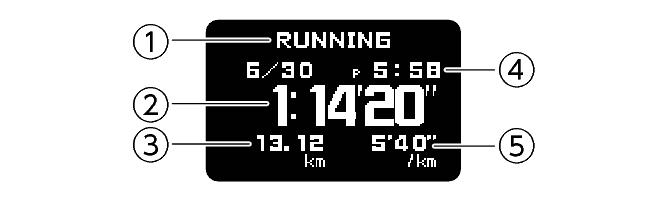
-
Activity name
-
Split time
-
Running distance
-
Activity start date and time
-
Pace
Heart Rate Summary
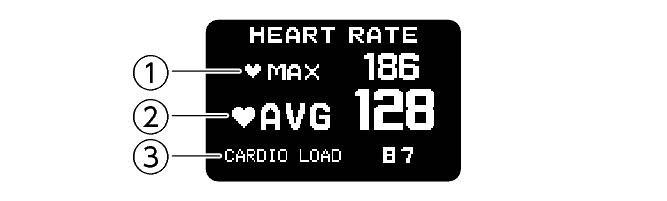
-
Maximum heart rate
-
Average heart rate
-
Cardio load *1
Cardio Load (CARDIO LOAD)
Powered by Polar
Cardio load measures the load your training session places on your cardiovascular system. Cardio load measurement values are displayed up to 999. The CASIO WATCHES phone app shows values greater than 999.
Burned calorie summary
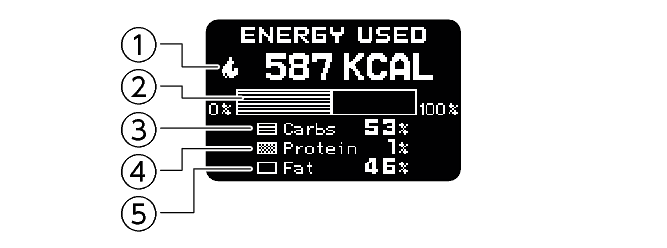
-
Calories burned during measurement period
-
Graph
-
Carbohydrate percentage
-
Protein percentage
-
Fat percentage
Analysis of Energy Consumption by Three Major Nutrients
Energy source used (Energy Used)
Powered by Polar
The energy sources used breakdown shows how much of each energy source (fats, carbs, protein) you used during your session. These are indicated as percentages of the total calories burned.
If the heart rate sensor is not being used, the calories burned are output but the energy source used is not output.
Cadence Summary
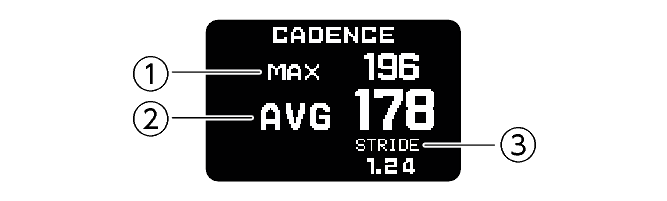
-
Maximum cadence
-
Average cadence
-
Average Stride
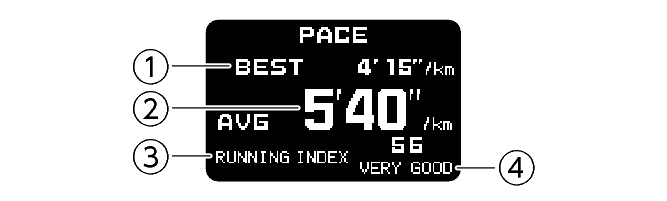
Pace Summary
-
Best pace
-
Average pace
-
Running index *2
-
Evaluation *3
Running index (RUNNING INDEX)
Powered by Polar
The Running Index provides your maximal aerobic fitness when running. This calculation is calculated for each run based on your heart rate and speed data measured during the run.
This item is displayed only when RUNNING is selected as the activity and you are using your phone GPS.
The evaluation is shown as one of the following: VERY LOW (Very Low), LOW (Low), FAIR (Fair), MODERATE (Moderate), GOOD (Good), VERY GOOD (Very Good), ELITE (Elite).
You can also check age-specific reference values.
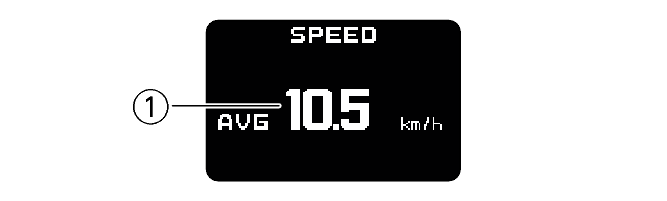
Speed Summary
-
Average speed
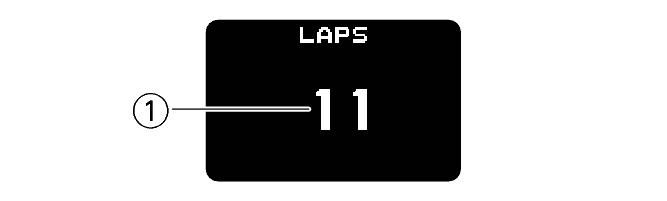
Lap Summary
-
Number of Laps
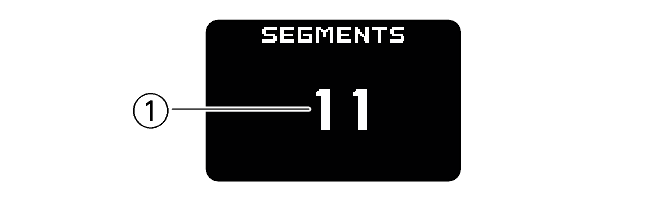
Segment Summary
-
Segment repeats
Viewing Activity Records
You can view recorded activity log data on the watch or with the CASIO WATCHES phone app.
To view activity records with the CASIO WATCHES phone app
Check the connection
Make sure the  symbol is shown on the watch display when you perform the procedure below. If is not displayed, refer to the information at the link below.
-
 Tap the “CASIO WATCHES” icon.
 -
Tap the “My Page” tab.
-
Scroll the screen and then tap the history of the activity whose data you want to view.
To view activity records with the watch
-
Display the current time screen.
-
Use (C) to select [ACTIVITY LOG].
-
Press (A).
-
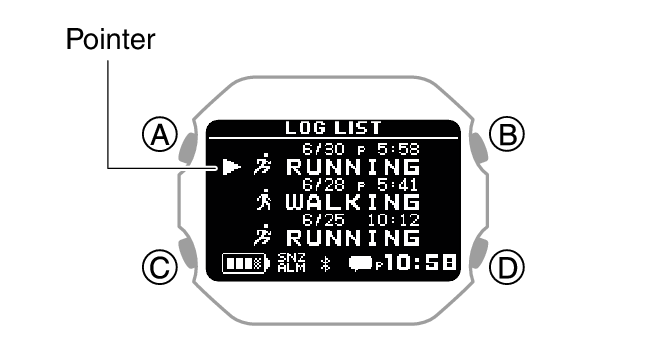
Use (C) to move the pointer to the log data record you want to view.
-
Press (A).
-
Use (C) to display the summary screen you want to view.
-
To return to the activity log list screen, press (D).
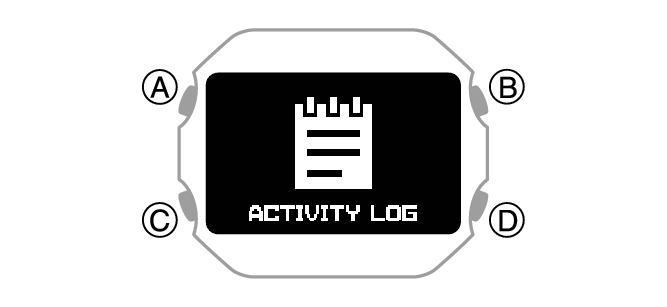
This displays the activity log list.
This displays the detailed summary screens of the selected log data.
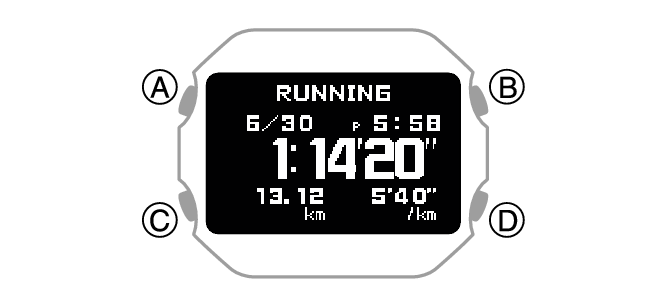
For details about summary screens, see the information below.
To view the details of individual lap data, press (A) while a lap summary or segment summary screen is displayed.
Note
Pressing (D) during the above procedure will go back one screen.
Deleting Activity Records
Deleting Specific Data
-
Display the current time screen.
-
Use (C) to select [ACTIVITY LOG].
-
Press (A).
-
Use (C) to move the pointer to the data you want to delete.
-
Press (A).
-
Hold down (C) for at least two seconds.
-
Use (C) to move the pointer to [YES].
-
Press (A).
-
Press (D) twice to return to the current time screen.
This displays the activity log list.
This displays the detailed summary screen of the selected log data.
This displays a delete menu.
To cancel log data deletion, move the pointer to [NO].
After the data delete operation is complete, a check mark appears for a few seconds, and then the activity log list screen re-appears.
Deleting All Activity Data
-
Display the current time screen.
-
Use (C) to select [ACTIVITY LOG].
-
Press (A).
-
Hold down (C) for at least two seconds.
-
Use (C) to move the pointer to [YES].
-
Press (A).
-
Press (D) twice to return to the current time screen.
This displays the activity log list.
This displays a delete menu.
To cancel log data deletion, move the pointer to [NO].
After the data delete operation is complete, a check mark appears for a few seconds, and then [NO DATA] appears.