Step Count
You can use your watch to keep track of your step count while walking, engaging in your normal daily activities, etc.
Daily Step Target Attainment Alert
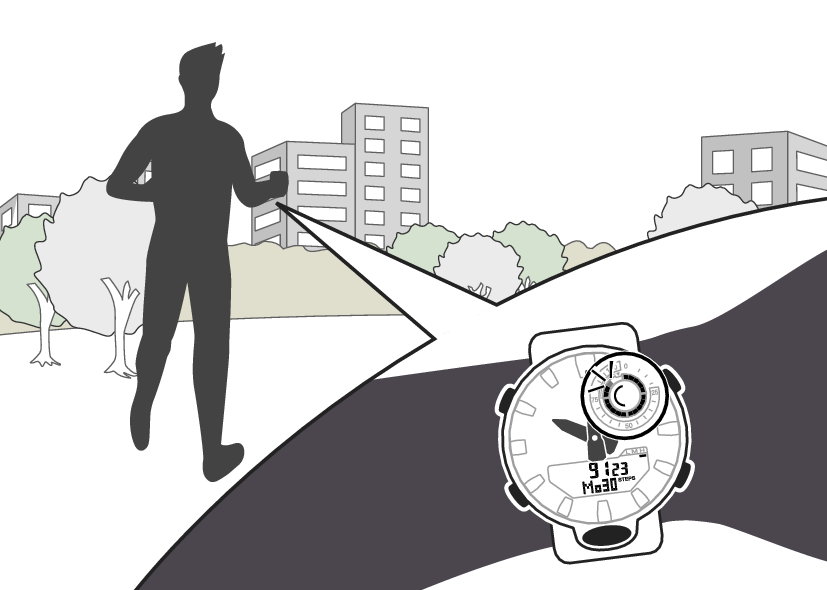
A graphic indicates your progress toward your daily step goal.
Step Reminder
Studies suggest that sitting too much is bad for the health.
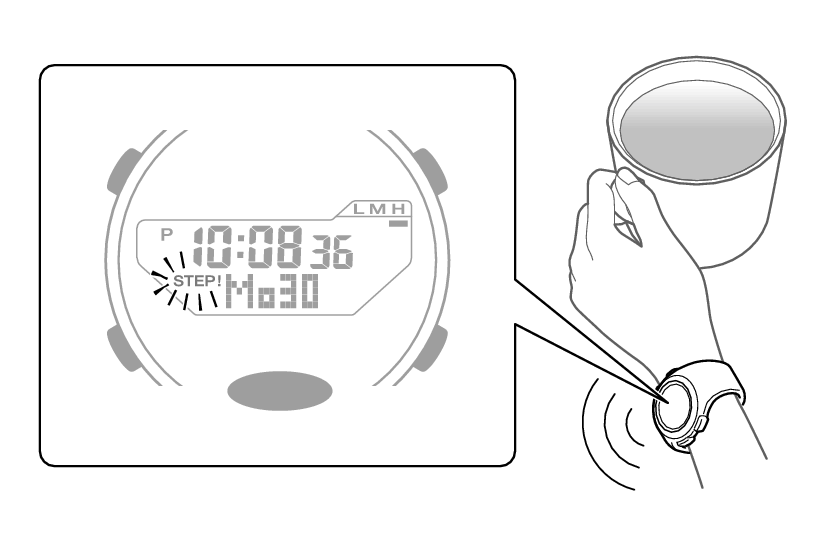
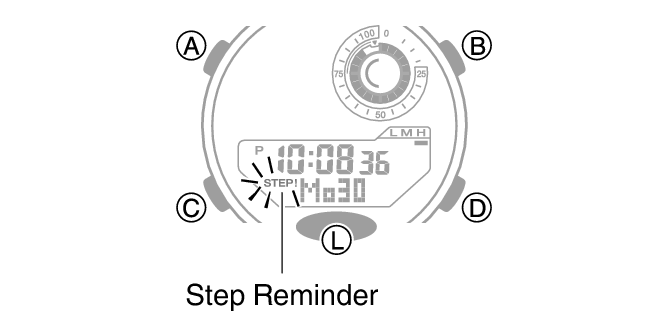
Step Reminder displays an indicator and sounds an alert when it determines you have not walked enough during a specific period. This is valuable feedback that helps achieve your exercise goals.
If the watch performs a Step Reminder alert operation, get up and walk for about five minutes.
Counting Steps
If you are wearing the watch correctly, the watch will count your steps as you walk or engage in your normal daily activities.
Important!
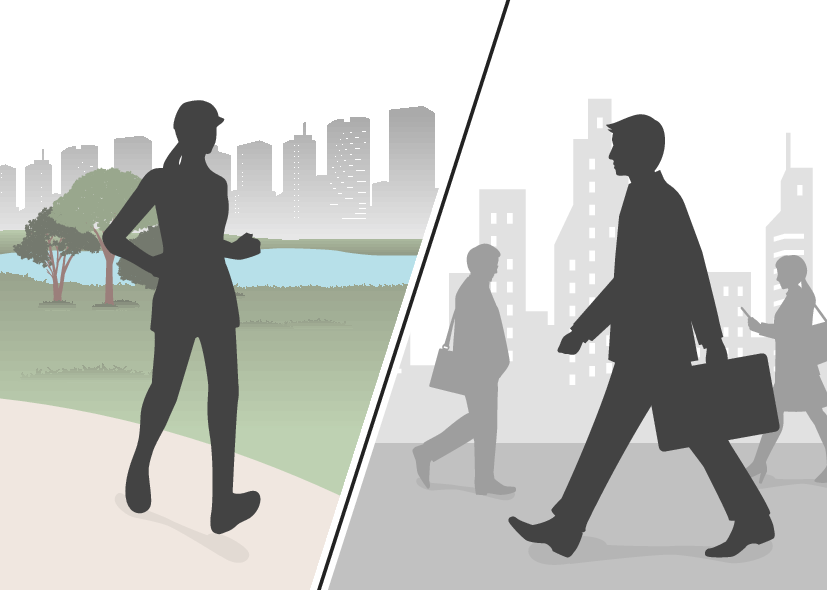
Since this watch is a wrist-worn device, it may detect non-step movements and count them as steps. Also, abnormal arm movements while walking may cause a miss count of steps.
Getting Ready
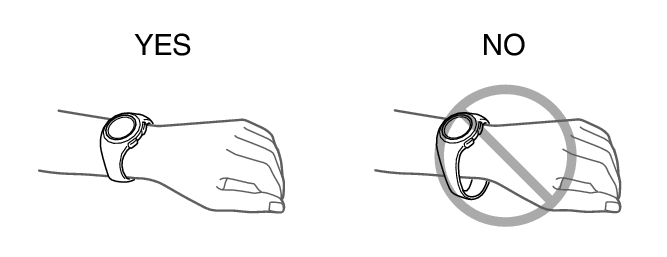
To enable the most accurate step count, wear the watch with the face on the outside of your wrist and tighten the band securely. A loose band may make it impossible to obtain correct measurement.
Performing Measurement
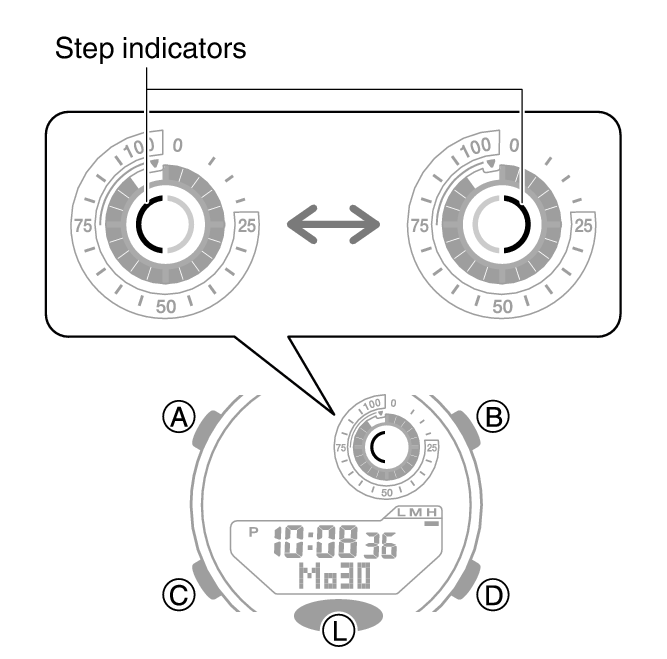
The watch starts counting your steps when you start walking. The step indicators show whether or not the step count is being incremented.
Alternating at one-second intervals: Walking (step count being incremented)
Both displayed: Not walking (step count not being incremented)
Checking Your Progress to Your Daily Step Target
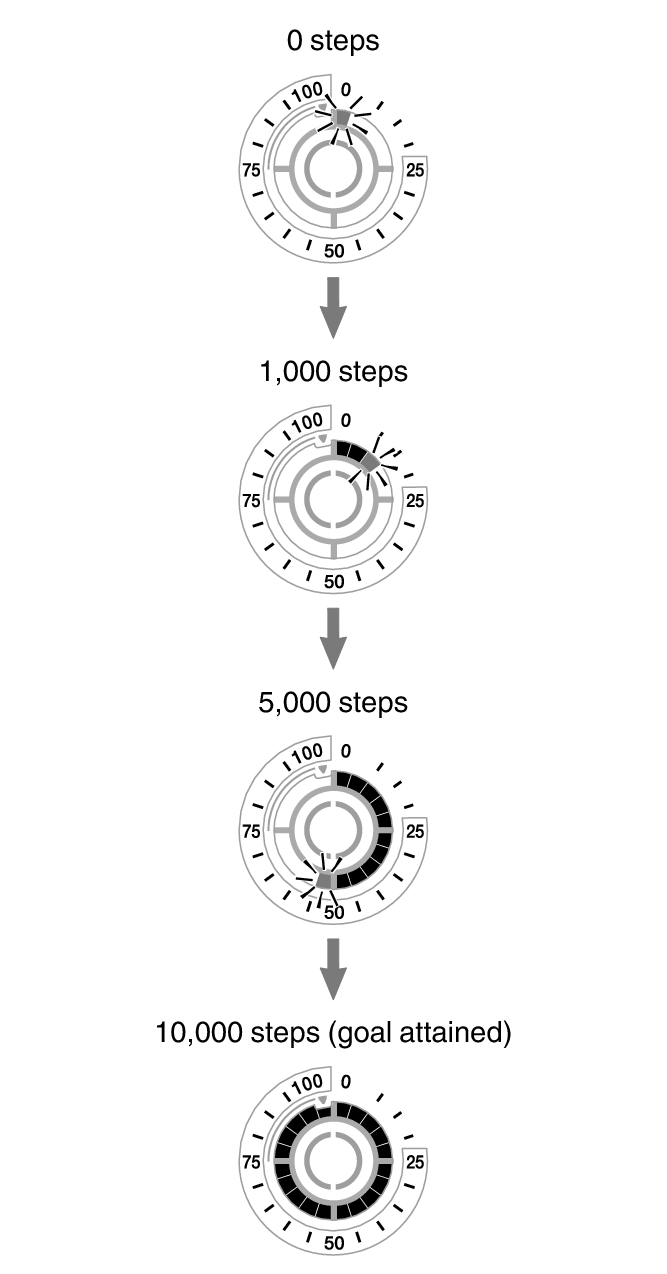
The graphic display area shows your current progress toward achieving the daily step target specified by you.
Example: Daily target of 10,000 steps
To check the step count
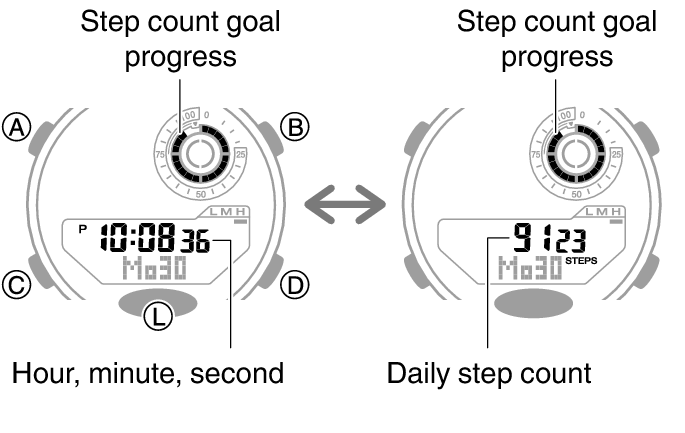
Displaying the Step Count
-
Enter the Timekeeping Mode.
-
Use (B) to change to the step count display.
Note
If the watch is connected to a phone and app info receive is turned on, the app info screen also appears.
The step count can show a value up to 999,999 steps. If the step count exceeds 999,999, the maximum value (999,999) remains on the display.
To prevent miscounts, the displayed count does not increase for about 18 seconds after you start walking. After you have been walking for about 18 seconds, the correct count appears, including the steps you took during the previous 18 seconds.
The step count is reset to zero at midnight each day.
To save power, step counting stops automatically if the watch is removed from the wrist and no movement is detected for about two to three minutes.
Resetting Today’s Step Count
-
Enter the Timekeeping Mode.
-
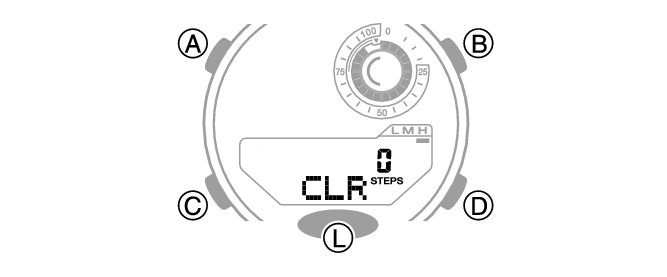
While holding down (B), hold down (D) for at least two seconds. Release when [CLR] and your step count stop flashing.
This resets the step count.
Specifying a Daily Step Target
You can specify a daily step goal within the range of 1,000 to 50,000, in units of 1,000 steps.
-
Enter the Timekeeping Mode.
-
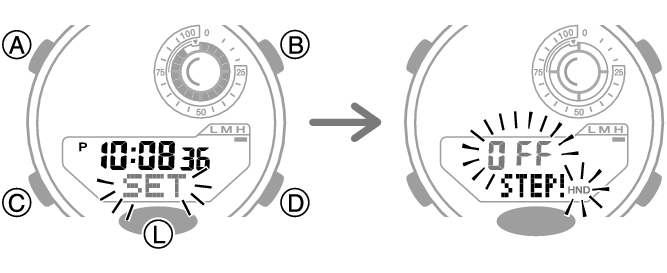
Hold down (A) for at least two seconds.
-
Press (C).
-
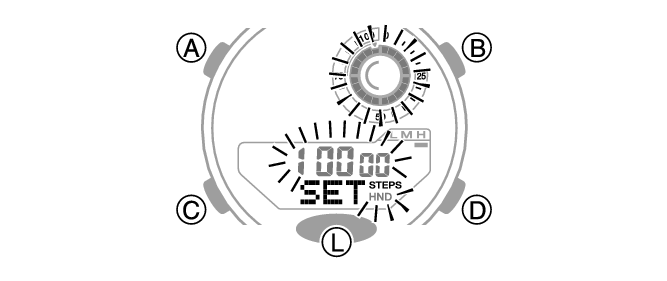
Use (B) and (D) to specify a step count target value.
-
Press (A) to complete the setting operation.
This causes the current step reminder setting ([ON] or [OFF]) to flash on the display.
This causes the current daily step target to flash.
Step Reminder
If the watch determines that you have not walked for a preset amount of time, it will sound a tone and display a flashing Step Reminder indicator. If the watch performs this Step Reminder alert operation, get up and walk for five minutes to clear it.
Enabling/Disabling Step Reminder
-
Enter the Timekeeping Mode.
-
Hold down (A) for at least two seconds.
-
Press (D) to toggle Step Reminder between enabled and disabled.
-
Press (A) to complete the setting operation.
This causes the current step reminder setting ([ON] or [OFF]) to flash on the display.
[ON]: Enabled
[OFF]: Disabled
Causes of Incorrect Step Count
Any of the conditions below may make proper counting impossible.
Walking while wearing slippers, sandals, or other footwear that encourages a shuffling gait
Walking on tile, carpeting, snow, or other surface that causes a shuffling gait
Irregular walking (in a crowded location, in a line where walking stops and starts at short intervals, etc.)
Extremely slow walking or extremely fast running
Pushing a shopping cart or baby stroller
In a location where there is a lot of vibration, or riding on a bicycle or in a vehicle
Frequent movement of the hand or arm (clapping, fanning movement, etc.)
Walking while holding hands, walking with a cane or stick, or engaging in any other movement in which your hand and leg movements are not coordinated with each other
Normal daily non-walking activities (cleaning, etc.)
Wearing the watch on your dominant hand
Walking for 18 seconds or less