

Pairing Your Moflin with Your Smartphone
To interact with your Moflin using the “MofLife” app, you must first pair your Moflin and smartphone. Pair them using the procedure below.
1. Install the “MofLife” app
Use the link below to install the “MofLife” app on your smartphone.
MofLife (iOS/Android)

USA


UK
Google Play and the Google Play logo are trademarks of Google LLC.
Apple and the Apple logo are trademarks of Apple Inc., registered in the U.S. and other countries. App Store is a service mark of Apple Inc., registered in the U.S. and other countries.
2. Setting up Bluetooth
Enable the Bluetooth setting on your smartphone.
Note
Refer to your smartphone’s User Guide for information on configuring the Bluetooth settings.
3. Log in using your CASIO ID.
Important!
To use the “MofLife” app, you must log in using your CASIO ID.
If you already have a CASIO ID, log in using that CASIO ID.
If you do not have a CASIO ID, follow the on-screen instructions to register as a new member and then log in.
-
Launch the “MofLife” app.
-
Once the app is open, tap [Next].
-
Tap [New registration / Login].
-
Follow the on-screen instructions to log in using your CASIO ID, or register as a new member.
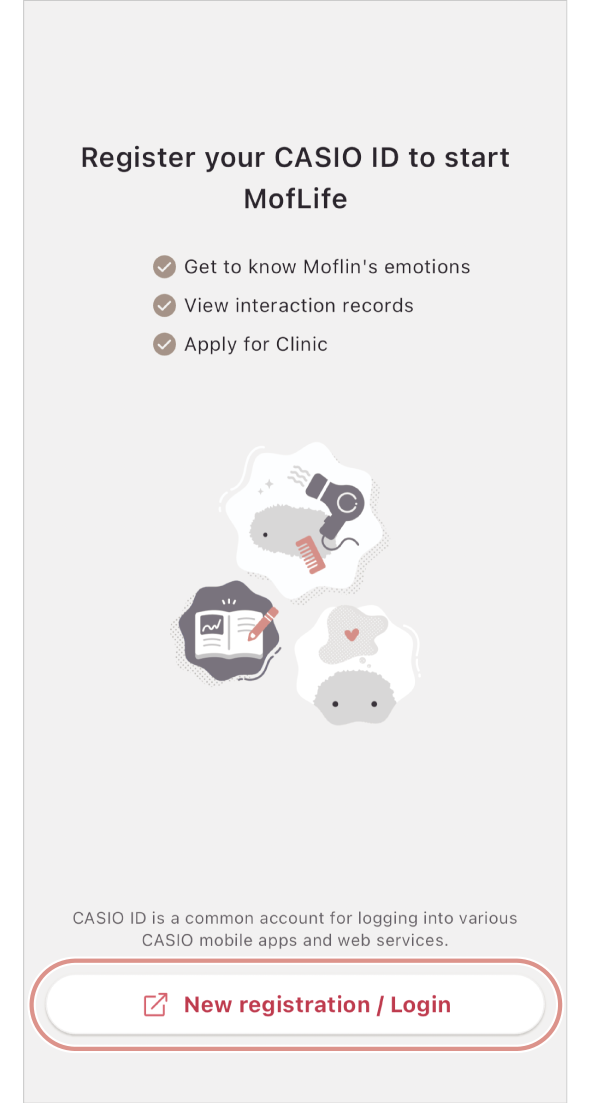
You are taken to the CASIO ID login screen (an external site).
4. Pair your Moflin and smartphone.
-
Launch the “MofLife” app.
-
Tap [+ Register].
-
Follow the on-screen instructions to pair (register) your Moflin.
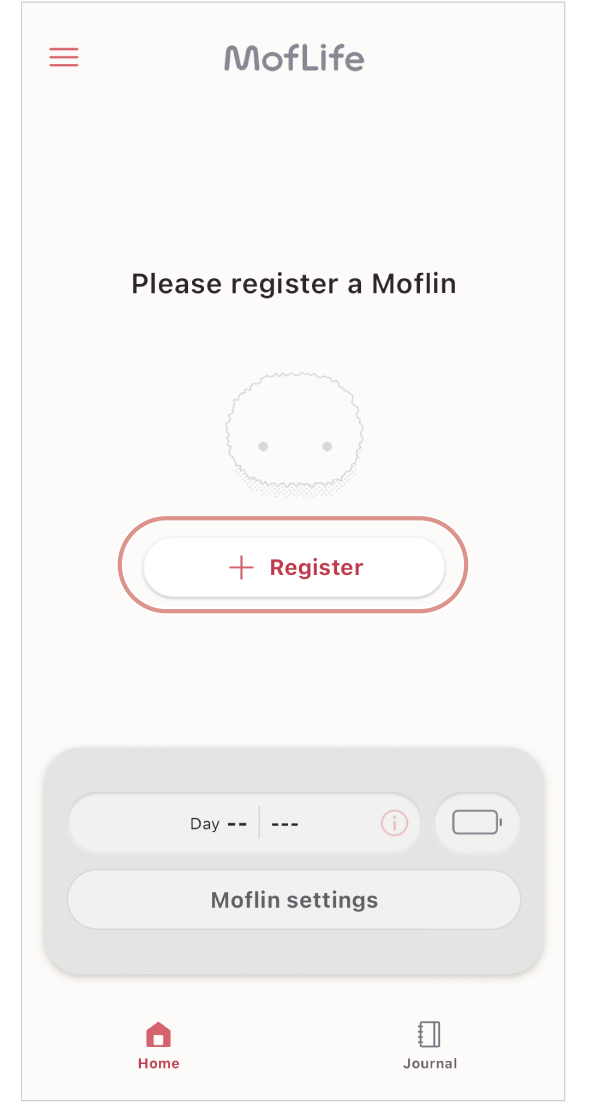
Note
To pair a second or subsequent Moflin, tap [My Moflins] in the menu ( ) and then tap [+ Add Moflin] in the Moflin list screen.
Limitations on app use
You can pair up to three Moflins.
You can only pair a Moflin with one smartphone.
While you are sending “Journal” with your Moflin to a smartphone, your Moflin stops moving.