Linking with a Phone
While there is a Bluetooth connection between the watch and phone (Mobile Link), the watch’s current time setting is corrected automatically. You can also change the watch’s other settings.
Note
This function is available only while the CASIO WATCHES phone app is running on the phone.
This section describes watch and phone operations. : Watch operation
 : Phone operation
Getting Ready
To use your watch in combination with a phone, you first need to pair them. Perform the steps below to pair the watch with a phone.
 Install the app on your phone.
 Configure Bluetooth settings.
 Pair the watch with a phone.
Install the required app on your phone.
To use the watch with a phone, first tap one of the links below and install the “CASIO WATCHES” app on the phone.
Configure Bluetooth settings.
Enable the phone’s Bluetooth.
Note
For details about setting procedures, see your phone documentation.
Pair the watch with a phone.
-
Move the phone to be paired with close to (within one meter of) the watch.
-
Tap the “CASIO WATCHES” icon.
-
Tap the
 of the “My Watch” tab.
 -
Perform the operation shown on the phone screen to register the watch to the CASIO WATCHES phone app.
-
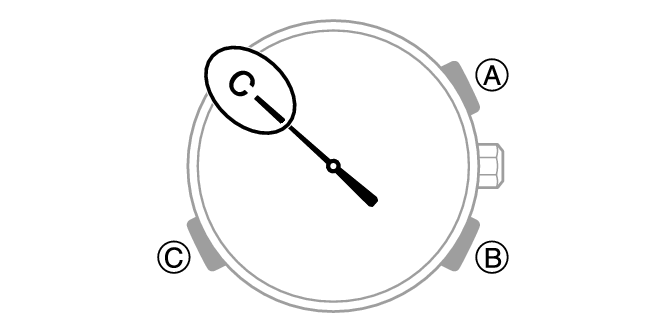
Hold down (C) for at least 2.5 seconds until the second hand points to [C].
When a connection is established between the watch and phone, the second hand moves to [C].
At this time the time settings of your phone and watch are synced with each other.
If pairing fails, the watch returns to the state it was in before starting this procedure. Perform the pairing procedure again from the beginning.
This completes the pairing operation.
Once paired, the smartphone and watch automatically connect to synchronize the watch’s time setting with that of the smartphone.
Note
The first time you start up the CASIO WATCHES phone app, a message will appear on your phone asking if you want to enable location information acquisition. Configure settings to allow background use of location information.
Auto Time Correction
Your watch connects with a phone at preset times each day and correct its time settings automatically.
Using This Function
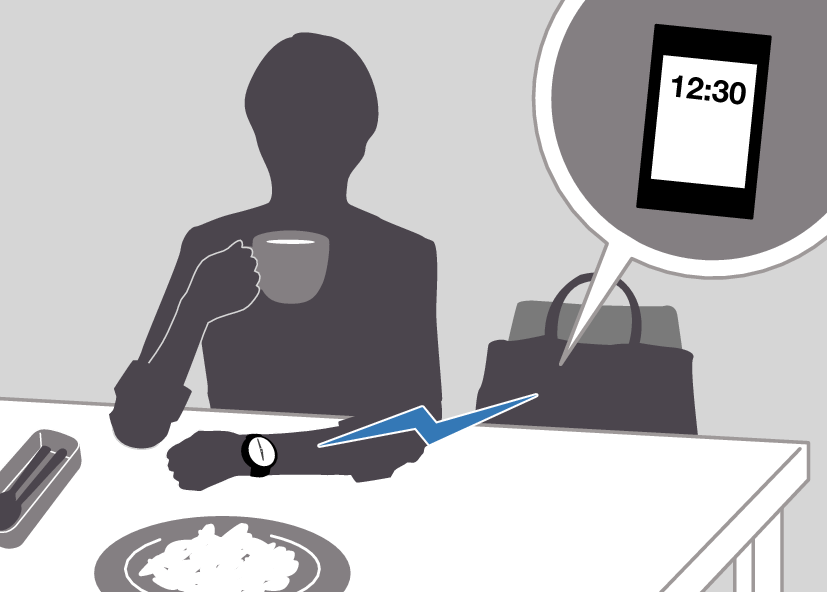
Your watch adjusts its time setting four times a day according to a preset schedule. If you leave the watch in the Calendar Mode, it will perform the adjustment operation automatically as you go about your daily life (as shown in the illustration), without any operation required by you.
Important!
Note that the watch will not perform auto time correction if it enters the Calendar Mode while any one of the conditions below exists.
Battery power is low.
Watch is in Level 2 power saving.
While the watch is too far away from its paired phone
While communication is not possible due to radio interference, etc.
While the phone is updating its system
While the CASIO WATCHES phone app is not running on the phone
Note
If the watch does not indicate the correct time even if is able to connect with a phone, correct the hand and date indicator positions.
If there is a World Time City specified with the CASIO WATCHES phone app, its time will also be synchronized automatically.
The watch connects with the phone and performs auto time correction at around 12:30 a.m., 6:30 a.m., 12:30 p.m. and 6:30 p.m. The connection is automatically terminated after auto time correction is complete.
Triggering Immediate Time Correction
The watch’s time setting is corrected automatically whenever you establish a connection between the watch and a phone. Whenever you want to trigger immediate time correction, perform the procedure below to connect with a phone.
-
Move the phone close to (within one meter of) the watch.
-
Hold down (B) for at least 0.5 seconds until the second hand points to [C]. Release the button as soon as the second hand points to [C].
When the watch connects with a phone, the second hand performs one revolution and then points to [C] again. Next, the watch’s time setting is adjusted to that of the phone.
At this time your current location is recorded by your phone.
The connection is terminated automatically after time correction is complete.
Configuring World Time Settings
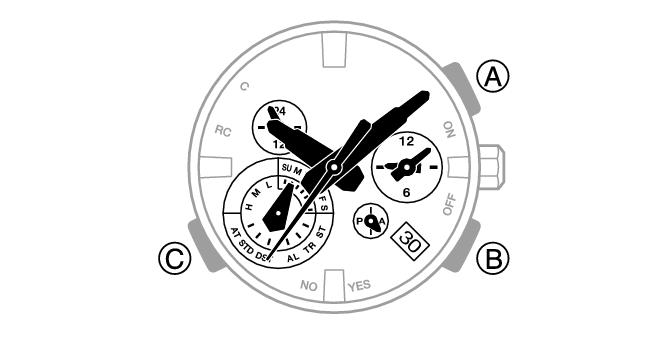
Specifying a World Time City with the CASIO WATCHES phone app causes the watch’s World Time City to change accordingly. The standard time/summer time setting of the World Time will be corrected automatically without any watch operation required by you.

Note
The CASIO WATCHES phone app World Time lets you select from among approximately 300 cities as the World Time City.
To select a World Time City
-
Tap the “CASIO WATCHES” icon.
-
Hold down (C) for at least 2.5 seconds.
-
Perform the operation shown on the phone screen. The World Time setting will be reflected on the watch.
This establishes a connection between the watch and phone.
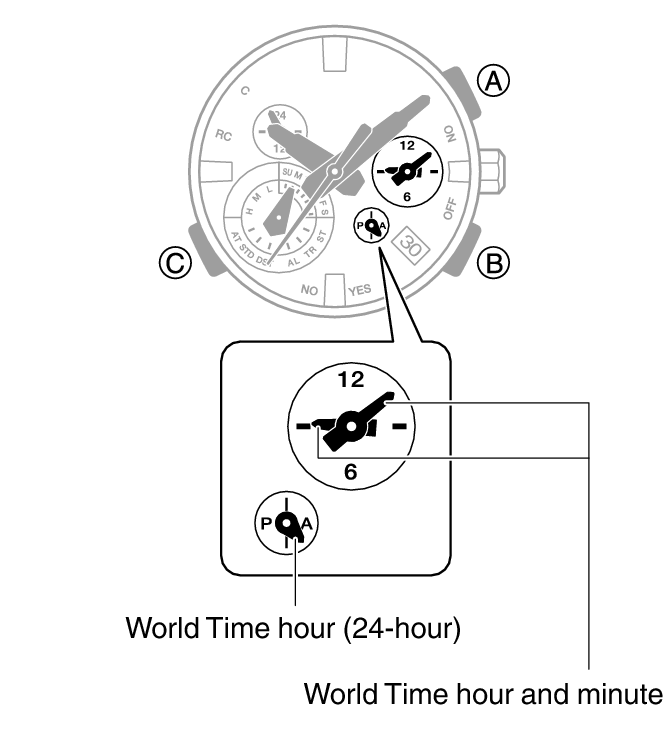
The dial small hour hand and small minute hands, and the small 24-hour hand indicate the current time in the selected city.
You can determine whether a World Time is a.m. or p.m. by checking the position of the small 24-hour hand.
Configuring the Summer Time Setting
-
Tap the “CASIO WATCHES” icon.
-
Hold down (C) for at least 2.5 seconds.
-
Perform the operation shown on the phone screen to select a summer time setting.
This establishes a connection between the watch and phone.
“Auto”
The watch switches between standard time and summer time automatically.
“OFF”
The watch always indicates standard time.
“ON”
The watch always indicates summer time.
Note
While the summer time setting is “Auto”, the watch switches between standard time and summer time automatically. You do not need to switch between standard time and summer time manually. Even if you are in an area that does not observe summer time, you can leave the watch’s summer time setting as “Auto”.
Changing the time setting manually with a watch operation will cancel auto standard time/summer time switching.
The CASIO WATCHES phone app screen shows information about summer time periods.
Swapping Your World Time and Home Time
-
Tap the “CASIO WATCHES” icon.
-
Hold down (C) for at least 2.5 seconds.
-
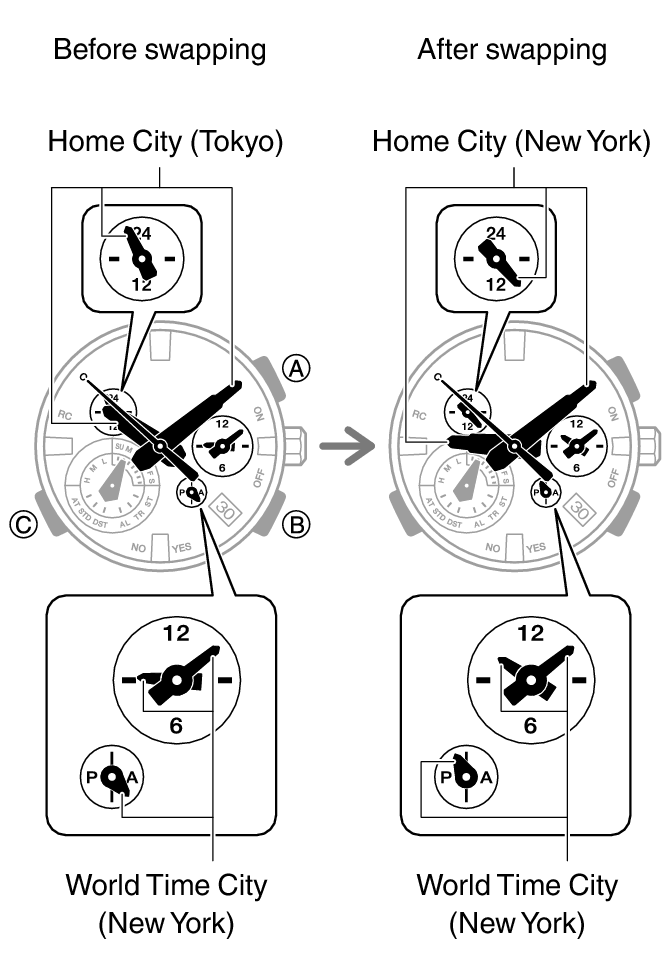
Perform the operation shown on the phone screen to swap your Home Time with your World Time.
This establishes a connection between the watch and phone.
For example, if your Home City is Tokyo and the World Time City is New York, they will be swapped as shown below.
Note
Auto time correction does not work for 24 hours after swapping the Home Time and World Time.
Setting the Alarm
-
Tap the “CASIO WATCHES” icon.
-
Hold down (C) for at least 2.5 seconds.
-
Perform the operation shown on the phone screen to configure alarm time settings.
This establishes a connection between the watch and phone.
Configuring Timer Settings
-
Tap the “CASIO WATCHES” icon.
-
Hold down (C) for at least 2.5 seconds.
-
Perform the operation shown on the phone screen to configure the timer time setting.
This establishes a connection between the watch and phone.
Correcting Hand and Day Indicator Alignment
If the hands and/or day indicator are out of alignment even though auto time correction is being performed, you can use the CASIO WATCHES phone app to adjust them.
-
Tap the “CASIO WATCHES” icon.
-
Hold down (C) for at least 2.5 seconds.
-
Perform the operation shown on the phone screen to correct hand and day indicator alignment.
This establishes a connection between the watch and phone.
Phone Finder
You can use phone finder to trigger a tone on the phone to make it easy to find. The tone is forced to sound even if the phone is in vibrate mode.
Important!
Phone finder will not sound the tone unless the CASIO WATCHES phone app is running on the phone.
Do not use this function in areas where phone call tones are restricted.
The tone sounds at a high volume. Do not use this function when listening to phone output over earphones.
-
If the watch is connected with a phone, press any button to terminate the connection.
-
Hold down (B) for at least 3.5 seconds until the second hand points to [C].
-
Press any button to stop the tone.
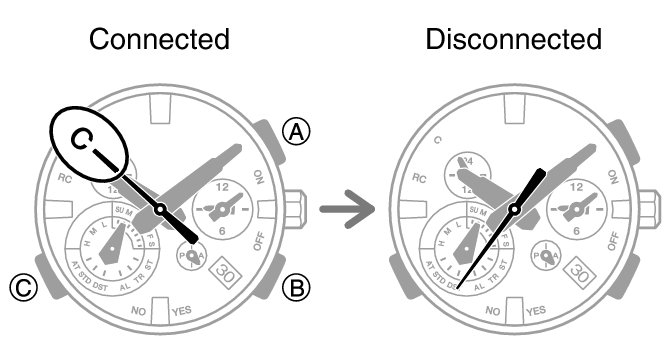
A connection will be established between the watch and phone, and then the phone’s ringtone will sound.
It takes a few seconds before the phone tone sounds.
You can press any watch button to stop the phone tone, but only during the first 30 seconds after it starts to sound.
Configuring Watch Settings
After establishing a connection between the watch and a phone, you can use the CASIO WATCHES phone app to configure watch settings and to view information acquired by the watch.
-
Tap the “CASIO WATCHES” icon.
-
Hold down (C) for at least 2.5 seconds.
-
Select the setting you want to change and then perform the operation shown on the phone screen.
This establishes a connection between the watch and phone.
Changing the Home City Summer Time Setting
-
Tap the “CASIO WATCHES” icon.
-
Hold down (C) for at least 2.5 seconds.
-
Perform the operation shown on the phone screen to change your Home City summer time setting.
This establishes a connection between the watch and phone.
Checking the Watch Charge Level
Use the procedure below to check the current charge level with the CASIO WATCHES phone app.
-
Tap the “CASIO WATCHES” icon.
-
Hold down (C) for at least 2.5 seconds.
-
Use the CASIO WATCHES phone app to check the charge level.
This establishes a connection between the watch and phone.
Recording Your Current Location (TIME&PLACE)
While traveling or otherwise on the go, you can use the procedure below to record your current location, along with the time and date, on your phone. Recorded location information can be viewed on the CASIO WATCHES phone app map.
Recording Your Current Location
-
Enter the Calendar Mode.
-
Hold down (B) for at least 0.5 seconds until the second hand points to [C]. Release the button as soon as the second hand points to [C].
This records, in phone memory, the latitude and longitude of the location you are in when you press (C), along with the date and time of the recording.
When location recording is successful, the second hand performs one revolution and then points to [C] again. Next, watch syncs its time setting with your phone.
Viewing a Recorded Location on a Map
-
Tap the “CASIO WATCHES” icon.
-
Perform the operation shown on the phone screen to view recorded location information.
Note
You can use the CASIO WATCHES phone app to delete recorded location information.
Connection
Connecting with a Phone
Your watch can connect with a phone that is paired with it.
If the watch is not paired with the phone you want to connect with, refer to the information below and pair them.
Connecting with a Phone
-
Move the phone close to (within one meter of) the watch.
-
Hold down (C) for at least 2.5 seconds.
This establishes a connection between the watch and phone.
Important!
If you have problems establishing a connection, it could mean that the CASIO WATCHES phone app is not running on your phone. On your phone’s home screen, tap the “CASIO WATCHES” icon. After the app starts up, hold down the watch’s (C) button for at least 2.5 seconds.
Note
The connection is terminated if you do not perform any operation on the watch or phone for a fixed amount of time.
To specify the connection limit time, perform the following operation with the CASIO WATCHES phone app: “Watch settings”  “Connection time with the app”. Next, select a setting of 3 minutes, 5 minutes, or 10 minutes.
Disconnecting from Your Phone
Pressing any button terminates the Bluetooth connection and returns the second hand to its normal operation.
Using the Watch in a Medical Facility or Aircraft
Whenever you are in a hospital, on an aircraft, or in any other location where auto time calibration signal receive or connection with a phone may cause problems, you can perform the procedure below to disable auto time correction. To re-enable auto time correction, perform the same operation again.
-
Tap the “CASIO WATCHES” icon.
-
Hold down (C) for at least 2.5 seconds.
-
Perform the operation shown on the phone screen to enable or disable auto time correction.
This establishes a connection between the watch and phone.
Unpairing
Unpairing the watch from a phone requires both the CASIO WATCHES phone app and watch operations.
Deleting Pairing Information from the CASIO WATCHES phone app
-
If the watch is connected with a phone, press any button to terminate the connection.
-
Tap the “CASIO WATCHES” icon.
-
Perform the operation shown on the phone screen to unpair.
Deleting Pairing Information from the Watch
-
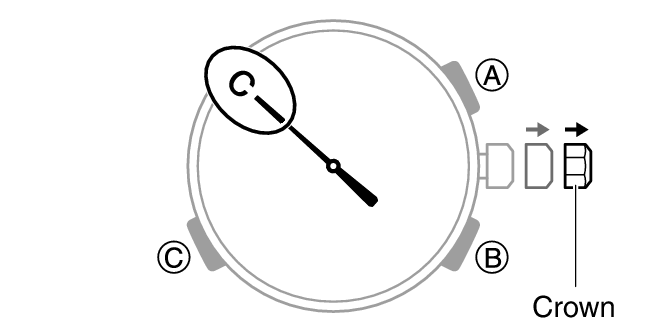
Pull out the crown to the second click.
-
Hold down (B) for at least 10 seconds.
-
Push the crown back in.
This deletes the pairing information. The second hand will point to [C].
If you purchase another phone
You need to perform the pairing operation whenever you want to establish a Bluetooth connection with a phone for the first time.