Time Adjustment
Your watch can obtain date and time information by connecting with a phone and by receiving time signals, which it uses to adjust its settings.
Important!
Disable auto time correction whenever you are inside an aircraft or in any other area where radio wave reception is prohibited or restricted.
Referring to the information below, configure the time setting in accordance with the method that suits your own lifestyle.
Do you use a phone?

Can you receive a time signal in your area?
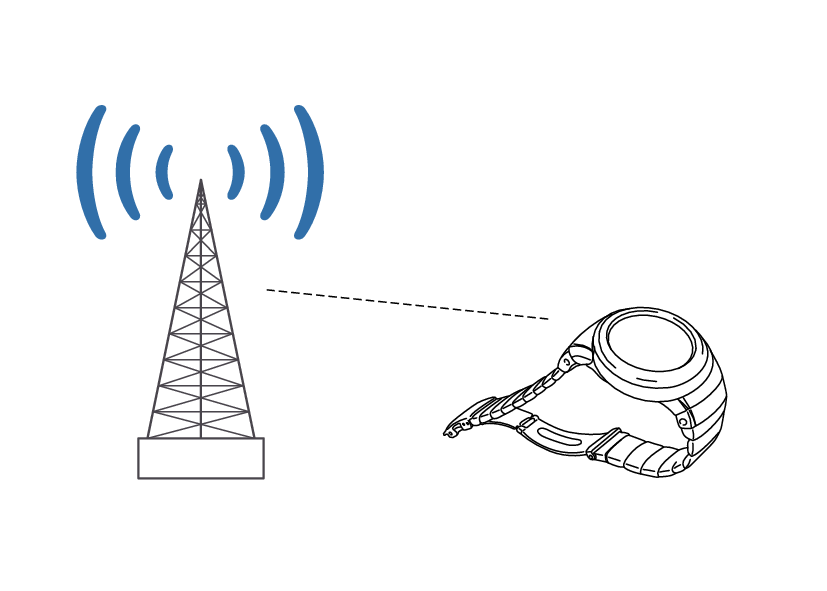
If you are able to receive a time signal, time settings can be adjusted in accordance with a received signal.
Other than the above.
If you are unable to connect with a phone and are unable to receive a time signal, you can perform watch button operations to adjust its time setting.
Time Adjustment Using a Time Signal
Overview
The watch’s time and day settings can be configured in accordance with a received time calibration signal.
Important!
In order to make it possible for the current time setting to be adjusted correctly based on time calibration signal reception, you need to specify the time zone where you are using the watch.
If the watch was unable to connect with a phone even once for time correction during the previous day while connection with a phone is being used, it will automatically try to receive a time calibration signal.
Disable auto time correction whenever you are inside an aircraft or in any other area where radio wave reception is prohibited or restricted.
Note
Areas where time calibration signal reception is supported are limited. When the watch is in an area where time calibration signal reception is not possible, connect with a phone to adjust time and day settings.
If the watch does not indicate the correct time even after it receives a time calibration signal, correct the hand and day indicator positions.
Appropriate Signal Reception Location
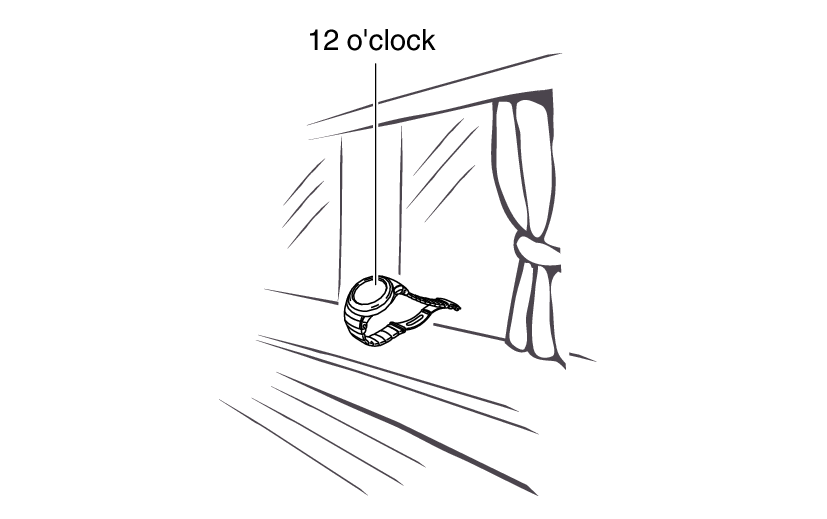
A time calibration signal can be received while the watch is near a window.
Position the watch so its 12 o’clock side is facing the window.
Keep metal objects away from the watch.
Do not move the watch.
Do not perform any operation on the watch.
Note
You may experience time calibration signal reception problems in the areas described below.
Among or near buildings
While riding in a vehicle
Near household appliances, office machines, mobile phones, etc.
On a construction site, in an airport, or any other location where radio wave interference occurs
Near high-voltage lines
In mountainous areas or behind a mountain
Time Signal Reception Ranges
Japan (JJY)
The Japan time signal radio stations are located on Mt. Otakadoya in Fukushima and Mt. Hagane in Fukuoka/Saga.
The reception range of the Japanese time signals is approximately 1,000 km from each transmission station.
China (BPC)
The China time signal radio station is located in Shangqiu, Henan Province, China.
The reception range of the Chinese time signal is approximately 1,500 km from the transmission station.
United States (WWVB)
The United States time signal radio station is located in Fort Collins, Colorado.
The reception range of the U.S. time signal is approximately 3,000 km from the transmission station.
U.K. (MSF)/Germany (DCF77)
The U.K. time signal radio station is located in Anthorn, Cumbria.
The German time signal radio station is located in Mainflingen, southeast of Frankfurt.
The reception range of the U.K. and German time signals is approximately 1,500 km from each transmission station.
Note
Even if you are within the normal reception range of a time calibration signal, reception may be made impossible by the following factors: geographic contours, weather, the season, the time of day, wireless noise.
Auto Time Calibration Signal Receive
An automatic time calibration signal receive operation is performed and the time and day settings are corrected between midnight and 5:00 a.m. Once a signal receive operation is successful, no more auto receive operations are performed that day.
Getting Ready
Enter the Calendar Mode.
Place the watch near a window or some other location appropriate for signal reception.
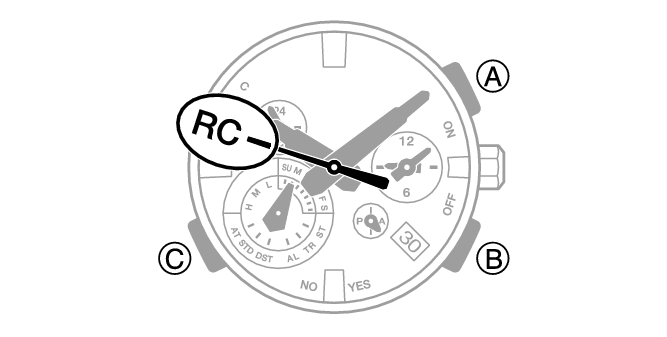
The second hand points to [RC] while the receive operation in progress.
When the receive operation is successful, the time and day settings will be adjusted automatically.
Note
Reception takes anywhere from about two minutes to about 10 minutes. It can take as long as 20 minutes.
If the watch connects with a phone and adjusts its time setting, the watch will not perform auto receive of a time calibration signal for the rest of that day or the next day.
Manual Time Calibration Signal Receive
-
Place the watch near a window or some other location appropriate for time signal reception.
-
Enter the Calendar Mode.
-
Hold down (B) for at least 0.5 seconds until the second hand points to [RC].
This indicates that the receive operation has started. After the receive operation is complete, the watch’s time and day settings will be corrected accordingly.
Note
The receive operation takes anywhere from about two minutes to about 10 minutes. It can take as long as 20 minutes.
Time calibration signal reception is better at night than during the day.
A time calibration signal cannot be received while the watch is paired with a phone.
Signal Reception Precautions
When the watch is unable to correct its time in accordance with a calibration signal for some reason, average timekeeping accuracy is within ±15 seconds per month.
Note that an internal decoding process the watch performs after it receives a signal may cause the time setting to be slightly off (by less than one second).
Time calibration signal reception is not possible under the conditions described below.
While battery power is low
In any mode besides the Calendar Mode
At Power Saving Level 2
While the crown is pulled out
While the Home City setting is a time zone where time signal reception is not possible
While the watch is outside the time signal reception range
While the watch is paired with a phone
To perform a manual time calibration signal receive operation, make sure the watch is not paired with a phone. If it is, delete the watch’s pairing information before performing the manual receive operation.
When the receive operation is successful, the time and/or day settings will be corrected automatically. Summer time will not be applied correctly in the case described below.
When the summer time start date and time, end date and time, or other rules are changed by authorities
If your watch is connected with a phone, settings must be configured so CASIO WATCHES can acquire location information. Even if you are in an area that is within the reception range of a time signal, reception will not be performed if settings are configured in a way that makes signal reception impossible.
Using Watch Operations to Correct the Time Setting
If your watch cannot connect with a phone for some reason, you can use watch operations to adjust date and time settings.
Setting a Home City
Use the procedure in this section to select a city (time zone) to use as your Home City.
Important!
If you do not specify the city (time zone) where you are using the watch, the current time setting will not be correct after it is adjusted based on a time calibration signal.
-
Pull out the crown to the second click.
-
Rotate the crown to change the Home City.
-
Push the crown back in.
The second hand will move to the city code of the currently selected Home City.
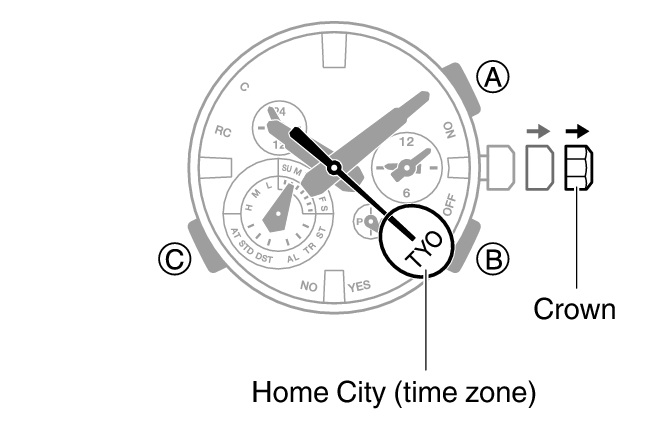
You can also select a time zone whose name is not indicated on the face of the watch.
For details about time zones, refer to the information below.
Adjusting the Time and Day Setting
-
Pull out the crown to the second click.
-
Hold down (C) for at least one second.
-
Rotate the crown to change the minute setting.
-
Press (C).
-
Rotate the crown to change the hour setting.
-
Press (C).
-
Rotate the crown to move the second hand to the desired setting for the year ten’s digit.
-
Press (C).
-
Rotate the crown to move the second hand to the desired setting for the year one’s digit.
-
Press (C).
-
Rotate the crown to change the month.
-
Press (C).
-
Rotate the crown to change the day.
-
On a time signal at the top of a minute, push the crown back in.
The second hand will move to the city code of the currently selected Home City.
This causes the second hand to move to 12 o’clock, and enables the minute setting operation.
This enables the hour setting operation.
This enables the year ten’s digit setting operation.
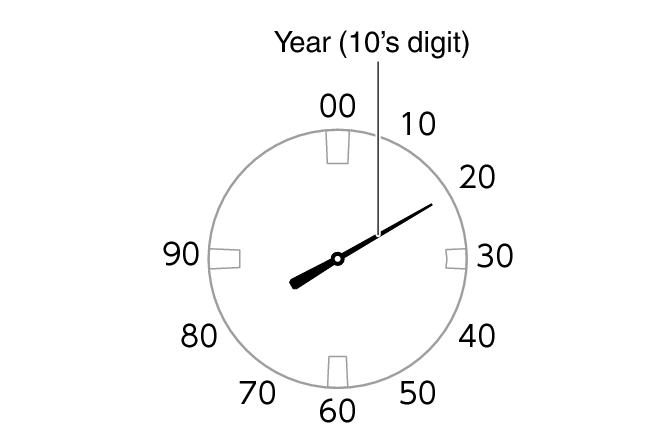
This enables the year one’s digit setting operation.
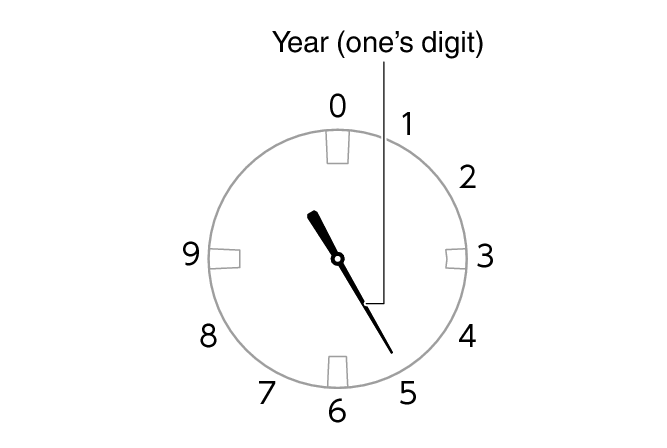
This enables the month setting operation.
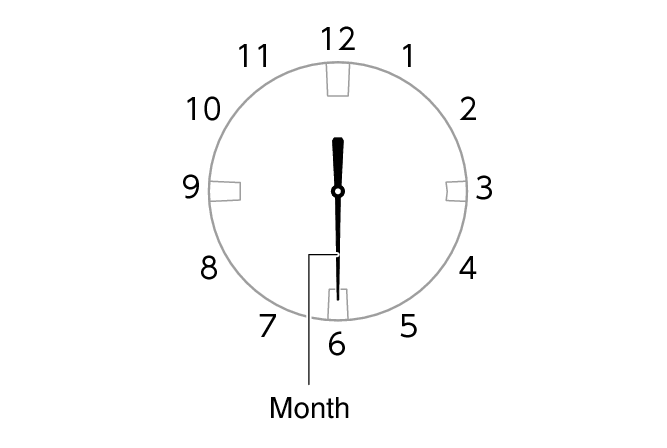
The mode hand will move slightly, indicating that the day setting operation is enabled.
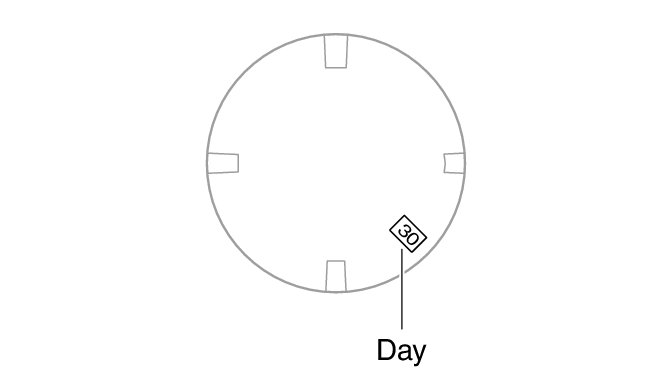
Changing the day setting will cause the mode hand to rotate repeatedly.
To return to the minute setting operation, press (C).
Configuring the Summer Time Setting (Home City)
If you are in an area that observes summer time, you can also configure a summer time setting.
Note
The initial factory default summer time setting for all cities is [AT (AUTO)]. In many cases, the [AT (AUTO)] setting lets you use the watch without switching between summer time and standard time.
When performing a manual operation to select a time zone for which there is no city name displayed, use [STD] or [DST] for the summer time setting.
-
Pull out the crown to the second click.
-
Hold down (A) for at least one second.
-
Push the crown back in.
The second hand will move to the city code of the currently selected Home City.
Each time you hold down (A) for at least one second, the summer time setting will cycle to the next available option.
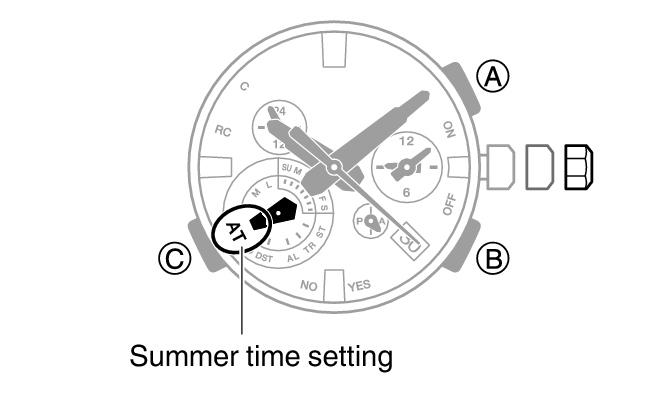
[AT (AUTO)]
The watch switches between standard time and summer time automatically.
[STD]
The watch always indicates standard time.
[DST]
The watch always indicates summer time.
Checking the Last Time Correction Result
-
Enter the Calendar Mode.
-
Press (B).
The second hand will indicate the last time correction operation result. The watch hands will return to indicating the current time if you do not perform any operation for nine or ten seconds.
[Y(YES)]: Last time correction operation successful.
[N(NO)]: Last time correction operation failed.
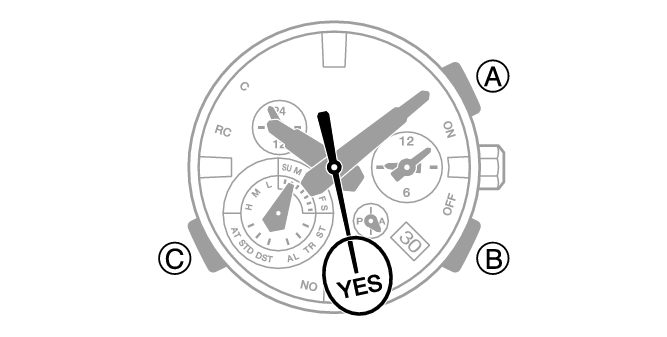
Note
Even if there was a successful time calibration signal receive operation or connection with a phone, the second hand will point to [N(NO)] if you subsequently adjusted the time and/or date setting manually.
Using the Watch in a Medical Facility or Aircraft
Whenever you are in a hospital, on an aircraft, or in any other location where auto time calibration signal receive or connection with a phone may cause problems, you can perform the procedure below to disable auto time correction. To re-enable auto time correction, perform the same operation again.
-
Enter the Calendar Mode.
-
Press (B).
-
Within 10 seconds after pressing (B) above, pull out the crown to the first click.
-
Rotate the crown to disable auto time correction.
-
Push the crown back in.
The second hand will indicate the last receive result for nine or ten seconds.
If more than 10 seconds elapse before you pull out the crown after you perform the operation in step 2, the second hand will return to indicating seconds. If this happens, perform step 2 again.
[Y(YES)]: Auto time correction enabled
[N(NO)]: Auto time correction disabled
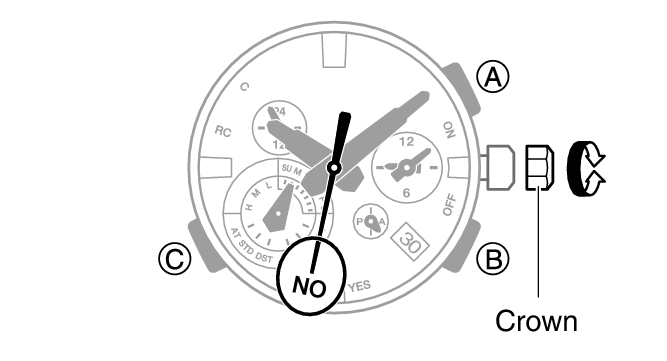
Note
If the watch is paired with a phone, you can use the CASIO WATCHES phone app to disable auto time correction.