

STB-1000 × Wahoo Fitness Setup Guide
* Wahoo Fitness v3.6 is used for explanations in this guide.
Delete pairing
If the procedure does not solve your pairing problems, perform the steps below to delete existing pairing information for the watch and iPhone. After deleting pairing information, re-pair the watch and iPhone.
 For the watch and iPhone
1 Check to confirm that the Bluetooth icon ( ) is not on the watch display.
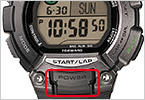
Hold down the watch's front button for about two seconds.
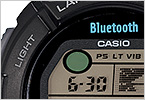
Check to confirm that the Bluetooth icon () is not on the watch display.
2 Clear the phone's pairing information.
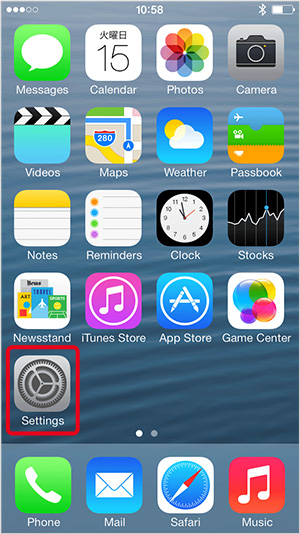
Tap “Settings”.
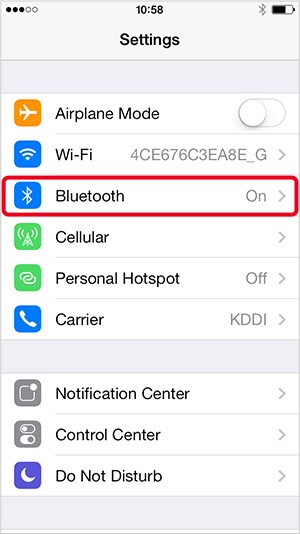
Tap “Bluetooth” to enable Bluetooth.
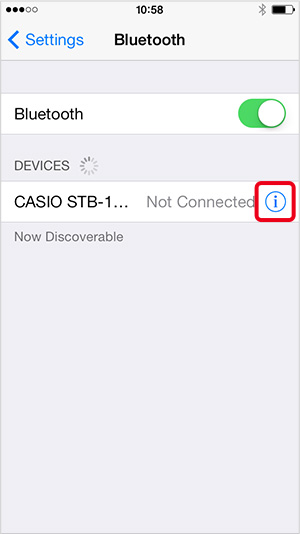
Tap  next to “CASIO ******”.
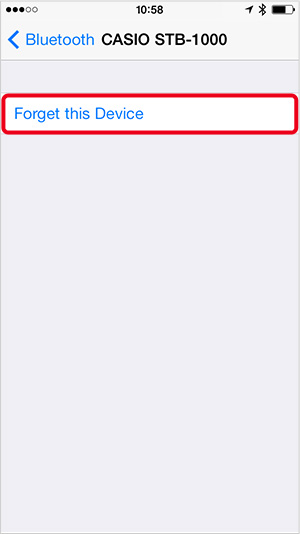
Tap the “Forget this Device” text that appears.
3 Clear the watch's pairing information. Delete pairing is now complete.
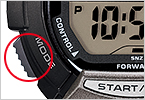
In the Timekeeping Mode, press the left down button six times to enter the Setup Mode.
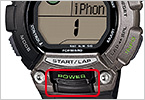
On the watch, use the front button to scroll through the pairing memory locations until the one for the phone you want to unpair is displayed.
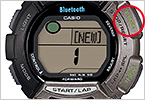
Hold down the upper right button until the watch display changes from "CLEAR" to "[NEW]". Release the button as soon as "[NEW]" appears.
Press the left down button to return to the Timekeeping Mode.
For the application
1
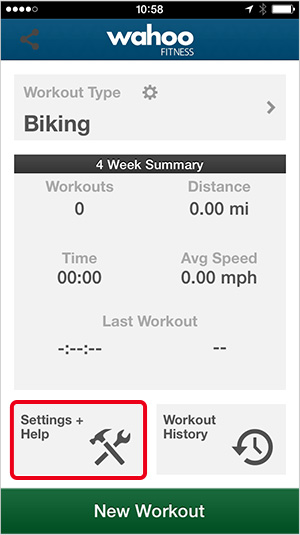
On the top Wahoo Fitness screen, tap [Settings + Help].
2

Tap [Workout Settings].
3

Tap the workout type you selected.
4
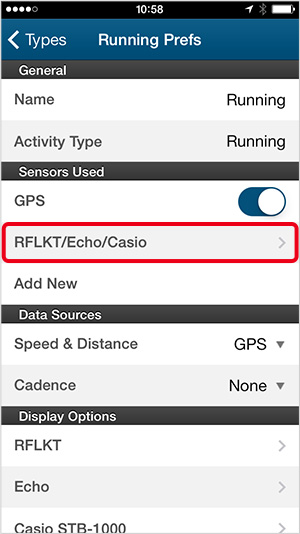
Under [Sensors Used], tap [RFLKT/Echo/Casio].
5
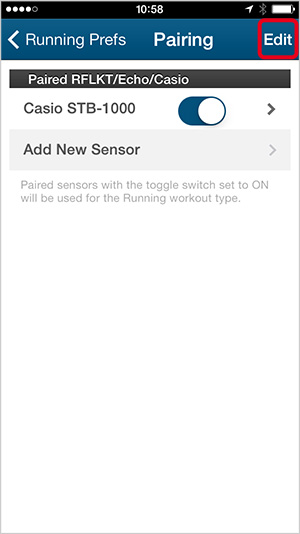
Tap [Edit] in the upper right corner to delete pairing information.
6
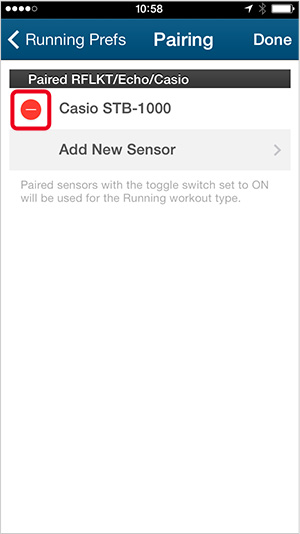
Tap 
7
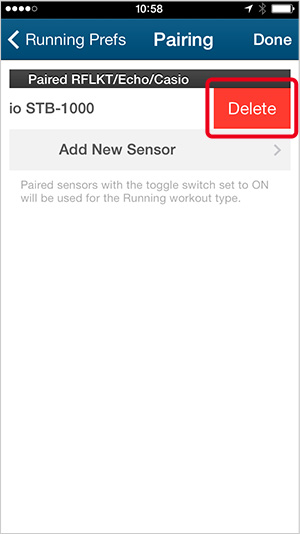
Tap [Delete].
8
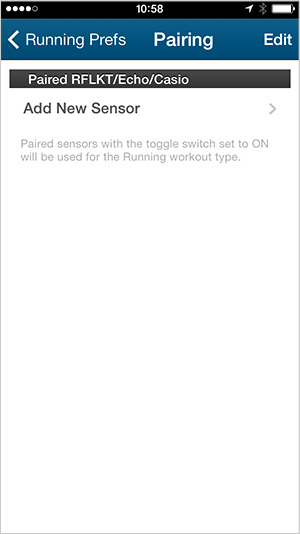
Pairing information is deleted when [Casio STB-1000] will disappear on its display.