

STB-1000 × Wahoo Fitness Setup Guide
* Wahoo Fitness v3.6 is used for explanations in this guide.
Watch Display Settings
Perform the steps below to customize a watch page template to display information you want. You can configure a page template to display information you most often use during workouts to help keep important data close at hand for easy reference.
Basic Settings
 Watch Display Page Template Settings
1
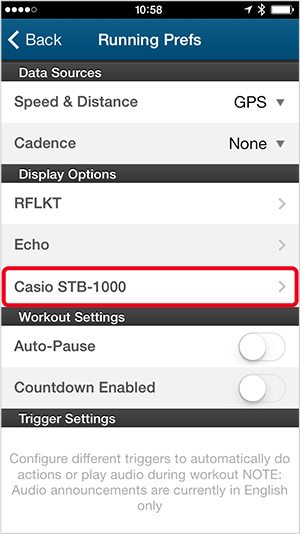
Under [Display Options] on the workout prefs screen, tap [Casio STB-1000].
2

Tap the [Edit] button next to [Casio Default].
3
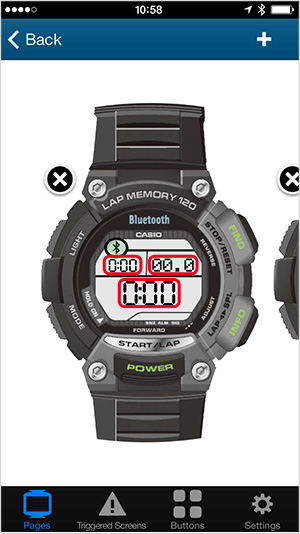
On the watch display, tap the area (cell) on the page template that contains information you want to change. You can configure settings for up to three page template areas (cells).
4

Select the information you want to have displayed in the area (cell) that you selected above.
Auto Scroll Pages

You can use the page template function to configure multiple different workout information pages, and then use the cell value settings above to specify what information should appear on each page. Turning on Auto Scroll Pages causes your configured workout information pages to appear in sequence on the watch display at two-second intervals.
Setting Procedure:
[Settings] > Auto Scroll Pages [ON]
Original Settings
Selecting a Page Template
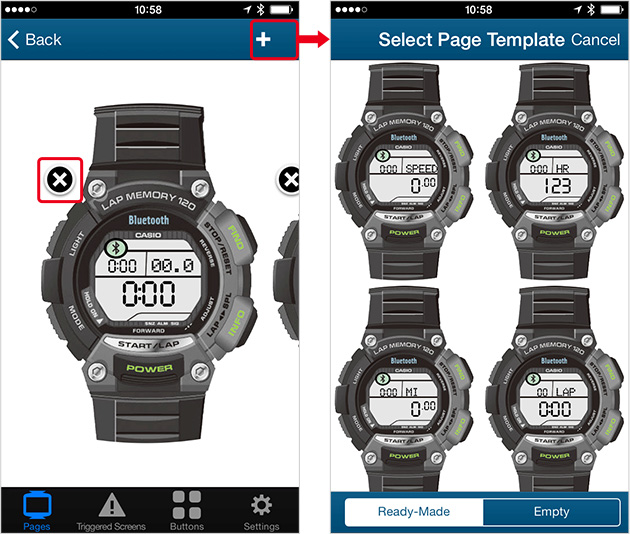
Wahoo Fitness comes with a number of different page templates for the watch display.
Tap [+] in the upper right corner of the screen to display a menu of available page templates. Select the page template you want to use by tapping it. You can even specify multiple different page templates and use them to display a wide variety of workout information.
If you have Auto Scroll Pages turned on, your selected page templates will appear in sequence as you work out.
After you select a page template, you can use Select Cell Value specify the information you want displayed in each of the page's display areas (cells).
To remove a page template from among those you have selected for use, tap the [x] to the left of the on-screen template image.
Setting Up for Direct Page Template Access
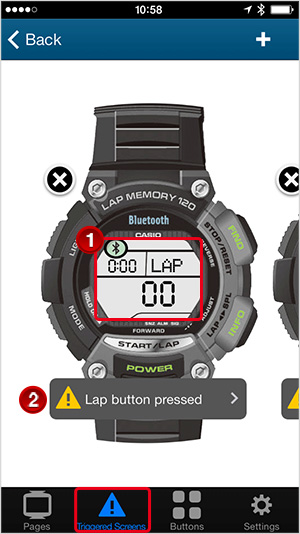
Use the procedure below to configure the watch so a specific page template is momentarily displayed whenever some trigger action occurs (Triggered Screens function).
1Tap the watch display. Display the page template you want to configure for direct access, and specify the information that you want displayed in each of the display areas (cells).
2Tap
 and then select the action that will trigger momentary display of the page template. You can specify any one of the following trigger actions.
- Lap button press
- Change in workout status (start, pause, restart)
- Start of new song (music control)
Example: Left screen
Pressing the lap button during a workout causes a page template showing the lap count to appear, with the current lap running time in the upper left. The display will revert back to normal in a few seconds.