Time Adjustment
Use the procedures in this section to adjust the date and time settings.
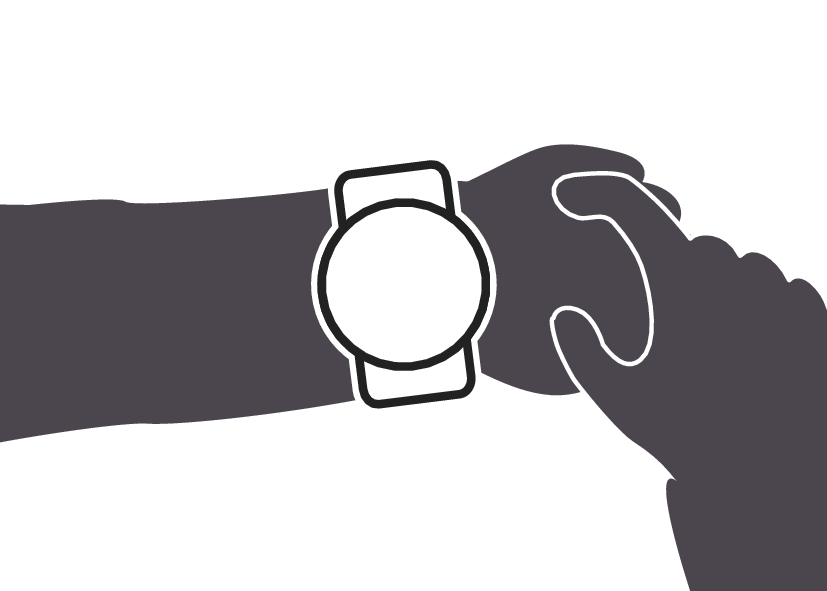
Adjusting the Current Time Setting
Use the procedures in this section to adjust the date and time settings.
Setting the Time/Date
-
Hold down (B) for at least two seconds to enter the Timekeeping Mode.
-
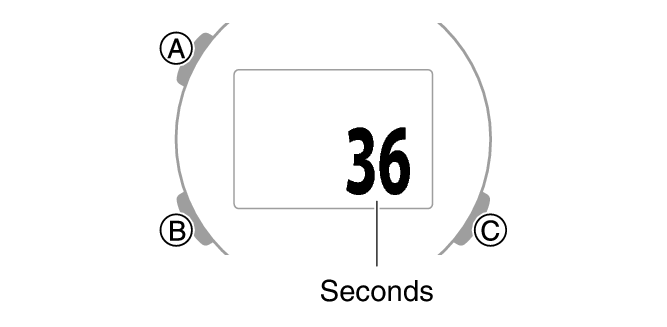
Hold down (A) for at least two seconds. Release the button when the seconds appear on the display.
-
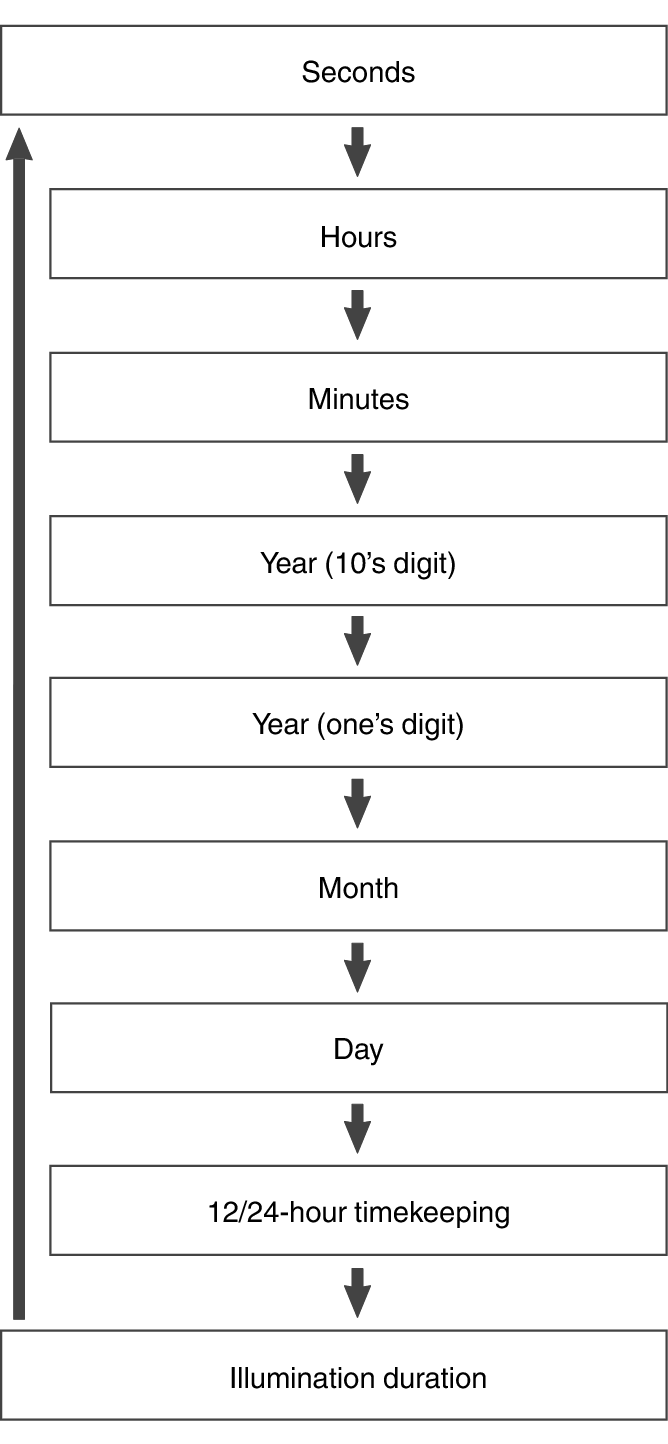
Use (B) to display the setting you want to change.
-
Configure the date and time settings.
-
Repeat steps 3 and 4 to select time and date settings.
-
Press (A) to complete the setting operation.
This is the setting mode. The hands automatically shift out of the way for easy viewing of the display and other indicators.
Each press of (B) cycles through settings in the sequence shown below.
While the seconds are flashing, pressing (C) resets them to 00. 1 is added to the minutes when the current seconds count is between 30 and 59 seconds.
For all the other values, use (C) to change the flashing setting.
Holding down (C) scrolls through settings at high speed.
Switching between 12-hour and 24-hour Timekeeping
You can specify either 12-hour format or 24-hour format for the time display.
-
Hold down (B) for at least two seconds to enter the Timekeeping Mode.
-
Hold down (A) for at least two seconds. Release the button when the seconds appear on the display.
-
Press (B) seven times.
-
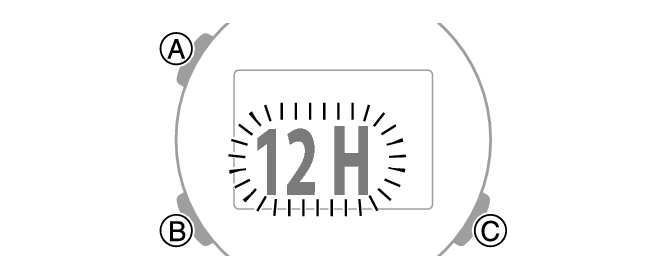
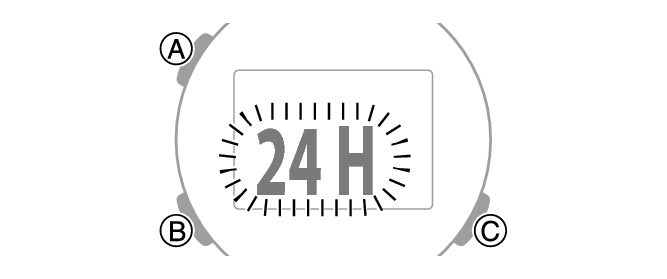
Press (C) to select [12H] (12-hour timekeeping) or [24H] (24-hour timekeeping).
-
Press (A) to complete the setting operation.
This is the setting mode. The hands automatically shift out of the way for easy viewing of the display and other indicators.
This causes [12H] or [24H] to flash on the display.
Note
While the setting is being configured, the watch will exit the setting operation automatically after about two or three minutes of non-operation.