Tide Function
You can look up tide information (Tide Graph) of a port you specified.
Important!
Displayed information is intended for reference only. Do not use it for maritime navigation, etc.
To look up tide information, use the CASIO WATCHES phone app or watch operations to specify the port whose information you want to view.
Specifying a Port
Use the CASIO WATCHES phone app or watch operations to specify the port whose tide information you want to view.
To use the CASIO WATCHES phone app to specify a port
Check the connection
Make sure the  symbol is shown on the watch display when you perform the procedure below. If is not displayed, refer to the information at the link below.
Note
You can use CASIO WATCHES to specify any one of 3,300 points around the world as the port.
You can use the CASIO WATCHES phone app to specify any location you want as a port. A user-specified port is indicated by an underline character (“_”) at the beginning of its displayed port name.
-
 Tap the “CASIO WATCHES” icon.
 -
Tap the “My Watch” tab.
-
Select “GBX-H5600” and tap it.
-
Select the setting you want to change and then perform the operation shown on the screen.
To use phone operations to specify a port
You can use watch operations to register any location you want (custom point).
Important!
You can select any one of three port specification methods: [APP], [PRESET], and [USER]. If you plan to select [APP] as the port specification method, you need to use CASIO WATCHES to specify the port you want before performing the procedure below.
-
Display the current time screen.
-
Use (C) to select [TIDE GRAPH].
-
Press (A).
-
Hold down (C) for at least two seconds.
-
Press (A).
-
Use (C) to select a port specification method.
-
Press (A).
-
Press (D) to exit the setting screen.
-
Use (C) to move the pointer to the port you want to specify.
-
Press (A).
-
Use (C) to move the pointer to [CUSTOM].
-
Press (A).
-
Use (C) to move the pointer to the custom point you want to set.
-
Select a custom point you previously configured.
-
Press (A).
-
Press (A).
-
Use (C) to move the pointer to the item whose setting you want to change.
-
Press (A).
-
Specify the high tide time of the custom point.
-
Use (C) to change the high tide time hour setting.
-
Press (A).
-
Use (C) to change the high tide time minute setting.
-
Press (A) to complete the high tide time setting operation.
-
Specify the latitude and longitude of the custom point.
-
Use (C) to specify [N] (North) or [S] (South) as the latitude direction.
-
Press (A).
-
Use (C) to specify a latitude value.
-
Press (A).
-
Use (C) to specify [E] (east) or [W] (west) as the longitude direction.
-
Press (A).
-
Use (C) to specify a longitude value.
-
Press (A) to complete the latitude and longitude setting operation.
-
Specify the UTC time offset of the custom point.
-
Use (C) to change the UTC time offset.
-
Press (A) to complete the time offset setting operation.
-
Specify the DST on/off setting for the custom point.
-
Use (C) to specify [OFF] (standard time display) or [ON] (summer time display).
-
Press (A) to complete the DST on/off setting operation.
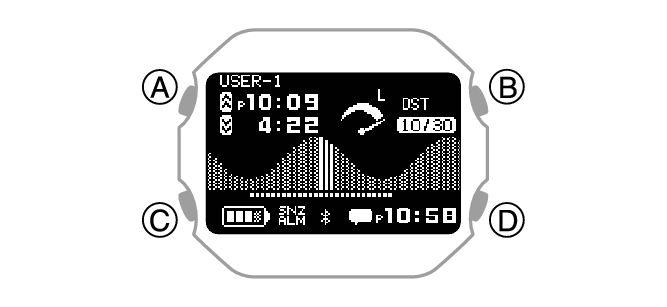
This displays a Tide Graph.
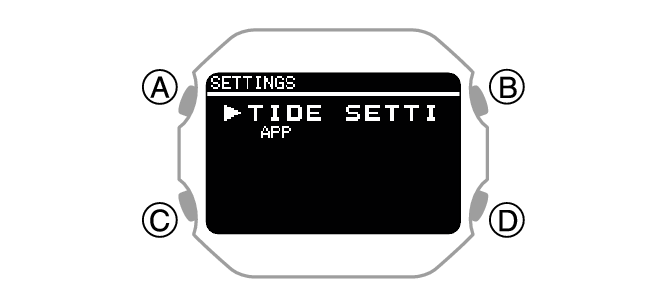
This displays the Tide Graph setting screen.
While the setting is being configured, the watch will exit the setting operation automatically after about two or three minutes of non-operation.
|
[APP] |
Port specification using CASIO WATCHES. |
|
[PRESET] |
Specification of a port from the list of presets in watch memory. |
|
[USER] |
Specification of a port defined by you. |
If you selected [APP] above, this will complete the port specification operation. A check mark will appear for a few seconds, and then the port specification method setting screen will re-appear.
If you selected [PRESET] above, continue with port selection.
If you selected [USER] above, specify the details of the custom point you want to use.
If you selected [PRESET]
50 ports selected from among the total of approximately 3,300 ports available using CASIO WATCHES are preset in watch memory.
Selecting [PRESET] and pressing (B) in the above procedure will display a list of watch preset ports.
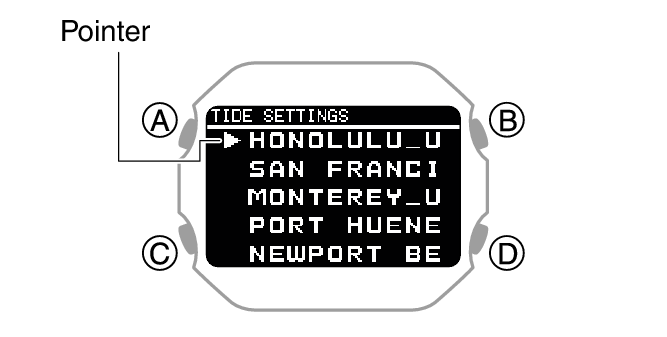
After the setting operation is complete, a check mark appears for a few seconds, and then the setting screen re-appears.
If you selected [USER]
You can configure settings for up to three custom points.
If you want to use a custom point you previously configured, move the pointer to [SELECT].
If you selected [SELECT] in step 1
After the setting operation is complete, a check mark appears for a few seconds, and then the [USER] setting screen re-appears. Go to step 8 under “Specifying a Port”.
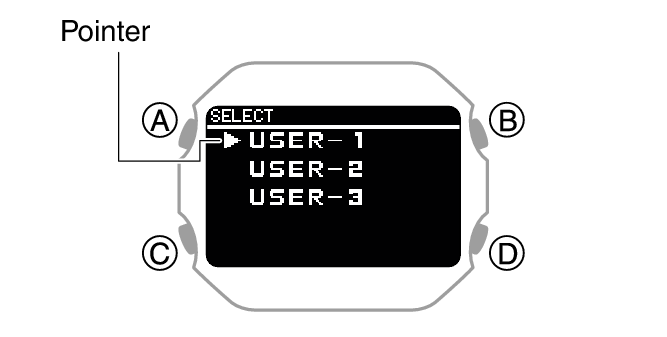
This displays the custom point item selection screen.
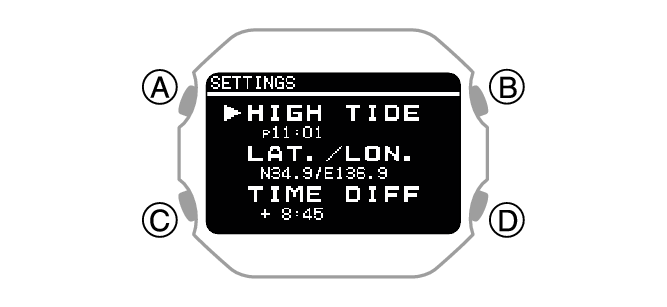
|
[HIGH TIDE] |
High tide time |
|
[LAT./LON.] |
Latitude and longitude |
|
[TIME DIFF] |
Time offset |
|
[DST] |
Summer time |
On the custom point item selection screen, select [HIGH TIDE].
After registration of the information is complete, a checkmark appears for a few seconds and then the custom point item selection screen re-appears.
Note
Pressing (D) during the above procedure will go back one screen.
On the custom point item selection screen, move the pointer to [LAT./LON.].
After registration of the information is complete, a checkmark appears for a few seconds and then the custom point item selection screen re-appears.
Note
Pressing (D) during the above procedure will go back one screen.
On the custom point item selection screen, move the pointer to [TIME DIFF].
After registration of the information is complete, a checkmark appears for a few seconds and then the custom point item selection screen re-appears.
Note
Pressing (D) during the above procedure will go back one screen.
On the custom point item selection screen, move the pointer to [DST].
After registration of the information is complete, a checkmark appears for a few seconds and then the custom point item selection screen re-appears.
Viewing the Tide Information for the Specified Port
-
Display the current time screen.
-
Use (C) to select [TIDE GRAPH].
-
Press (A).
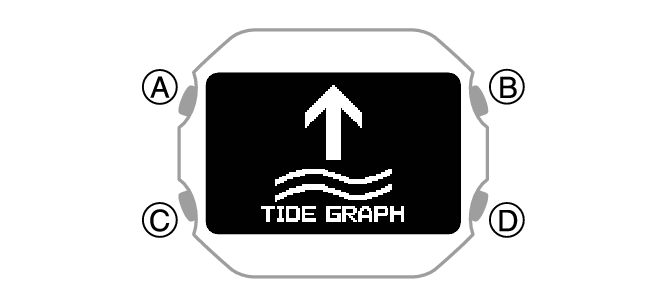
This displays a Tide Graph.
This causes the display to change in accordance with your settings.
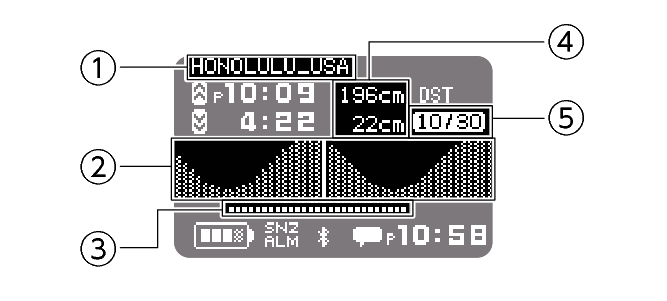
-
Port name
-
Tide Graph (24 hours)
-
Sunshine hours
-
Tide level/tide cycle
-
Day
Shows the name of the port specified with the CASIO WATCHES phone app.
The name of a port specified using watch operations is not displayed.
High tide and low tide levels are displayed while [APP] or [PRESET] is selected as the port specification method.
Tide cycles are displayed while [USER] is selected as the port specification method.
Tide cycle:
|
[L] (Large) |
Spring tide |
|
[M] (Medium) |
Half tide |
|
[S] (Small) |
Neap tide |
Date at the specified port
Interpreting Tide Graph Information
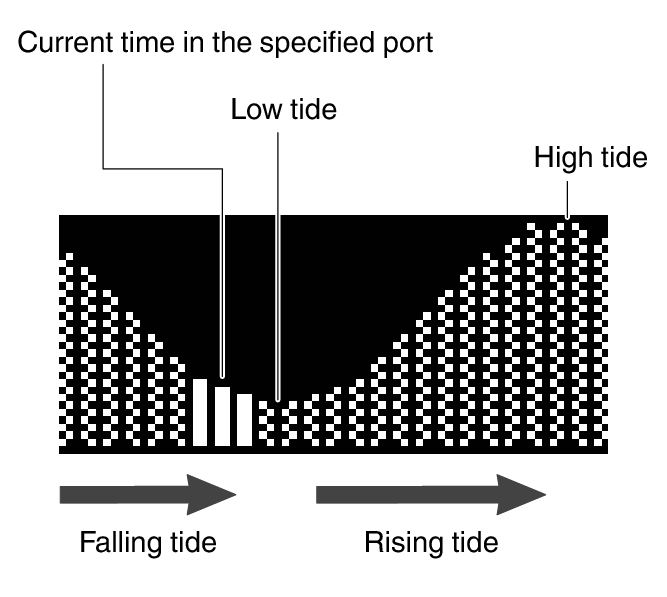
The graph shows tide information from 0:00 to 23:30 (24 hours).