Using the CATALOG Menu and CATALOG List
CATALOG Menu
Press  to display the CATALOG menu like the one shown below. This menu shows categories of the commands, functions, and symbols in accordance with the calculator app you are currently using and the current status (displayed screen or current settings) of the app.
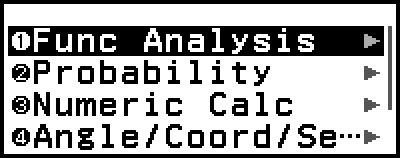 Example: CATALOG menu of the Calculate app
CATALOG List
Pressing  (
( ) displays the CATALOG list like the one shown below instead of the CATALOG menu. By pressing the key indicated in a black circle (
 ) on this list, you can input the command, function or symbol followed by the circle.
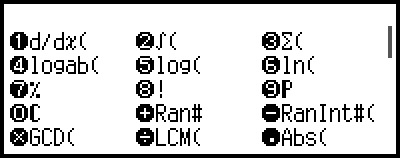 Example: CATALOG list of the Calculate app
Example Operations
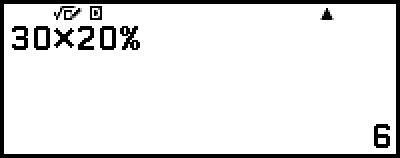
Example: To calculate 20% of 30 in the Calculate app
Using the CATALOG menu:
- 30
 20
20 
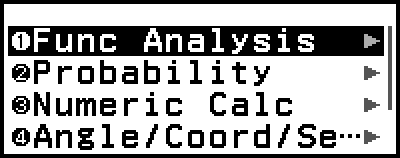
- [Probability] > [%]

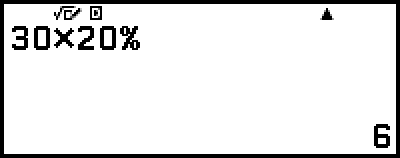
Using the CATALOG list:
- 3020

- ()
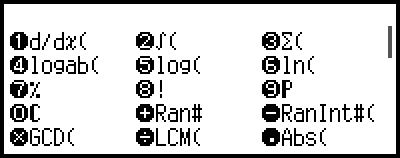
 *
*
* Items that appear on the CATALOG list vary depending on the current settings and the app you are using. Because of this, "%" may not always be input with the same key. Be sure to find the function, command or symbol you want to input on the CATALOG list and press the appropriate key.
Note
For information about all commands, functions, and symbols that can be input from the CATALOG menu, see "Advanced Calculations".
For information about the commands, functions, and symbols specific to each calculator app, refer to the calculator app descriptions in "Using Calculator Apps".
The commands, functions, and symbols contained in the "Scientific Constants" and "Unit Conversions" categories in the CATALOG menu are not displayed in the CATALOG list.