Powers, Power Roots, and Reciprocals
Use the keys below to input power functions, power root functions, and reciprocal function.
Power functions:  (square),
  (nth power)
Power root functions:  (square root),
  (
( ) (nth root)
Reciprocal function: ( )
)
Example 1: (52)3 = 15625
 5
5 3
3
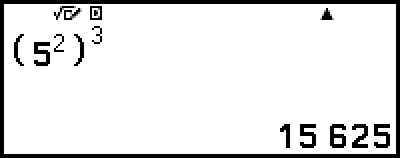
Example 2: (1 + 1)2+2 = 16
- 1
 122
122 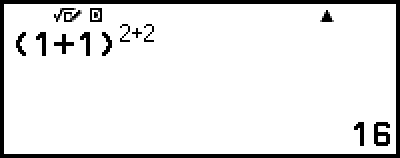
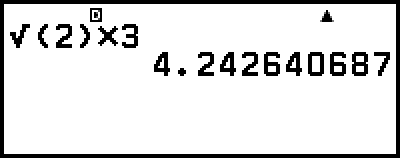
Example 3: √2 × 3 = 3√2 = 4.242640687...
(Input/Output: MathI/MathO)
- 2

 3
3 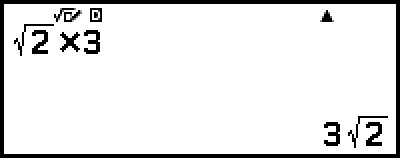
(Input/Output: LineI/LineO)
- 23
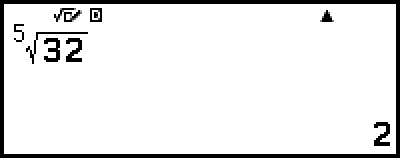
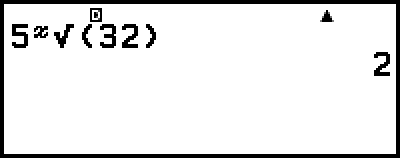
Example 4: 5√32 = 2
(Input/Output: MathI/MathO)
- () 532
(Input/Output: LineI/LineO)
- 5() 32
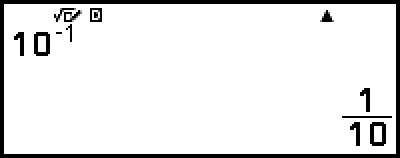
Example 5: 10-1 = 110
(Input/Output: MathI/MathO)
- 10()
 Key
Key
Pressing inputs " " or "
 " in accordance with the current
  – [Calc Settings] > [
 Key] setting.
When " (Sci Notat)" is selected for [ Key] (initial default): Pressing inputs the function . This function takes arguments before and after it with the form a n (n is an integer) and returns the result of 10n multiplied by a.
When " (Power)" is selected for [ Key]: Pressing produces the same input result as pressing
 , which inputs "".
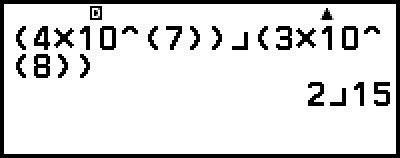
To calculate 4 × 1073 × 108
When " (Sci Notat)" is selected for [ Key] (initial default):
Example 1: (Input/Output: MathI/MathO)
- 47
 38
38 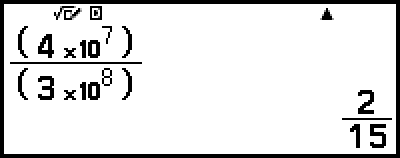
Example 2: (Input/Output: LineI/LineO)
- 4738
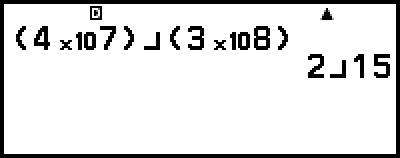
When " (Power)" is selected for [ Key]:
Example 3: (Input/Output: MathI/MathO)
- 47
 38*1
38*1 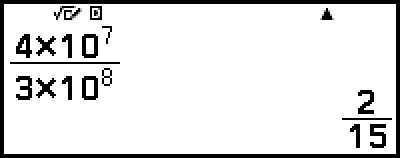
Example 4: (Input/Output: LineI/LineO)
- 4738*2
*1 With these settings ( Key: (Power), Input/Output: MathI/MathO), executing 4 × 10⁷ ÷ 3 × 10⁸ causes the calculation to be performed sequentially from left to right, which produces a different calculation result than the one in the above example (using fractions). To obtain the same calculation result, each term needs to be enclosed in parentheses: (4 × 10⁷) ÷ (3 × 10⁸).
*2 With these settings ( Key: (Power), Input/Output: LineI/LineO), executing 4×10^(7) 3×10^(8) (or 4×10^(7) ÷ 3×10^(8)) causes the calculation to be performed sequentially from left to right, which produces a different calculation result than the example 3. To obtain the same calculation result, each term needs to be enclosed in parentheses as the example 4.
Note
When " (Sci Notat)" is selected for [ Key], parentheses will be inserted automatically as shown in the example below (The same applies to Example 1 and Example 2 above).
- 112

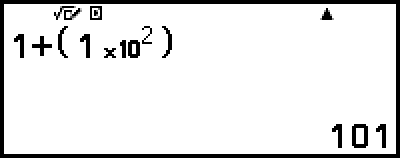
Note, however, that parentheses will not be inserted automatically if you input the sexagesimal symbol ( ) immediately after .
- 12(
 )22()
)22()
32() 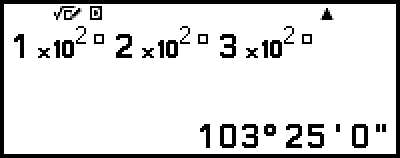
√ Form Calculation Range
The allowable display ranges of the √ form calculation result are shown below.
± a√b, ± d ± a√b, ± a√bc ± d√ef
1 ≤ a < 100, 1 < b < 1000, 1 ≤ c < 100
0 ≤ d < 100, 0 ≤ e < 1000, 1 ≤ f < 100
Example:
10√2 + 15 × 3√3 = 45√3 + 10√2 ... Displayed in √ form
99√999 (= 297√111) = 3129.089165 ... Displayed as a decimal value