Using Memory Functions
Answer Memory (Ans)
The last calculation result obtained is stored in Ans (answer) memory.
Using Ans Memory to Perform a Series of Calculations
Example: To divide the result of 3 × 4 by 30
- 3
 4
4

- (Continuing)
 30
30 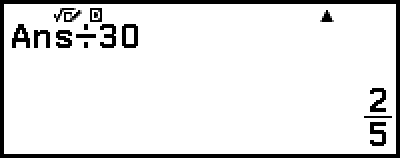
Inputting Ans Memory Contents into an Expression
Example: To perform the calculations shown below:

- 123
 456
456 
- (Continuing) 789


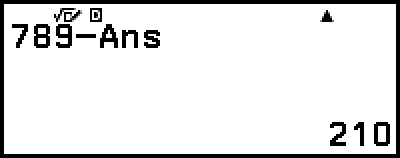
Variables (A, B, C, D, E, F, x, y, z)
You can store values to variables and use the variables in calculations.
Variable List Screen
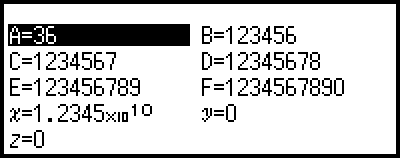
Pressing  displays a screen that shows the values currently stored to variables A, B, C, D, E, F, x, y, and z. On this screen, values are always displayed using the "Norm 1" Number Format. To close the screen, press
  or
or  .
.
Example 1: To store the result of 3 + 5 to variable A
1. Execute the calculation.
- 35
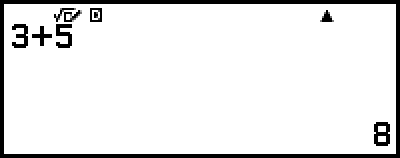
2. Press , and then select [A=] > [Store].
This stores the result of 3 + 5 (which is 8) to variable A.
3. Press .

Example 2: To change the contents of variable A to 1
1. Press , and then highlight [A=].

2. Press  .
.
This displays the editing screen with 1 entered.

3. Press .

Note
In place of the operation in step 2 above, you can press  and then select [Edit]. This displays the editing screen with nothing input. Input the value you want and then press .
Depending on the operation you were performing immediately before pressing to display the variable list screen, you cannot change the contents of a variable from the variable list screen. In this case, a lock ( ) icon appears when you highlight a variable on the variable list screen, indicating that the highlighted variable cannot be edited.
For example, if you press while inputting data in the Statistics Editor of the Statistics app, the icon appears on the right of the highlighted variable, which means the variable cannot be edited.

On the Statistics Editor, press to stop inputting data and then press . The icon disappears, and you will be able to edit the variable.

Example 3: To recall the contents of variable A
(Continuing from step 2 of Example 1)
1. Press , and then select [A=] > [Recall].
This inputs "A".

2. Press .
This recalls the value of variable A.
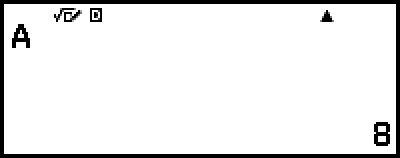
Example 4: To multiply the contents of variable A by 10
(Continuing from step 2 of Example 1)

 (A)*10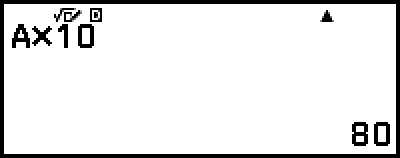
* Input a variable as shown here: press and then press the key that corresponds to the desired variable name. To input x as the variable name, you can press  (x) or
  .
.
Clearing the Contents of All Memories
Ans memory and variable contents are retained even if you press , change the calculator app, or turn off the calculator.
Perform the procedure below when you want to clear the contents of all memories.
1. Press  , select a calculator app icon, and then press .
2. Press  , and then select [Reset] > [Variable Memory] > [Yes].