
LABEL DESIGN MAKER (for Windows)
- Q40
- Sometimes when I select a label element, it unexpectedly moves out of position.
- A40
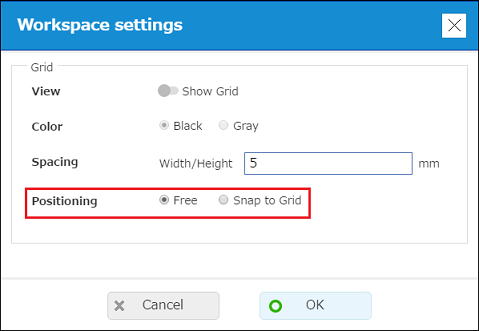
[When "Free" is selected for the "Workspace settings" "Positioning" setting] When there is another element near the element you are selecting, re-positioning the selected element will cause a dotted orange line to appear along the edge of the nearby element to make it easier to align with it. At this time, the element you are moving will snap to the edge alignment of the nearby element. If there are multiple adjacent elements within the workspace, elements may move unexpectedly.Use "Align" and "Justify" as required to align elements. [When "Snap to Grid" is selected for the "Workspace Settings" "Positioning" setting] Elements snap to the grid when they are inserted into the label or repositioned.Selecting an element that is currently not positioned on a gridline will causes that element to snap to the grid. Use "Align" and "Justify"" as required to align elements.Or you can select "Free" for the "Workspace Settings" "Positioning" setting. Also, you can select a particular element and enable "Align" to center the element's text in the print area or to align it with the edge of the print area.
• On the menu bar, click "Settings" and then select "Workspace settings".