

LABEL DESIGN MAKER (for Windows)
- Q4
- How do I connect using WPS in the Client Mode?
- A4
[Connect using the WPS button of the wireless LAN router/access point.] (1) On the printer, hold down the Wireless LAN key for at least three seconds. This puts the printer into simple connection standby, which is indicated by the wireless LAN lamp flashing green, in two quick flash bursts. (2) Within about the next two minutes, press the WPS (Wi-Fi Protected Setup) button of the wireless LAN router/access point you are using. Wireless LAN will turn off if connection cannot be established within two minutes. (3) When a connection is established, the printer’s wireless LAN lamp lights green. [Connect using a PIN code.] (1) Connect the printer to your computer using a USB cable. (2) On the menu bar, click "Settings" and then select "Wireless LAN settings". (3) Select the printer you want to connect. (4) Select the wireless LAN router/access point connection method. Click "Connect by WPS button". 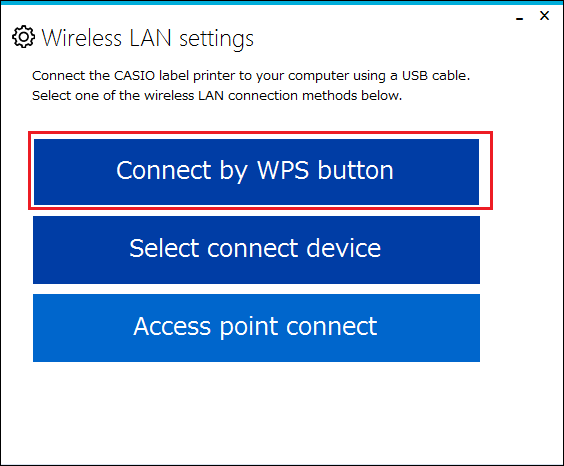
(5) Click "WPS PIN code here". 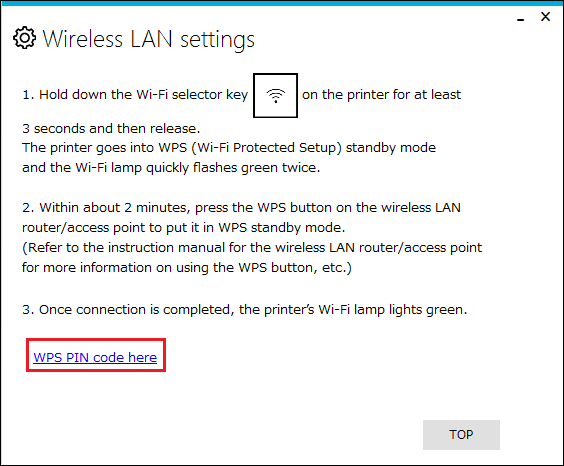
(6) Open the settings window for the wireless LAN router/access point and enter and set the PIN code below. (7) Within about the next two minutes, press the WPS (Wi-Fi Protected Setup) button of the wireless LAN router/access point you are using. Wireless LAN will turn off if connection cannot be established within two minutes. (8) When a connection is established, the printer’s wireless LAN lamp lights green.